

What is Softr?
Softr lets you build powerful applications that connect to databases like Airtable, but sometimes you could use the help of more powerful form applications that allow things like:- Filtering linked record pickers to only show relevant results
- Creating multiple pages on the forms
- Referencing previous answers
- Hiding elements conditionally based on previous answers or the user data
Custom code block
You’ll need a paid Softr account to use this method.
1
Choose an embed style
Start by clicking 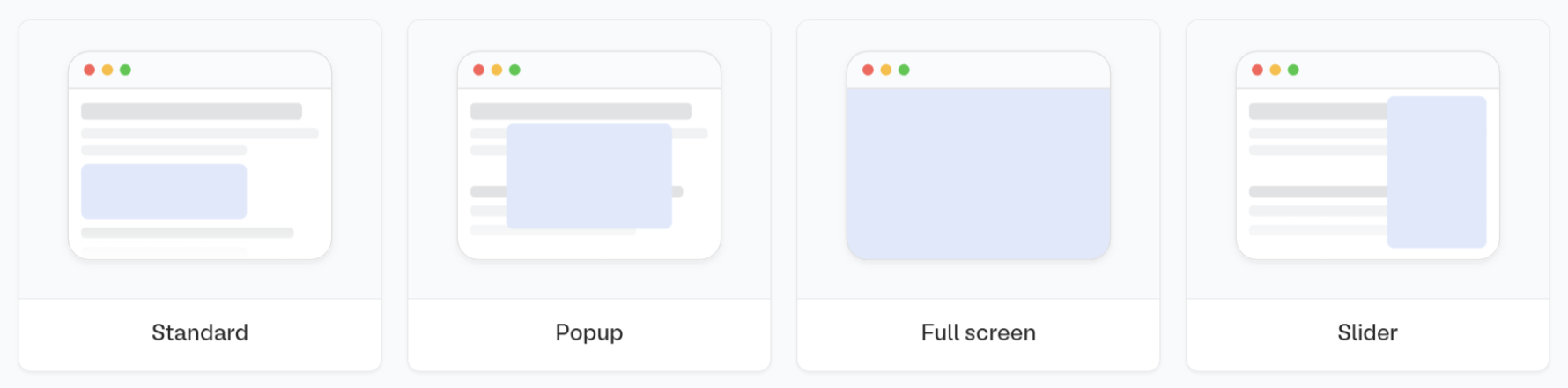
Publish in the upper right corner of the Fillout form editor. A popup will show up where you can pick an embed style.Share in the top middle or top right. Adjust your embed style settings to fit your use case. Then, Get the code.2
Create a custom code block
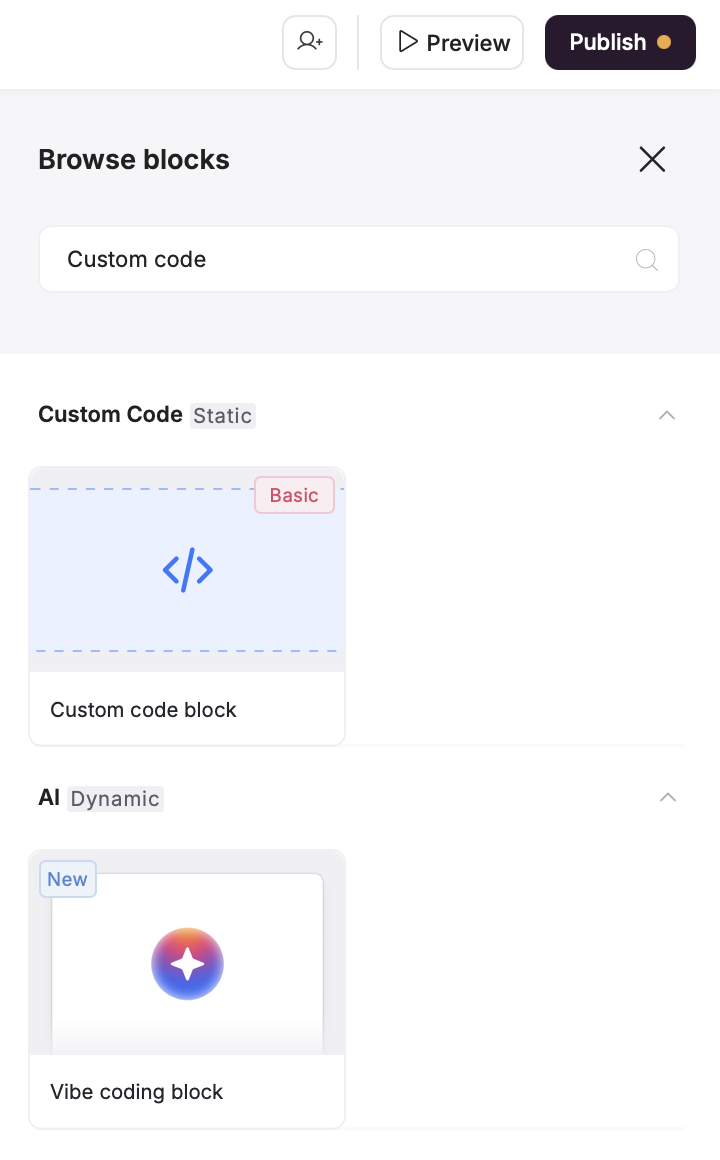
3
Paste Fillout embed code
You’ll see an 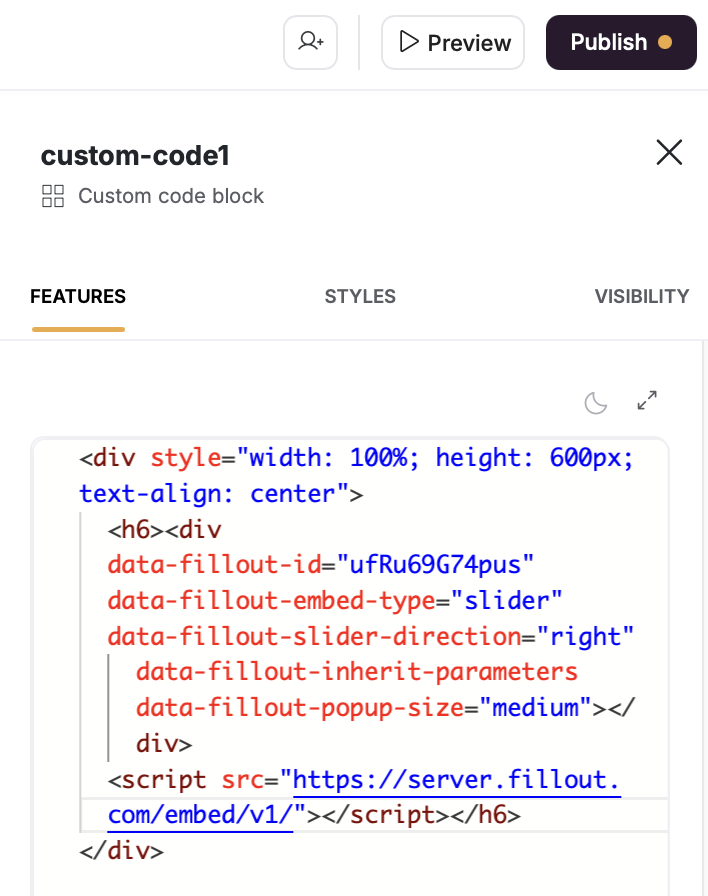
Embed your custom code here text. Paste the code there.4
Publish your Softr app
That’s it! Publish your Softr application and try your Fillout form! At this point, you should be ready to try your embed! See below for more advanced instructions.
Resizing your embed
Certain fields require a 600px minimum height to display properly. If your form includes any of the fields below, the embed cannot be resized below 600px.- Date, Date-Time, or Date Range Picker
- Color Picker
- Visible Captcha (V2)
- Submission Picker
- Record Picker
- Address
- Signature
- Subform
Advanced: Filter records
Watch Dan Leeman from Automation Helpers build a filtered Fillout form, embedded in Softr.Update forms
You can embed complex forms that allow logged in users to update their profile. For example, a form that opens in a pop-up, to allow a logged in student to update their courses.
Access logged-in Softr users in Fillout
For custom code blocks, use the following code snippet:Paste your embed code here, you can paste in the embed code you copied from Fillout’s Share page for your form. That’s it!
You may also prefer using a simple custom embedding method as opposed to our built-in embedding snippets. Here’s an example snippet for passing in the email, full name, and record ID of the user that is logged in, using a custom iframe embedding method (if you need more customization):
Access the URL parameters/hidden fields in Fillout
You can access the email, name, and ID URL parameters much like any other URL parameters in Fillout if using the above methods to pass those in from Softr. Click here for more information.Your URL parameters aren’t required to be called email, name, nor ID. You can rename these in Fillout when registered, but the snippets above will need to be adjusted to replace the names with your desired names.
Related articles
Pick from linked records
Let respondents select linked records.
Embed parameters
Pass URL parameters to your embeds to track data.
Answer piping
Insert previous answers into upcoming questions or fields.