

Overview
When a respondent closes or exits a form, Fillout saves their progress so they can return later. When they reopen it, a popup asks whether they want to Continue or Start again.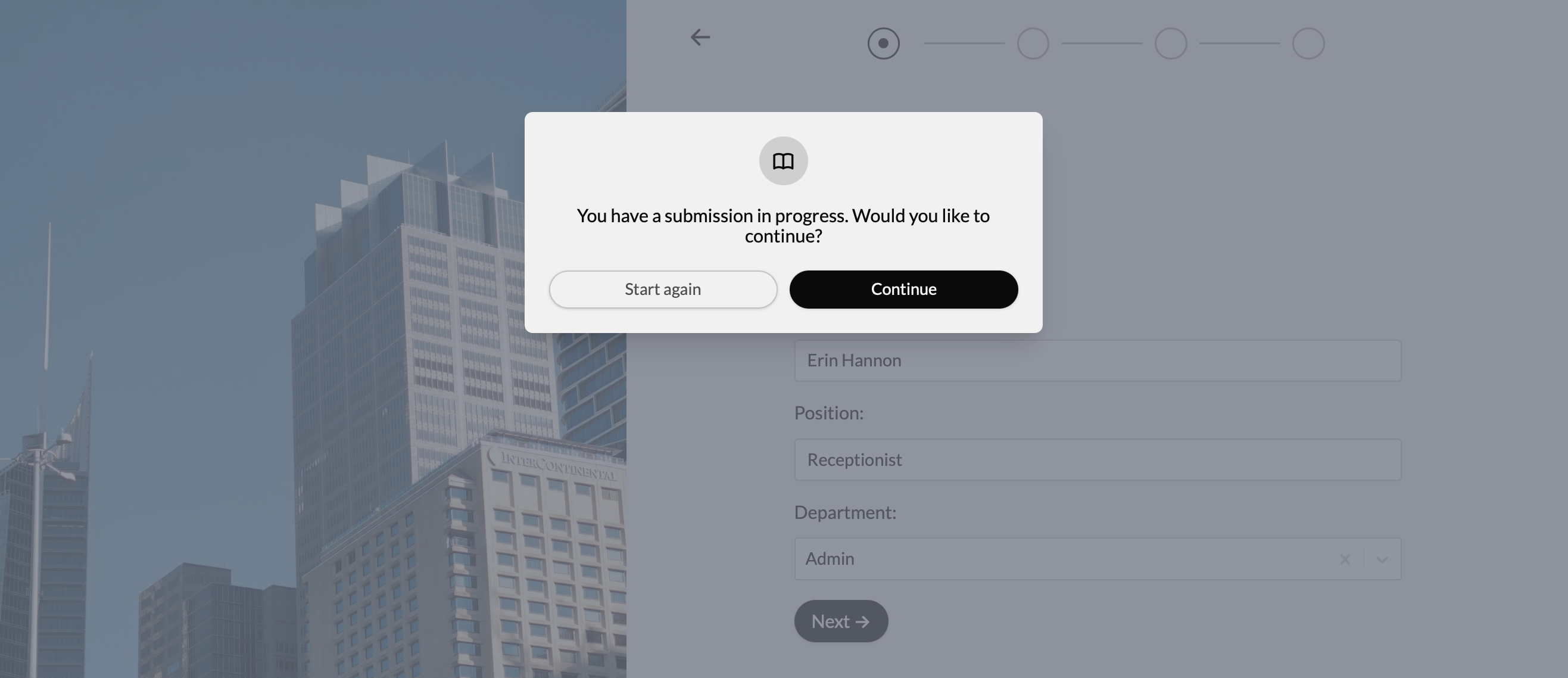
Turn off resuming partial submissions
Resuming is on for every form by default. To turn it off, open your form settings with the settings icon in the upper right of the editor. Choose Form behavior, then turn off Allow resuming partial submissions. When it’s off, respondents who come back to the form start again from the first page. Their earlier unfinished visit is removed from In progress on the Results page, unless it already took a payment. Visits that respondents don’t come back to stay under In progress. The change applies right away. You don’t need to publish your form.How to view partial submissions
Click Results at the top of your form, then In progress to see submissions from those who abandoned or haven’t finished the form yet. This helps you retain valuable data and re-engage prospects who dropped off.
Viewing partial responses is available on the Fillout Business plan, and on Team and Enterprise. Zite Free, Pro and Business plans don’t include it for forms. See Fillout pricing. However, respondents who answer Fillout forms can continue submissions where they left off on any pricing plan.
Delete partial submissions
You delete partial submissions the same way as finished ones:- Several at once - in In progress, select the rows and click the red Delete button that appears, like Delete 2 rows. Then confirm with Delete.
- One at a time - right-click the row, click Delete row, then Yes, delete.
Why a partial submission doesn’t show
- Date filter - In progress has its own date filter at the top right. It goes by the last time the respondent moved to a new page, not when they started. Set it to All time to see everything.
- The respondent never left the first page - progress is saved when the respondent clicks Next, so nothing is saved for someone who left on the first page.
- The submission was finished - once submitted, it moves to Submissions.
Related articles
Responses
View all submissions to your form. Filter, sort, or export to CSV.
Reduce abandonment
Remind respondents who exit early to finish the form.