

How to validate business emails
First, add anEmail field to your form and click its settings icon to open the right-hand panel settings.
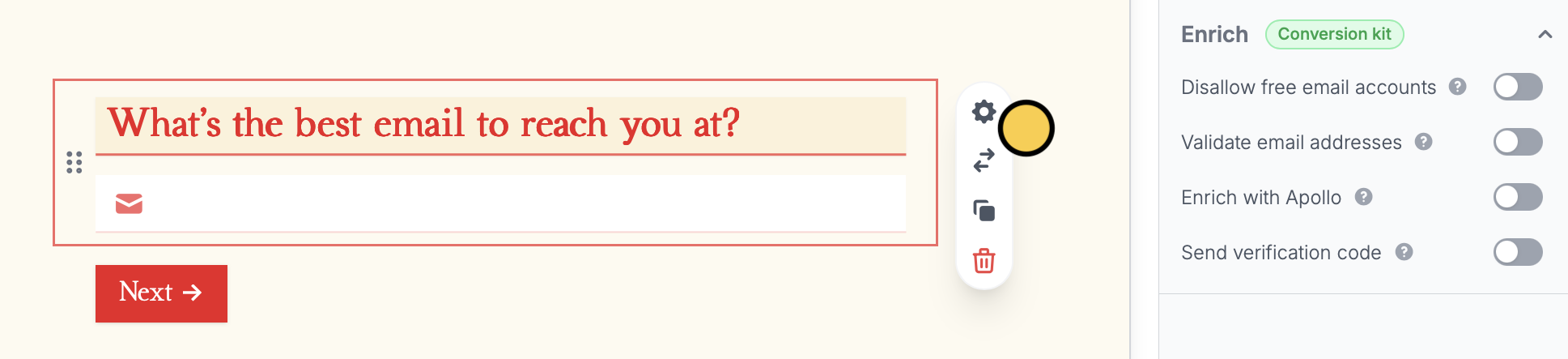
- Disallow free email accounts - to block free email accounts (e.g., @yahoo.com, @gmail.com, and @hotmail.com) and require business or org emails only
- Validate email addresses - to only allow valid emails to be submitted. Fillout calls a third-party service to check if the email is valid. This helps prevent typos, like if someone types jeff@amazon.co instead of jeff@amazon.com
- Enrich with Apollo - route leads to different pages based on company details. More info here.
- Send verification code - to send OTPs to emails or phone numbers. Check out the guide here.

Email validation is part of the Conversion Kit, a paid add-on that an admin can add on any Fillout plan, including Free. The Team plan doesn’t include it.
How email validation checks addresses
An email passes when it’s deliverable or has a high quality score, its domain can receive mail, it isn’t from a disposable email provider, and its format is valid. If the validation service can’t be reached, the email is treated as invalid, and respondents see Please enter a real email address or your own invalid email message.Monthly limit
Each organization can run up to 5,000 email validations a month. Every check counts, not every submission: the form checks again when a respondent stops typing, so editing an email can use more than one check. When you reach the limit, every email is accepted for the rest of the month and respondents don’t see a message. The format is still checked. The count starts again on the 1st of each month (UTC).Related article
OTP verification
Ensure valid responses with email or SMS verification.