
How it works

A QR code lets respondents open your form, survey, or other response materials on their phone by scanning it.

How to share a form QR

After publishing your form, click Share in the top right. In the share panel, click the QR code icon .
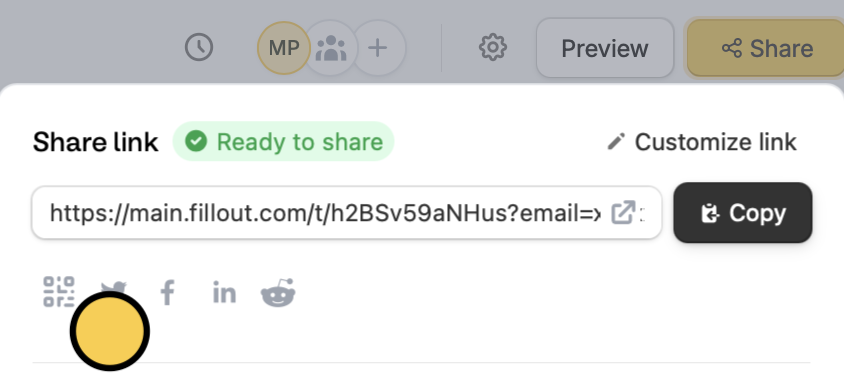
Share panel with the share link, the Copy button, and the QR code icon highlighted below the link
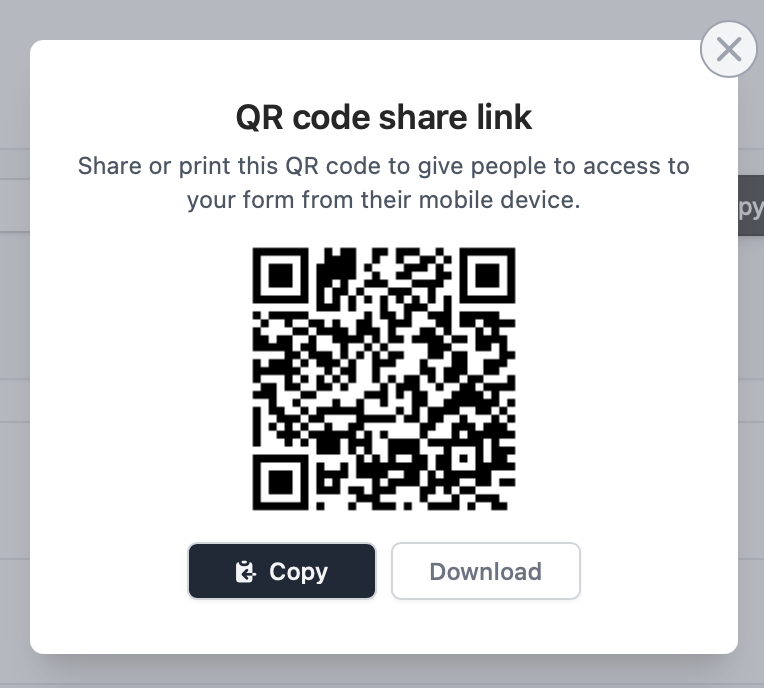
Click Copy or Download to save the QR code to your device.
QR code share link window with the QR code and the Copy and Download buttons
The QR code uses the same link as Copy on the Share page: your custom domain or subdomain and link ending if you set them, otherwise the default Fillout link. If you change the link later, QR codes you already shared won’t follow the new link.

Custom form links

Customize your form’s share link, subdomain and URL ending.

Custom favicon

Add your logo or icon to a browser tab and in link previews.