

Show based on a condition group
Click the question or field’s to open the right-hand panel. Under Logic,Set conditional logic to + Add condition group.
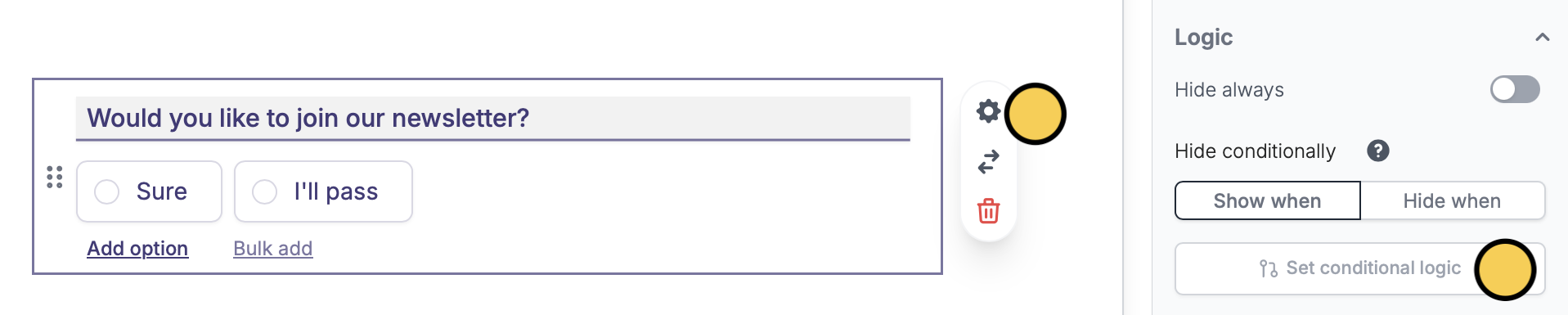
Hide when.
And function
If you chooseand, all conditions set must be true to show (default) or hide a field.
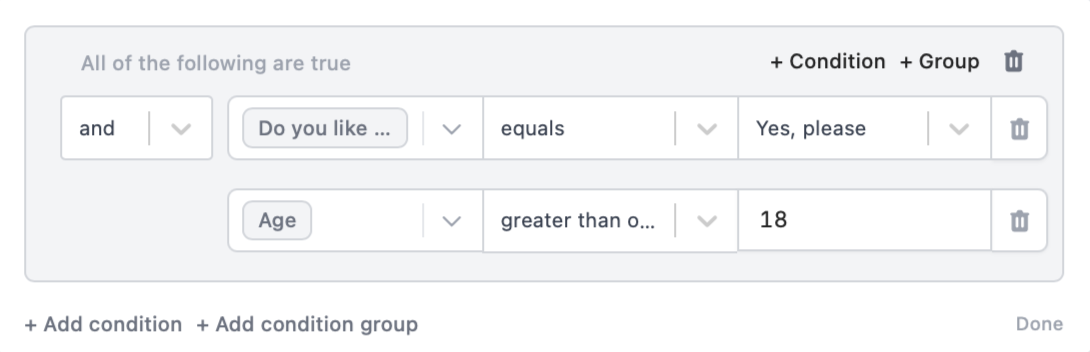
Show when the respondent:
- Answers “Yes, please” to “Do you like to get updates on our discounts and promotions?” AND
- Is “18 years old and above”
Or function
Now, let’s useor. With this, as long as one condition is true, a question or field can be shown or hidden.
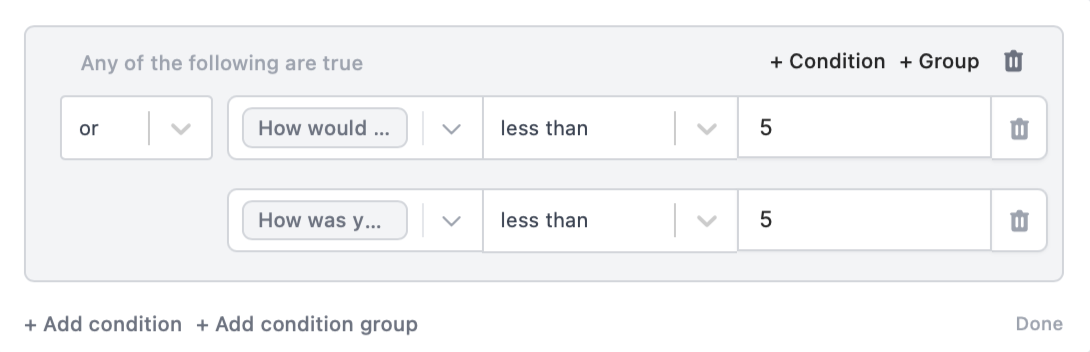
Show when a customer:
- Rates “less than 5 stars” on “How would you rate our service?” OR
- Rates “less than 5 stars” on “How was your shopping experience?”
Nested conditions
You can also create a condition group using bothand and or functions.
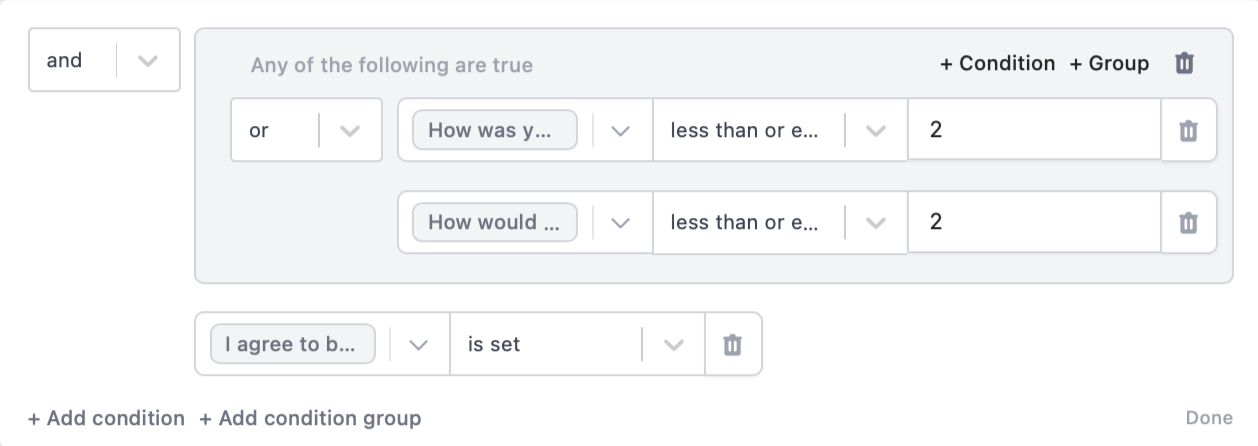
Show when a customer:
- Rates “less than 2 stars” on “How would you rate our service?” OR Rates “less than 2 stars” on “How was your shopping experience?” AND
- Opted to “be contacted”
You can copy and paste conditional logic across pages. If you copy a field with conditions set or duplicate it, its existing conditions get carried over.
Related articles
Hide fields
Hide or show fields based on answers, URL parameters or data.
Calculations
Calculate prices for order forms, compute quiz scores, and more.
Integration logic
Perform an integration only when a certain condition is met.