

Video tutorial
Below is a tutorial video on how to create new Airtable records from a linked record picker in Fillout.Create new linked records
1
Add a record picker
Add a 
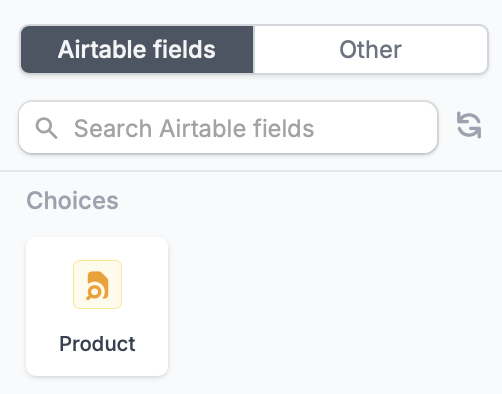
Record picker field directly from Fillout and map it to the corresponding Airtable field.Link to another record field there automatically appears in Fillout. No manual mapping needed.2
Enable record creation
Click the field’s 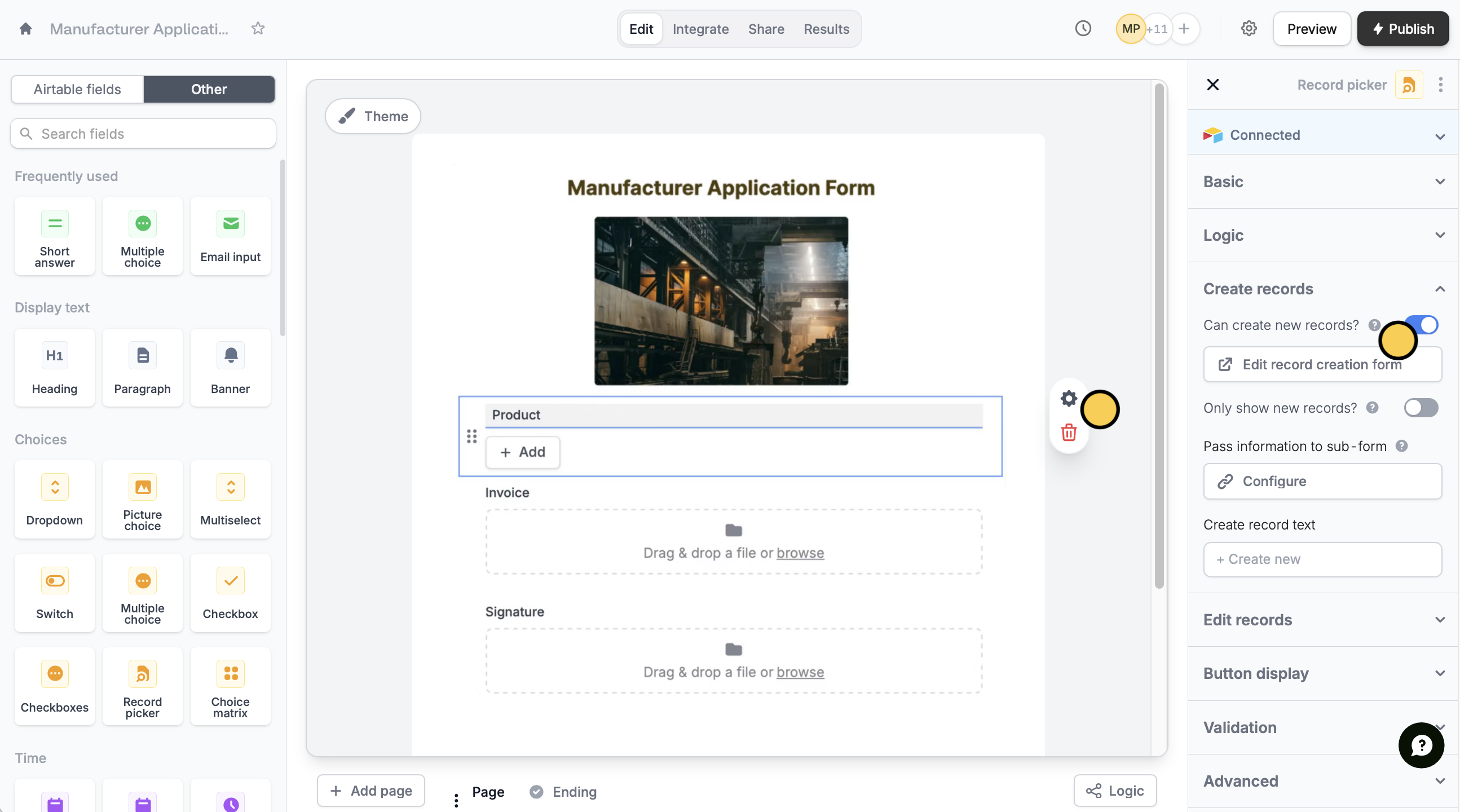
settings icon to enable Can create new records?.- Edit record creation form - modify the subform used for creating new records
- Only show new records - let respondents create new records, but not select existing records
- Pass information to subform - specify fields or info from your main form to the subform
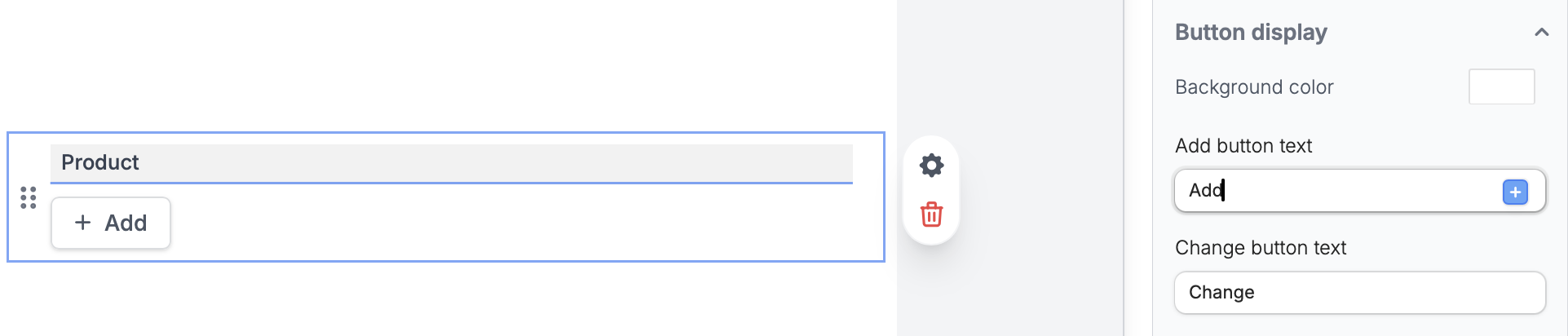
- Change button labels - edit the default label for the Add and Change buttons
3
Publish and share
When everything’s set, click
Publish to make the changes reflect.When records are created and linked
- The record is created in your database as soon as the respondent submits the record creation form.
- It’s linked to the main record only when the respondent submits the main form. If they never submit it, the new record stays in your database without the link.
- Removing a chosen record with the X doesn’t delete it from your database.
Who can open the record creation form
The record creation form is a form of its own, but it doesn’t show next to the main form in My forms or your Fillout workspaces. When it’s created, it gets the same sharing as the main form: the main form’s owner and the people and groups it’s shared with get the same access. If the main form is in a Fillout workspace, the workspace’s access applies to both. Sharing the main form later doesn’t change who can open the record creation form.Airtable specific guides
Update Airtable records
Edit existing records and pre-fill fields.
Update linked records
Let respondents update linked records.
Working with linked record pickers
Set pre-fills, reference fields, and more.