

Inviting more team members to your account is free of charge on all plans.
How to send an organization invite
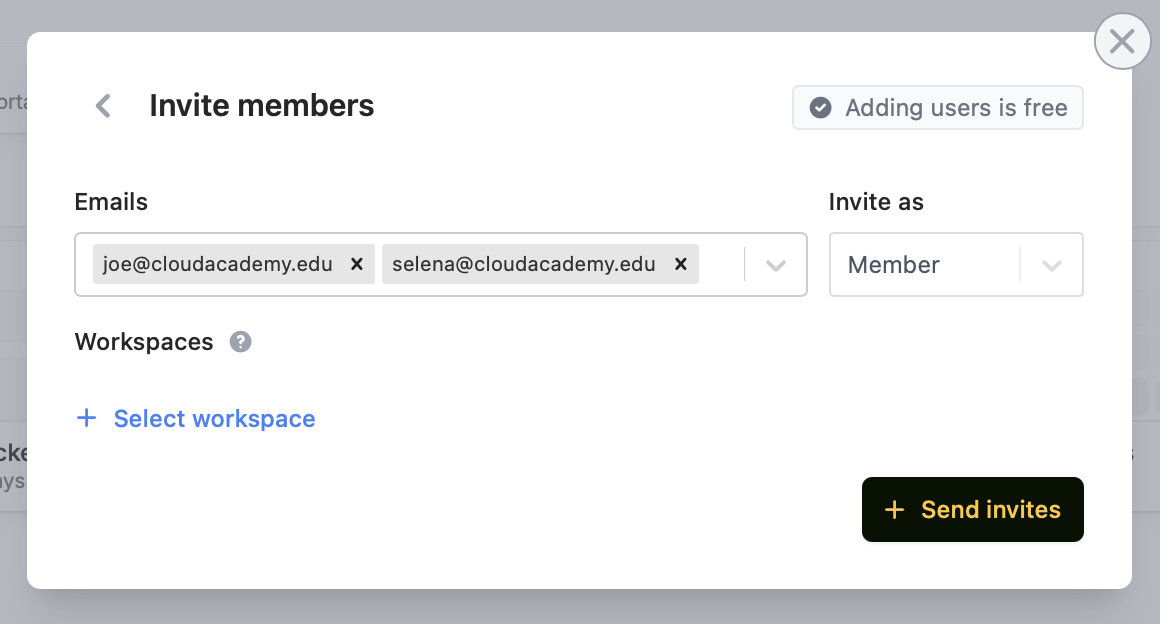
On your dashboard, clickInvite members in the upper right area.

- Admin - have full access to the workspace enabling them to view and edit settings
- Member - can create their own forms and scheduling links, but cannot edit anyone else’s
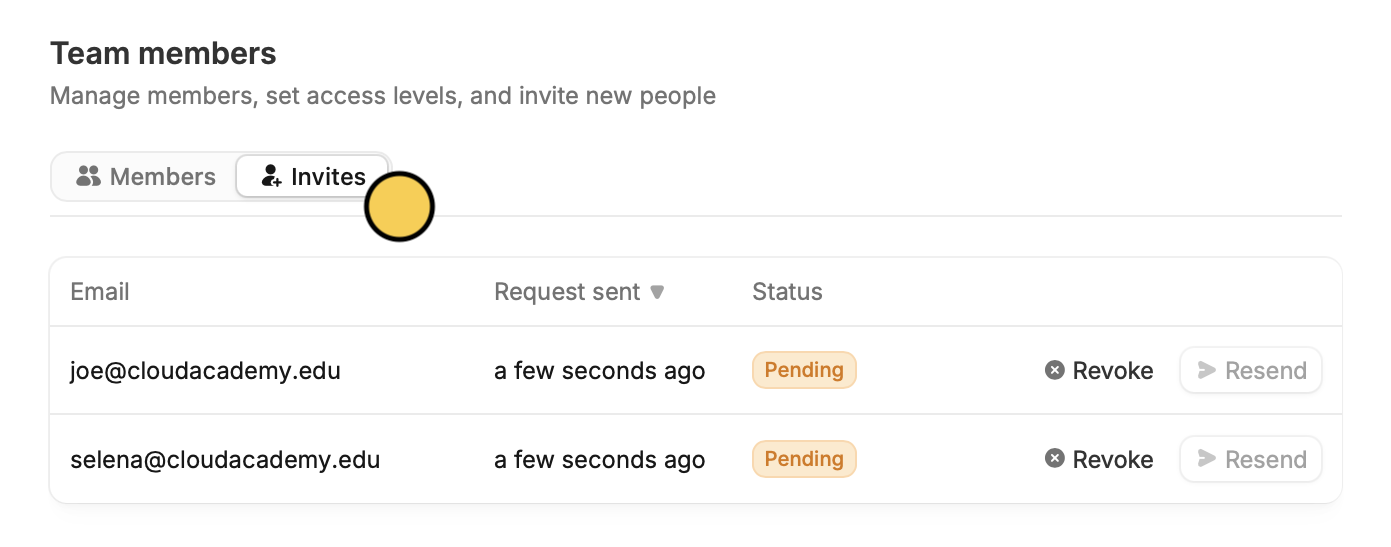
View pending invites
Click yourAccount name on the upper left corner followed by Manage members.
Then, navigate to Invites from the top menu. You can also Resend or Delete an invite from here.
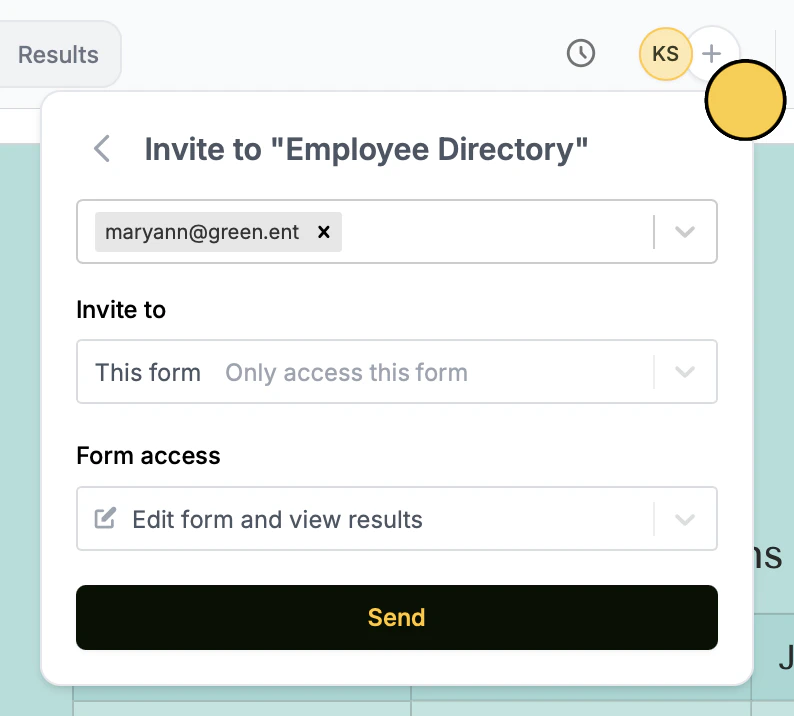
Share a specific form
Quickly share a single form by clicking thecircle plus icon on the top right. Add specific people to share with or generate a link for anyone. Adjust read and write permissions as needed.
How to effectively work with collaborators
View and discuss form submissions together Gain insights by analyzing data together as a team. Individual members can apply personalized filters to focus on desired analytics for tailored analyses. Additionally, they can leave comments and tag other users. Work on separate forms at the same time With multiple collaborators working in tandem, tasks can be divided and accomplished more quickly, reducing the time required for form creation and data collection. Collaborators cannot edit the same form at the same time, but can edit different forms simultaneously. Invite an expert to help build a form or consult on it You can invite consultants or anyone involved in your workflow to help build your forms. Note that consultants may also want to import/export forms from their accounts instead.Related articles
Manage team
Configure member settings including their email and access.
Granular permissions
Set member access to view only, and restrict integration accounts.
Import and export forms
Transfer between different accounts.