

How to filter an action
1
Create a workflow
Click 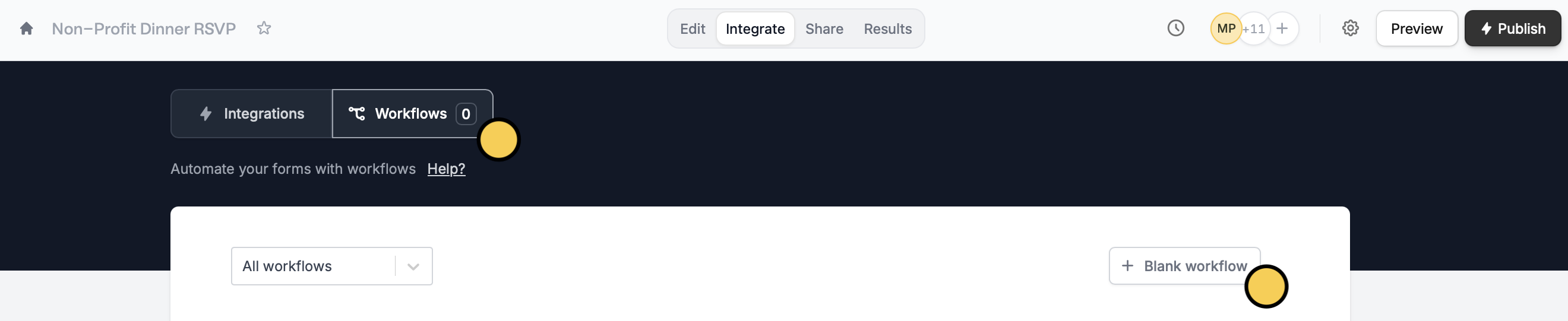
Integrate on the top menu of your form, followed by Workflows. Then, start with a + Blank workflow.2
Choose filter as your action
First, choose a trigger. Then, select 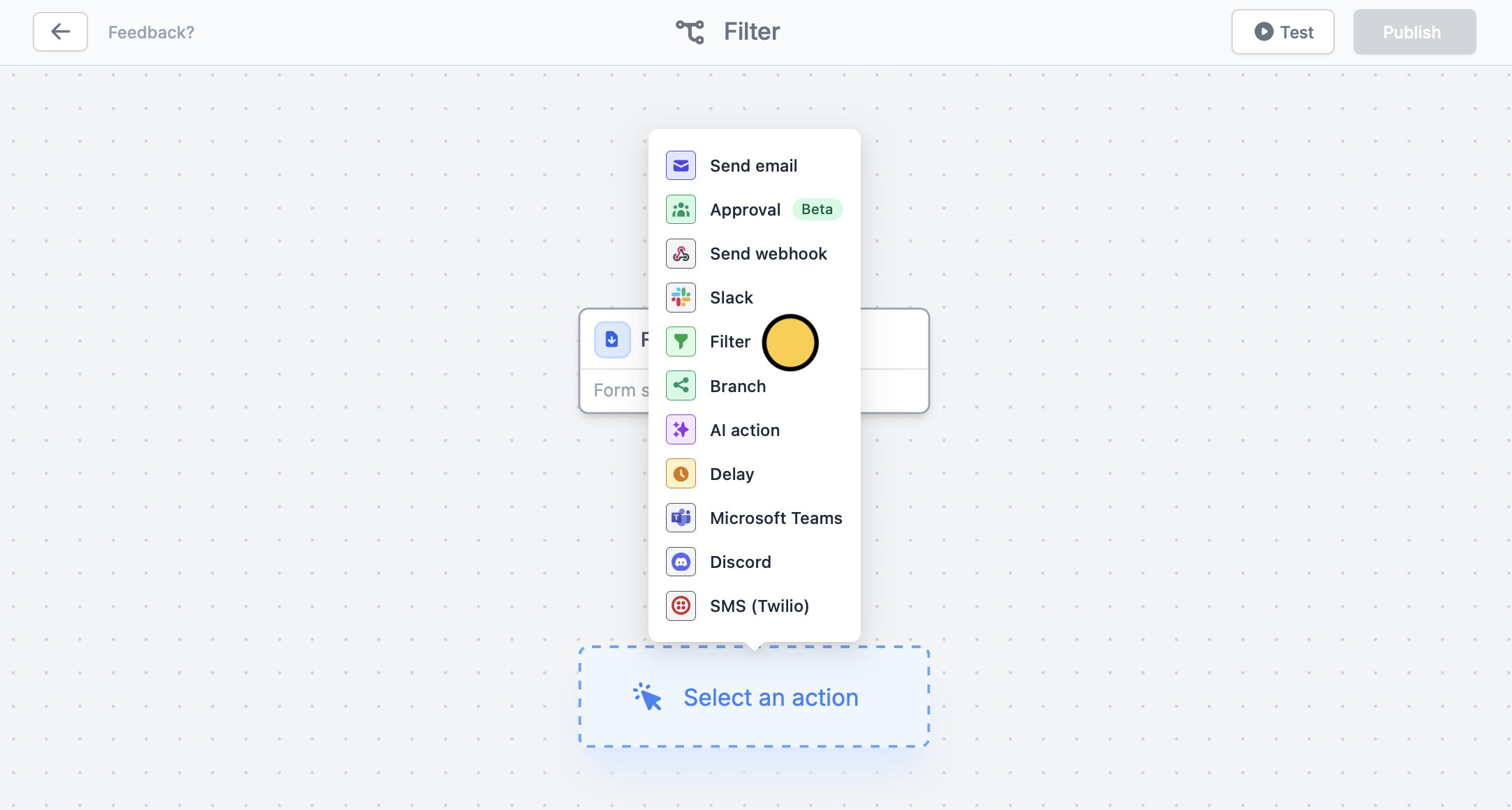
Filter as the first action.3
Set your condition
Set conditional logic to + Add condition. Choose a question or field from the left dropdown, an operator from the middle (e.g., equals), and an answer from the right dropdown to trigger the next action.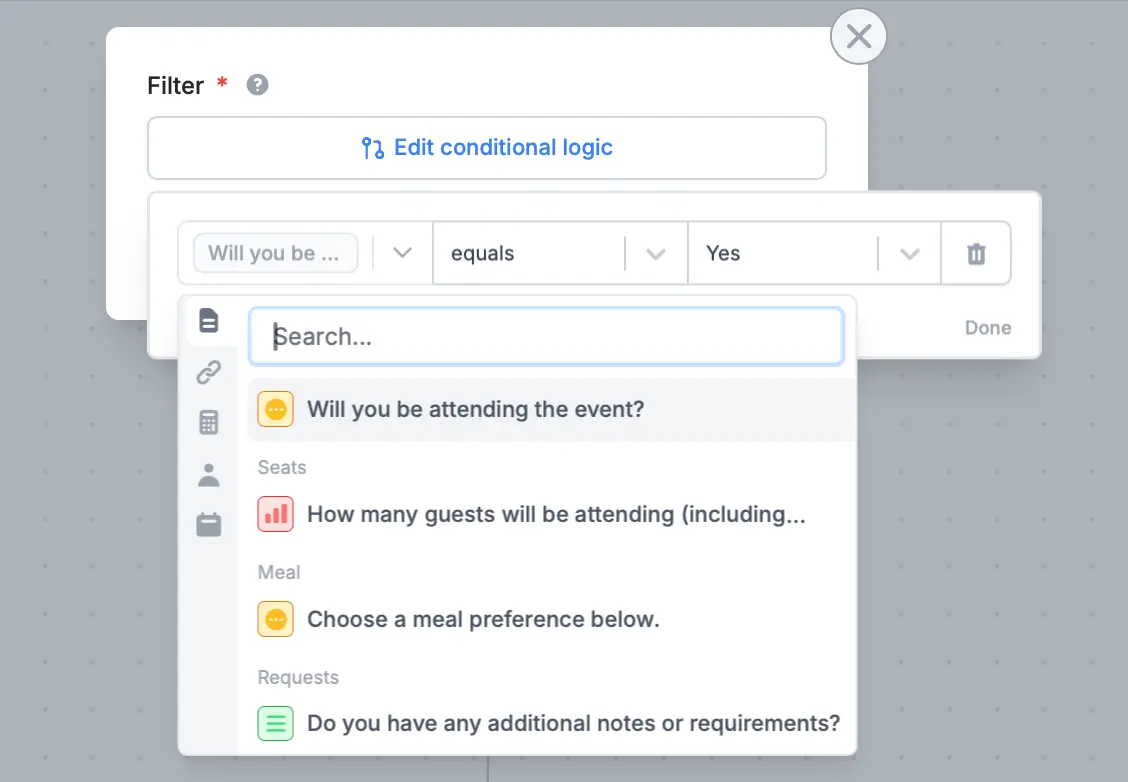
4
Choose your next action
Choose the next action by clicking under Filter. We’ll send a message in 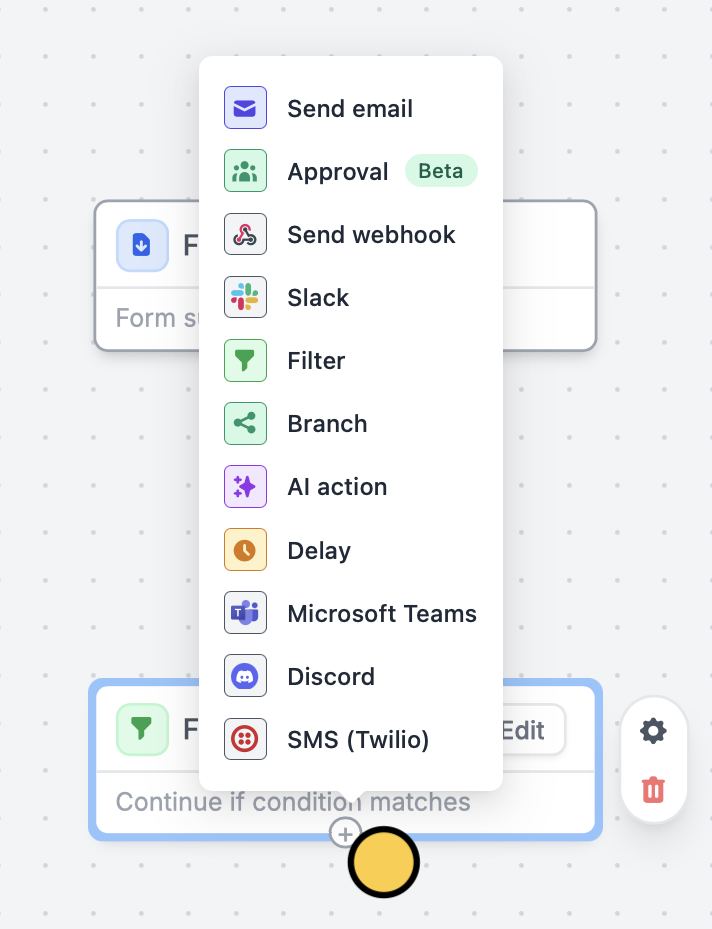
Slack when a respondent RSVPs “Yes”. Remember to Test your workflow first.5
Publish and share
That’s it! 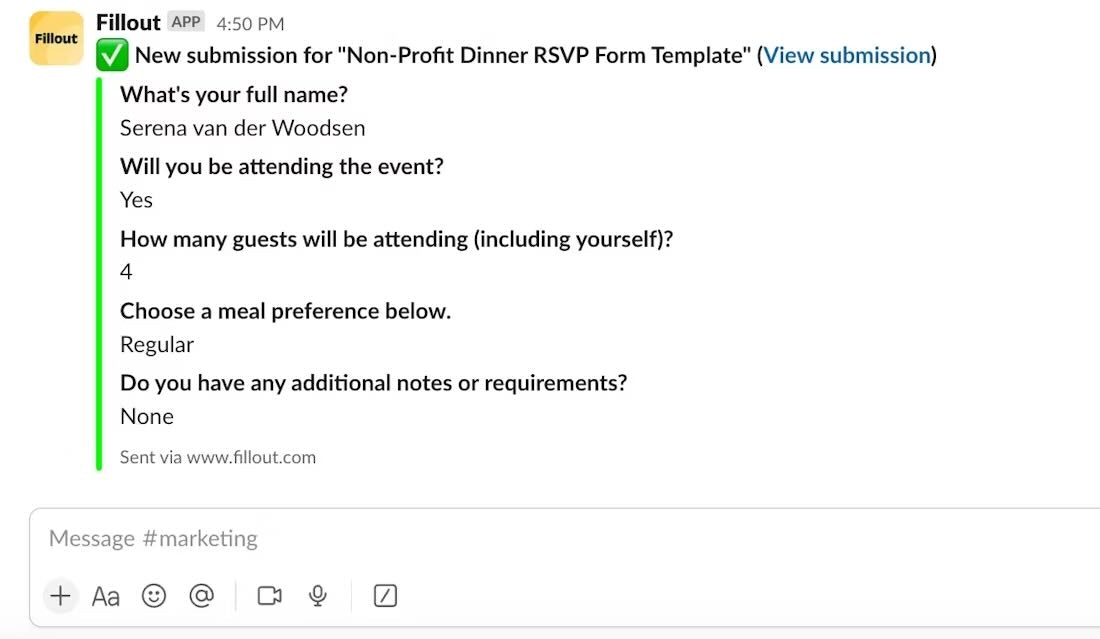
Publish and share your form. Now you’ll receive summaries of those who answered “Yes” to your form in your chosen Slack channel.Add a branch to your workflow
1
Choose branch as your action
You can also create different branches based on specific conditions. By adding a branch, you can ensure that the right action happens for each situation.After selecting your form trigger, add a 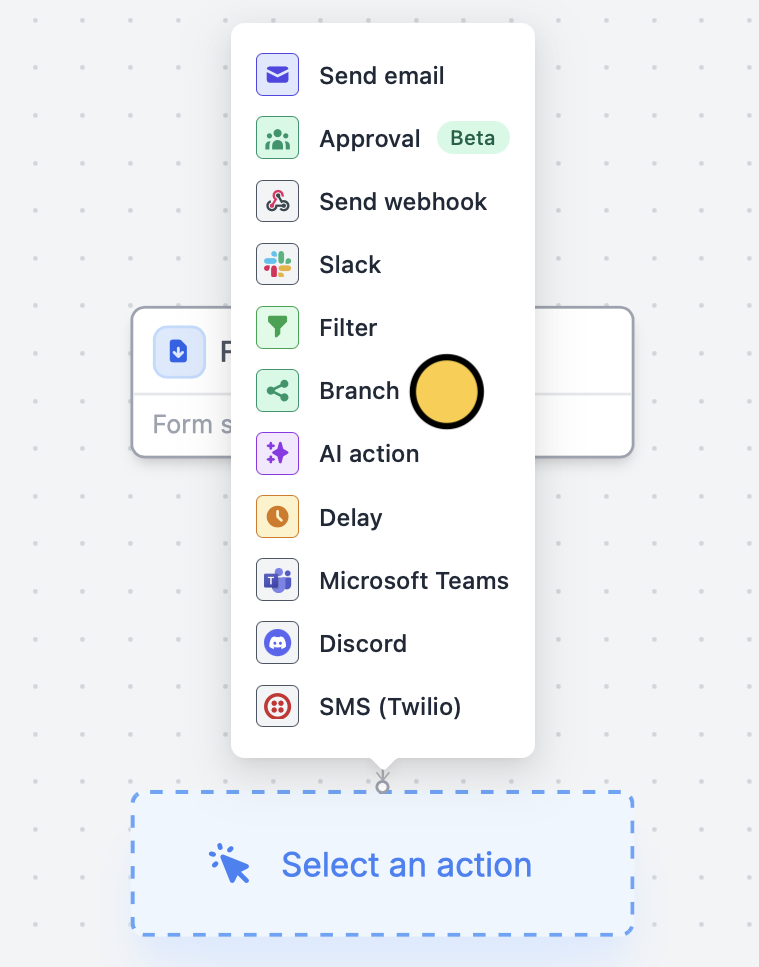
Branch.2
Set your condition
Click 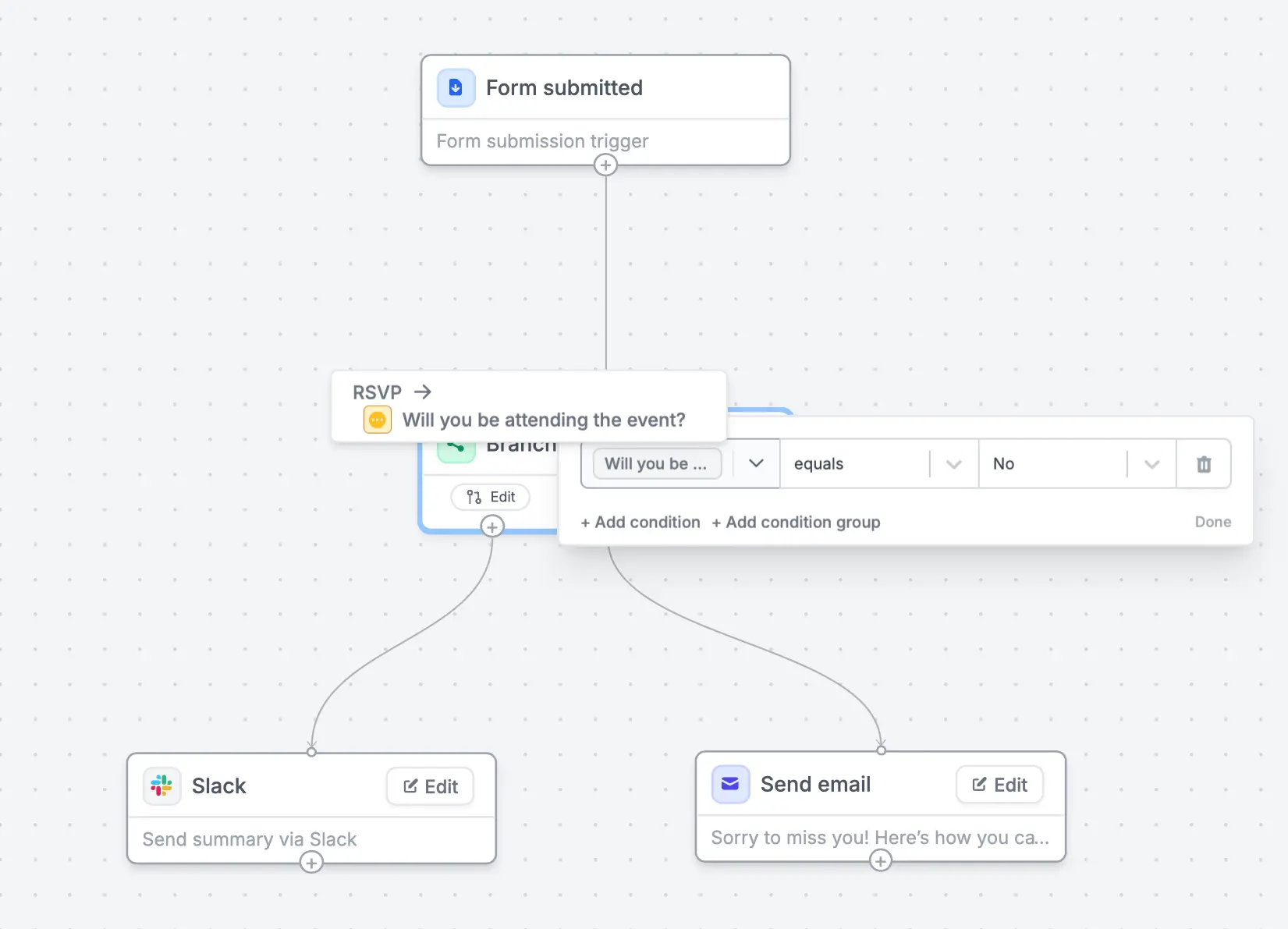
Edit to set a condition, followed by to define what happens when the condition is met.In our example, we’ll send a summary of the responses to Slack when a respondent RSVPs “Yes”, whereas we’ll send them an email with a link to our fundraising page and newsletter when they respond “No”.Related articles
Workflows
Simplify task flows with native multi-step automations.
Integration logic
Perform an integration only when a certain condition is met.