

What is Google Sheets?
Google Sheets offers users a collaborative platform to create, edit, and store spreadsheets online. It provides a wide range of features for data analysis, visualization, and sharing, making it a versatile tool for businesses, educators, and individuals.Video Tutorial
How it works
1
Start with a form synced to Google Sheets
In the side menu under Fillout, open My forms and create a form with New form. Choose to Connect to Google Sheets.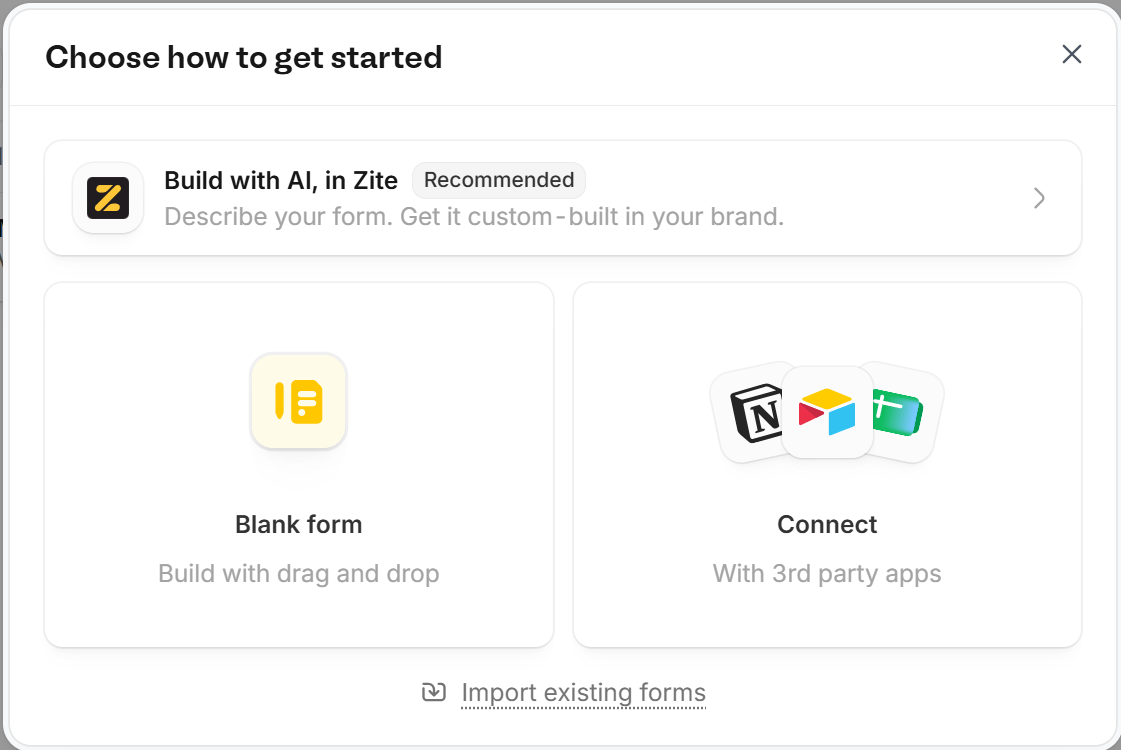
2
View the spreadsheet
A new sheet will automatically be created that will receive form responses. Click 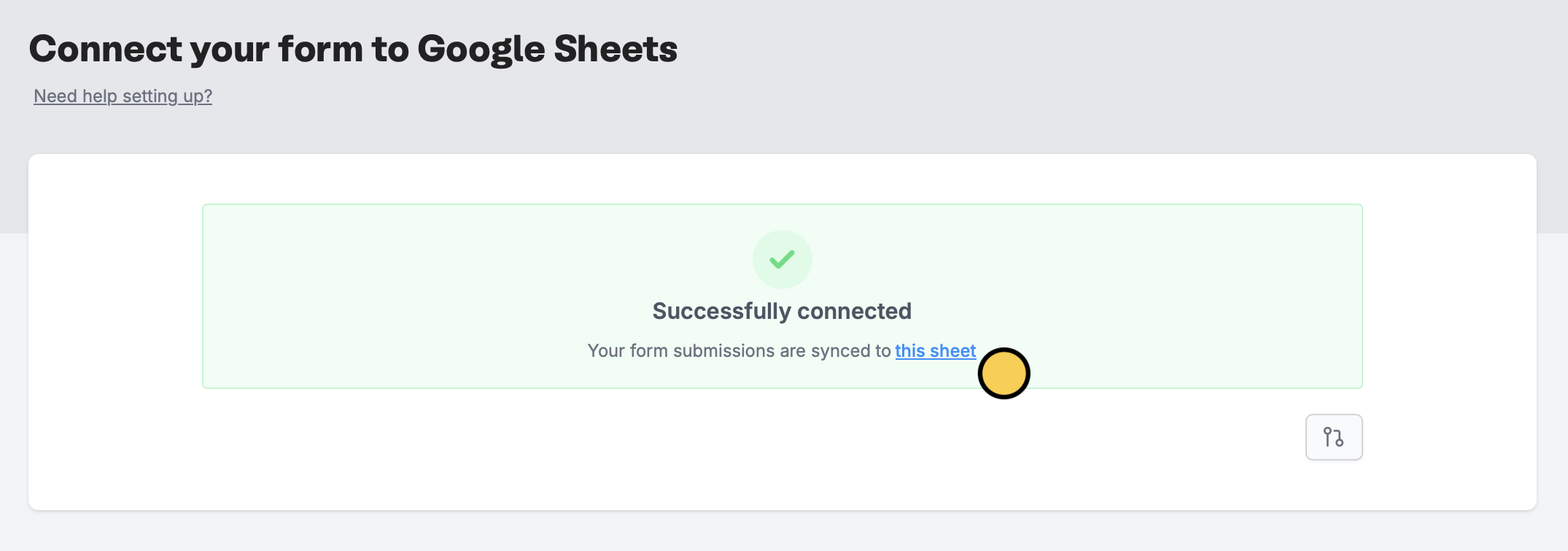
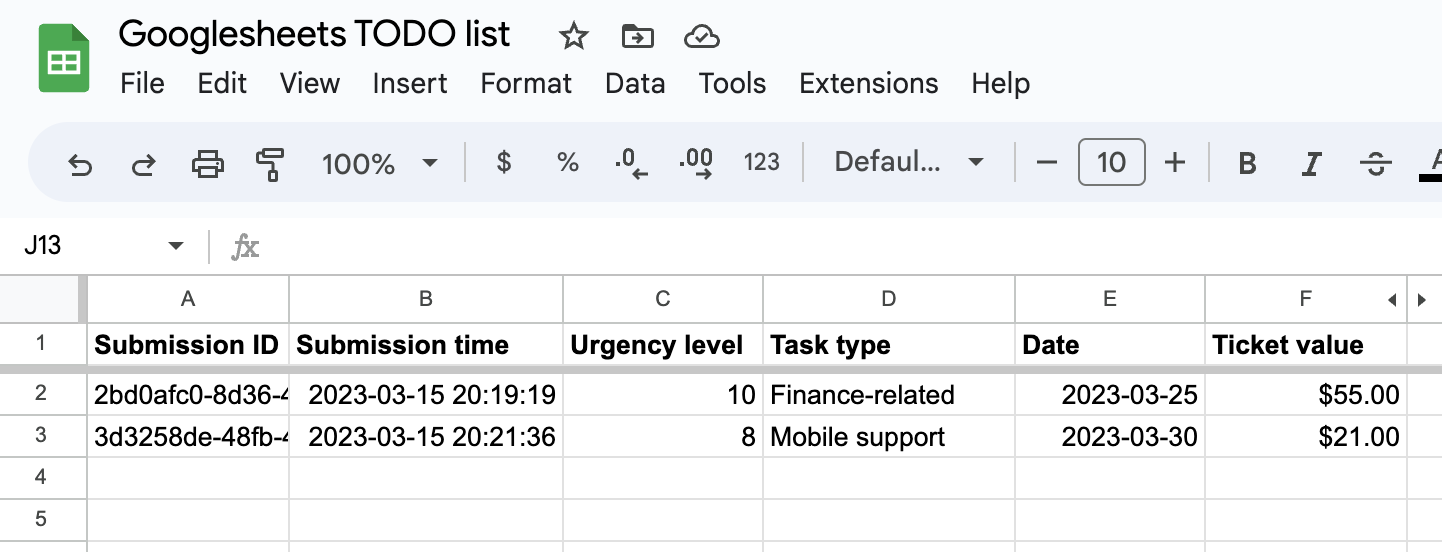
this sheet to open the sheet linked to your form.Fillout also has features like branching and conditional hide/appear logic, so you can show each respondent only the questions that apply to them.
What gets sent to the sheet
Fillout adds a column for the Submission ID, the Submission time, every question in your form, scheduling details, URL parameters and calculations. Each submission adds a new row. You can’t choose which column a question goes to. To send a value that isn’t a question, like a quiz score, add a question, turn on Hide always, and set its default value to what you want to send. Its column appears with the next submission. Generated PDFs aren’t sent to Google Sheets. If you add a question later, its column is added at the end of the sheet with the next submission. If you delete a question, its column stays in the sheet until you delete it.Past and edited submissions
- Only submissions received after you connect Google Sheets and publish your form are sent. Earlier submissions aren’t added to the sheet.
- To add an earlier submission, resubmit it. It’s added as a new row. To add many at once, export them from Results and paste the rows into the sheet.
- When a submission is edited or resubmitted, Fillout adds a new row. It doesn’t update the existing row, so a submission that was already sent shows up twice.
- The sync only goes one way. Editing or deleting rows in the sheet doesn’t change your Results.
Keep the sync working
Keep the sheet Fillout created as it is. When the sheet is changed, new responses still sync, but they can be written over existing responses instead of being added below them.- Don’t delete the tab Fillout created. If it’s removed, submissions fail with Could not find Zite-synced sheet. Was it removed?
- Don’t change its columns: don’t add, delete, hide, move or rename them.
- Don’t add notes, totals or blank rows below the responses.
- For sorting, charts or formatting, use another tab that references the responses, and keep the synced tab as it is.
Send responses to an existing sheet
Fillout always creates a new sheet, so it can’t add responses to a sheet or tab you already have. To do that, use Zapier or Make: start from a new Fillout submission and add a row to the sheet you choose. To keep your old data with new responses, let Fillout create its sheet, then copy your old rows into it.Working with different field/question types in Fillout
Dates and times- Note that all date timestamps that are sent to your Google Sheet (using the
Date time pickerfield in Fillout) are written in UTC. - To display times in a local timezone, you can add an extra formula column to do so.
- By default, each part of the address field is added to separate columns in your Google Sheet. To filter responses by city or state, use another tab that references the responses.
Specify a condition
You can run your integration only when a specific condition is met. Check out this guide.Other spreadsheet integrations
Sync form responses to Microsoft Excel
Add responses to Excel with a form.
Create an Airtable Form
Use a form to create or update Airtable bases.
Create a SmartSuite form
Add responses to a SmartSuite solution.