

What is Tag Manager?
Google Tag Manager is a free tool that allows you to manage and deploy marketing tags on your website without editing the code. It simplifies tracking and analytics for better insights and optimization. Tag Manager works using two main components:- Tags – the data you want to send (for example, an event sent to Google Analytics).
- Triggers – the actions that cause the tag to fire (such as a form submission).
How it works
1
Link your Fillout form to Tag Manager
First, open your Fillout form or create a new one. Then, navigate to 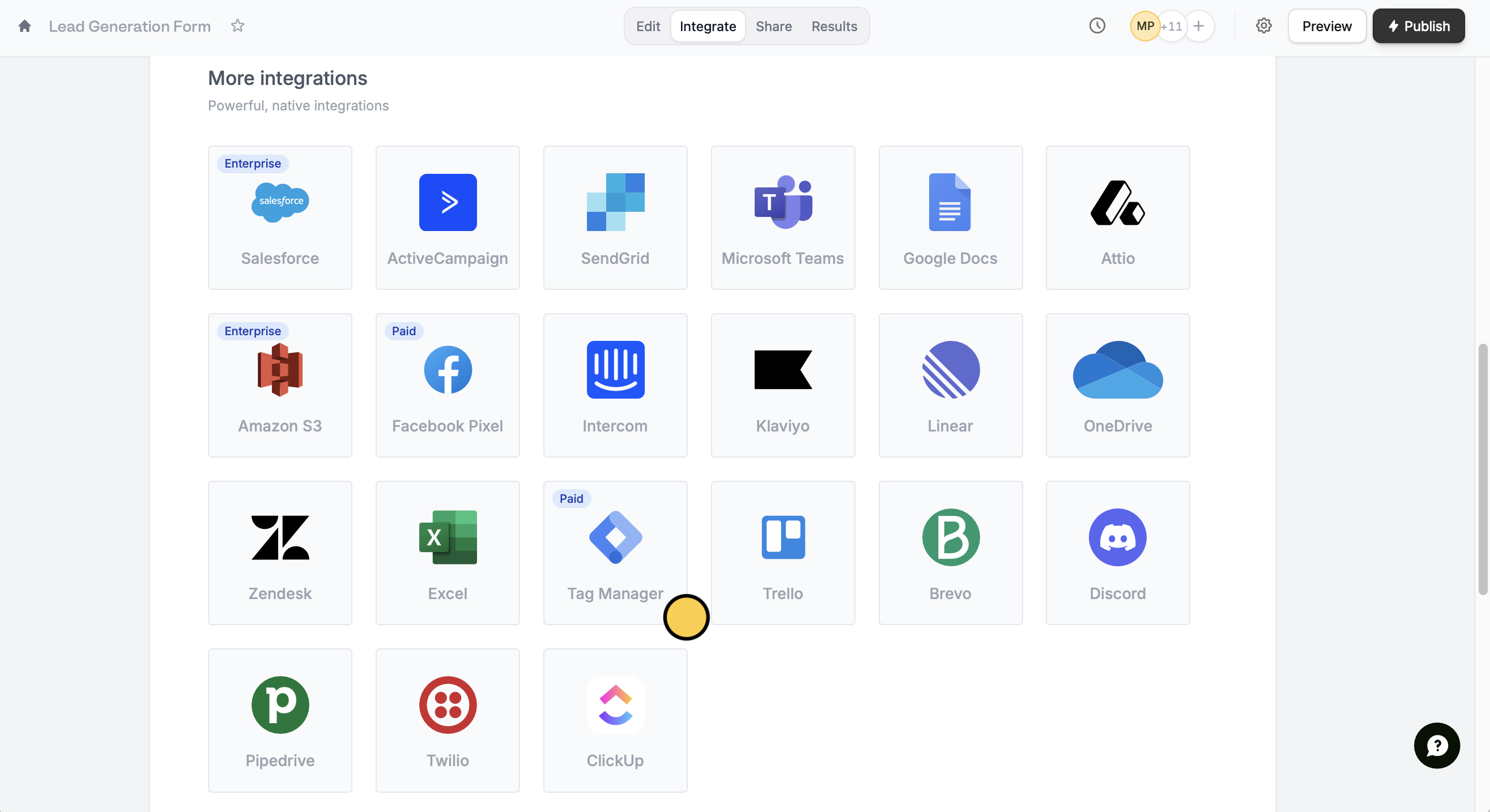
Integrate from the top menu and look for Tag Manager.Connect a custom domain to get started. Follow the quick instructions in the next screen to enter your Google Tag Manager container ID.2
Set variables
In your Tag Manager Workspace, head over to 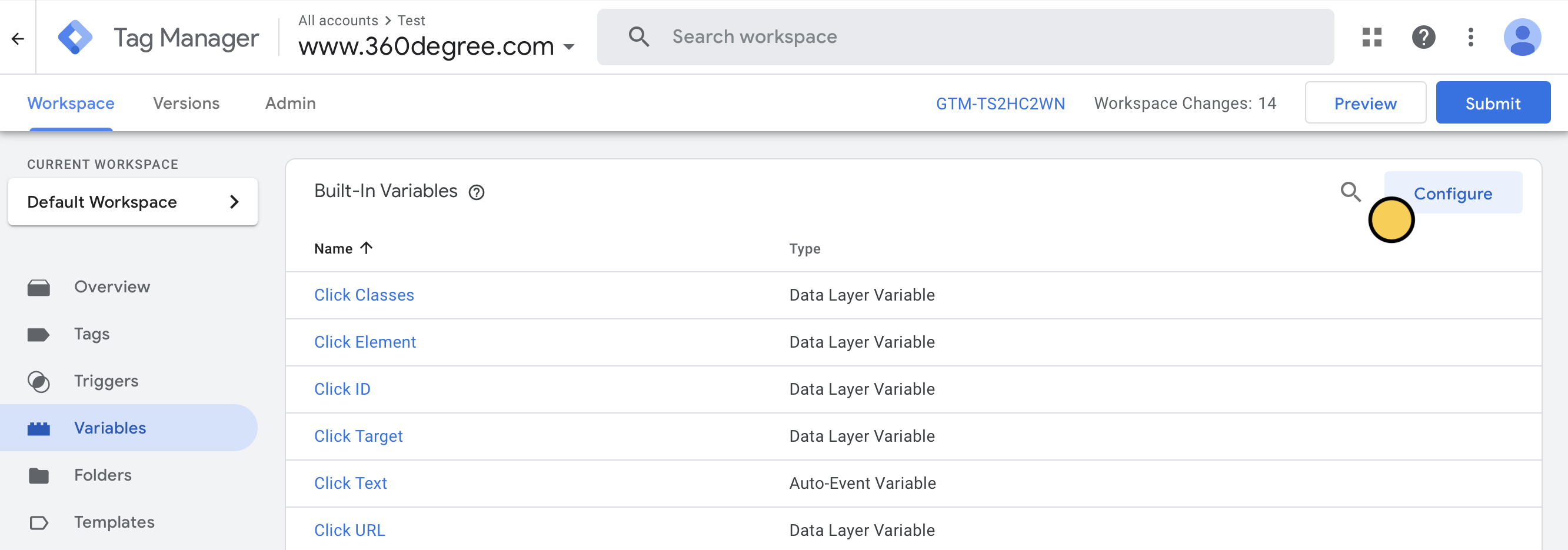
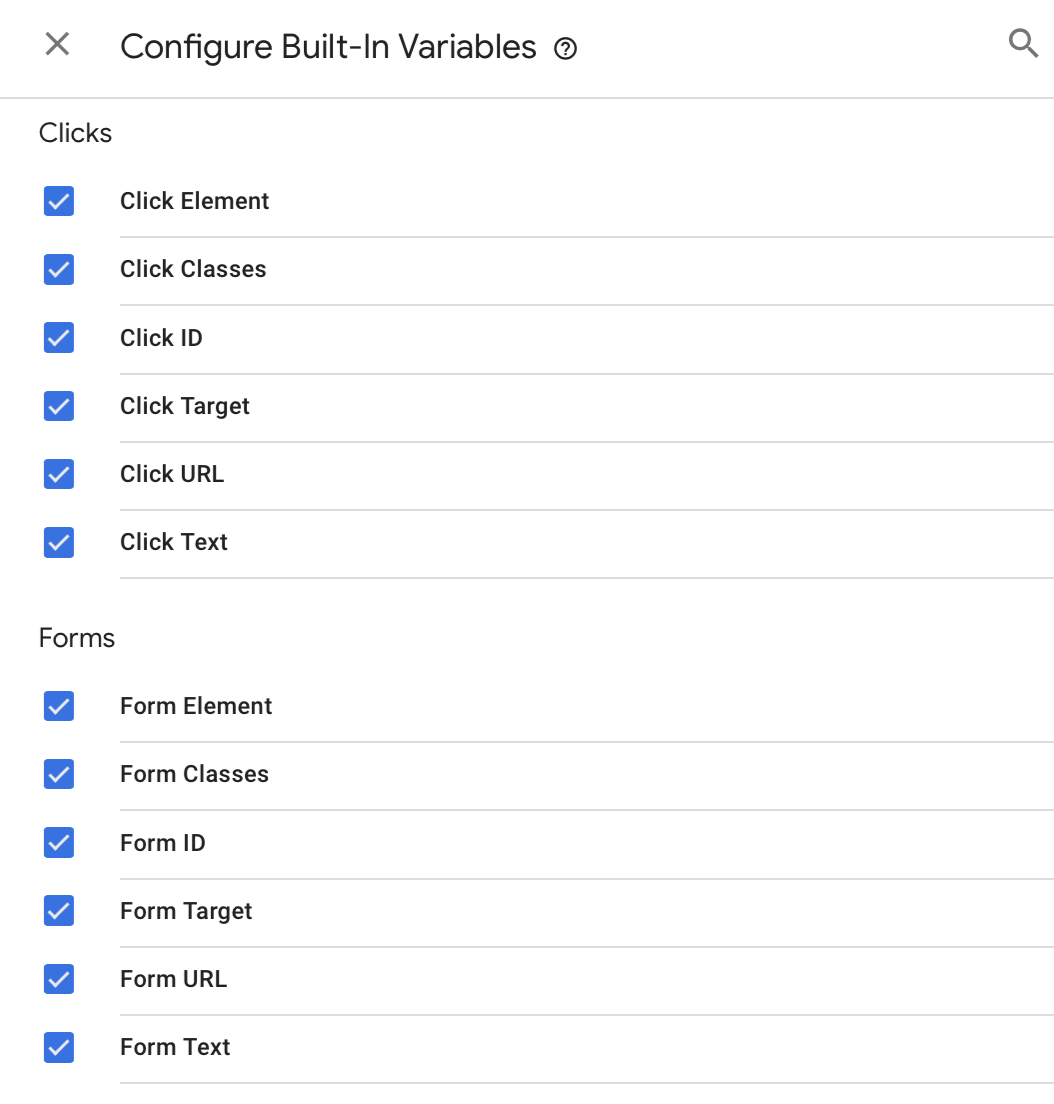
Variables from the left panel and click Configure.3
Add tags
Then, go back to your Workspace. Click 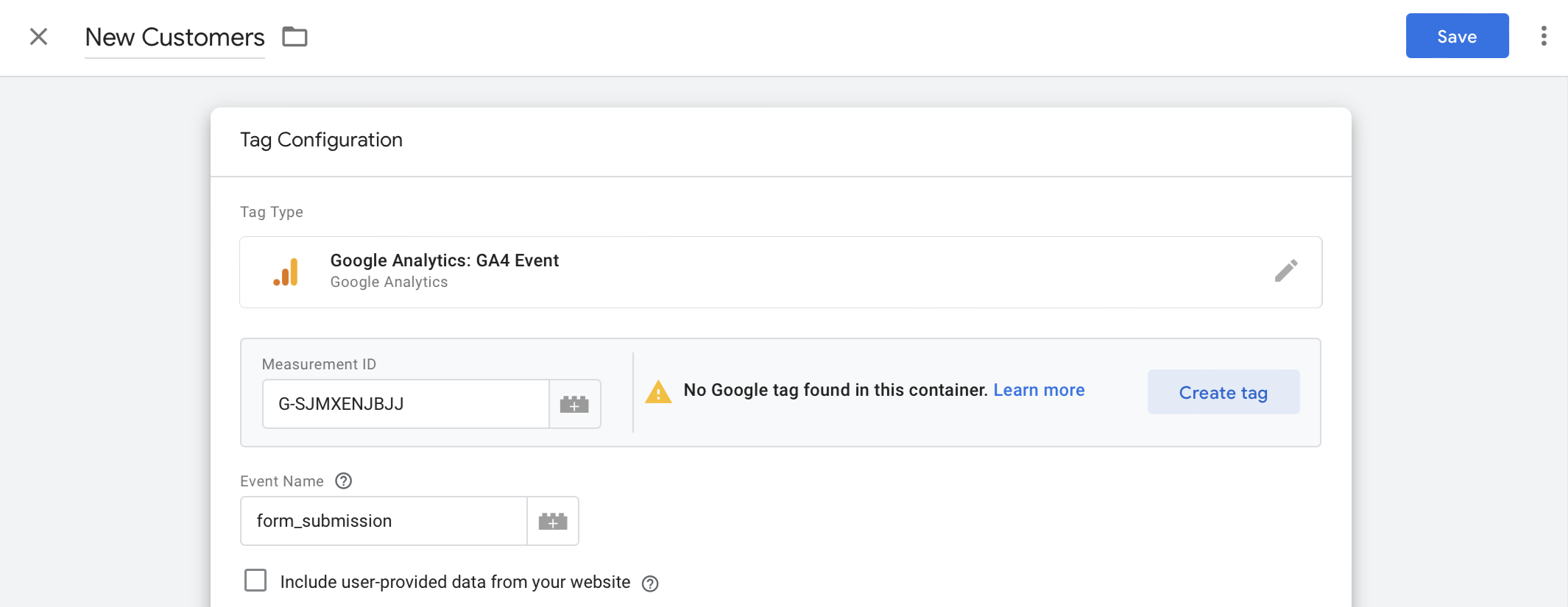
Tags in the left panel followed by New.In Tag Configuration, we’ll choose Google Analytics. Copy and paste the Measurement ID and enter an Event Name.Save in the upper right corner.4
Add triggers
Click 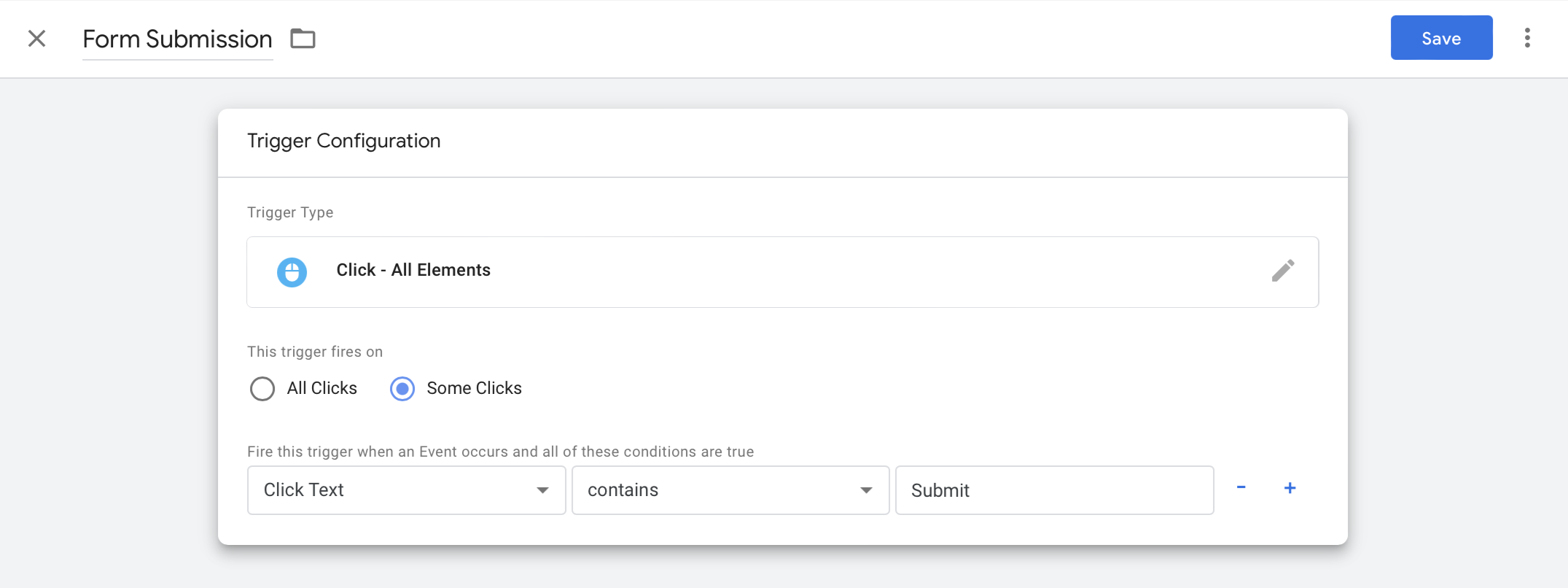
Add Trigger followed by + on the right corner and set your preferences. In our example, we’ll fire the trigger when respondents click the submit button in the Fillout form.Preview the setup on Google Tag Manager. Once everything’s good, click Submit.5
Publish and share
Go back to your Fillout form to
Finish setup and Publish.Advanced (Optional)
Send submission data to Google Tag Manager To send submission data usingdataLayer.push, add a Custom Code or HTML block to your form. You can place your tracking script there and reference form field values or submission data in the dataLayer.push.
Track events between form pages
For multi-page forms, you can add an HTML block to add a script to the pages you want to track. This lets you track different events for each page as the respondent navigates through the form.
Related article
Track conversion data in Google Ads
Use email, GCLID, address, and more.