

Overview
Sometimes you may need to reset your password for various reasons, including forgetting it, security concerns, or as a precautionary measure after potential unauthorized access to your account. It’s also recommended to update passwords regularly for better online security.How to reset your password
On Fillout’s homepage, click Log in in the upper right corner and enter your email. On the next step, click Forgot password? next to Password, then click Send reset instructions. If you sign in with Google or Microsoft, see Add a password to a Google or Microsoft account.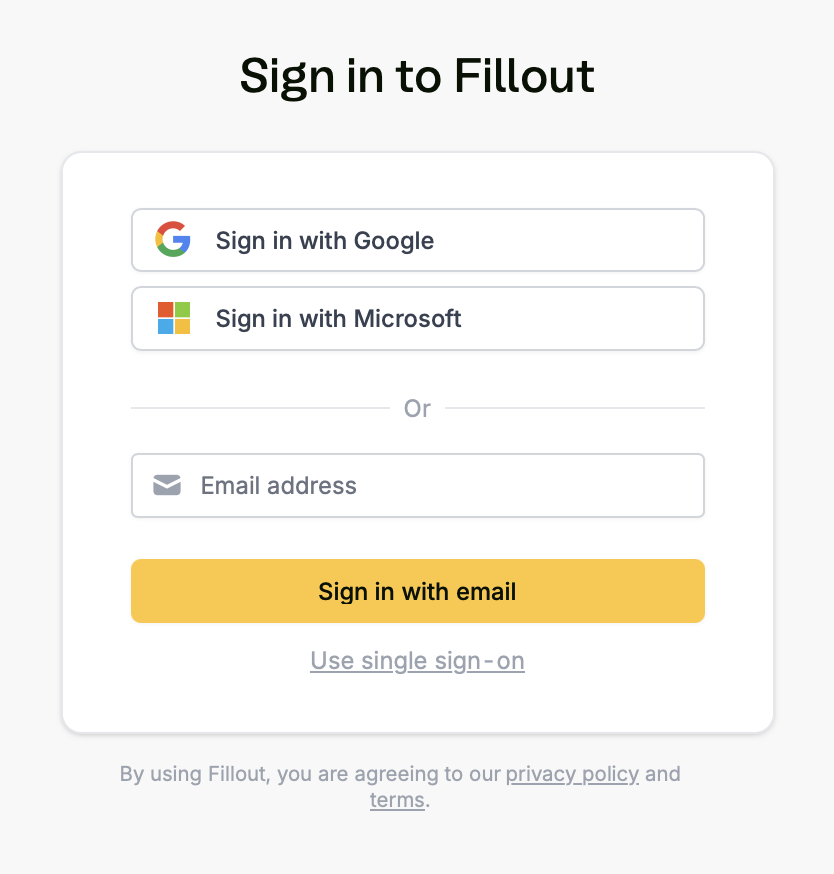
Add a password to a Google or Microsoft account
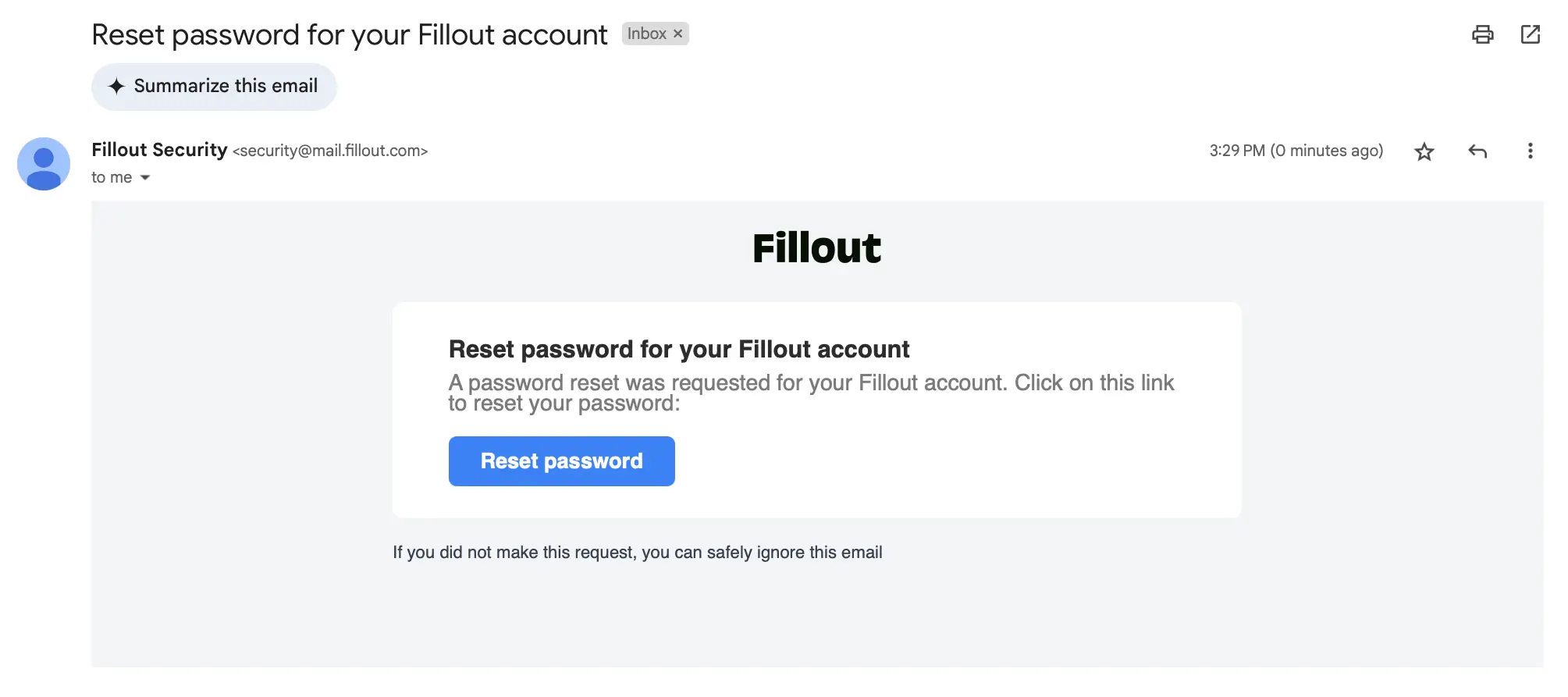
If you signed up with Google or Microsoft, your account doesn’t have a password. Entering your email on the sign-in page takes you straight to Google or Microsoft, so Forgot password? doesn’t appear. You can still add a password. Open the reset password page, enter your account’s email address and click Send reset instructions. Click the link in the email and set a password. After that, you can sign in with Google or Microsoft, or with your email and password. This also helps if you can’t sign in with Google or Microsoft anymore, for example because your old address is now an alias. As long as you still get emails at the old address, add a password to it, sign in with your email and password, then invite your new email address as an admin of your organization.Related articles
Delete your organization
Permanently delete an organization and everything in it.
Workspaces
Organize forms in folders and manage user access.
Organizations
Create organizations for different companies with the same email.