

How subscription plans work
Your subscription plan is shared across your organization, so everyone is automatically covered by the same plan. While all members use the same plan, admins can customize each member’s permissions to control their access and permissions. Only organization admins can view and manage the subscription plan. Fillout offers six plans: Free, Starter, Pro, Business, Team, and Enterprise. Click here to learn more about what each plan includes. Some paid plans may include a free trial.Fillout doesn’t charge per seat, so you can invite your entire organization at no additional cost.
Manage your subscription plan
You can click here to directly access your plan. Alternatively, click your organization name in the upper left corner of your dashboard followed bySettings, then navigate to Billing & usage.
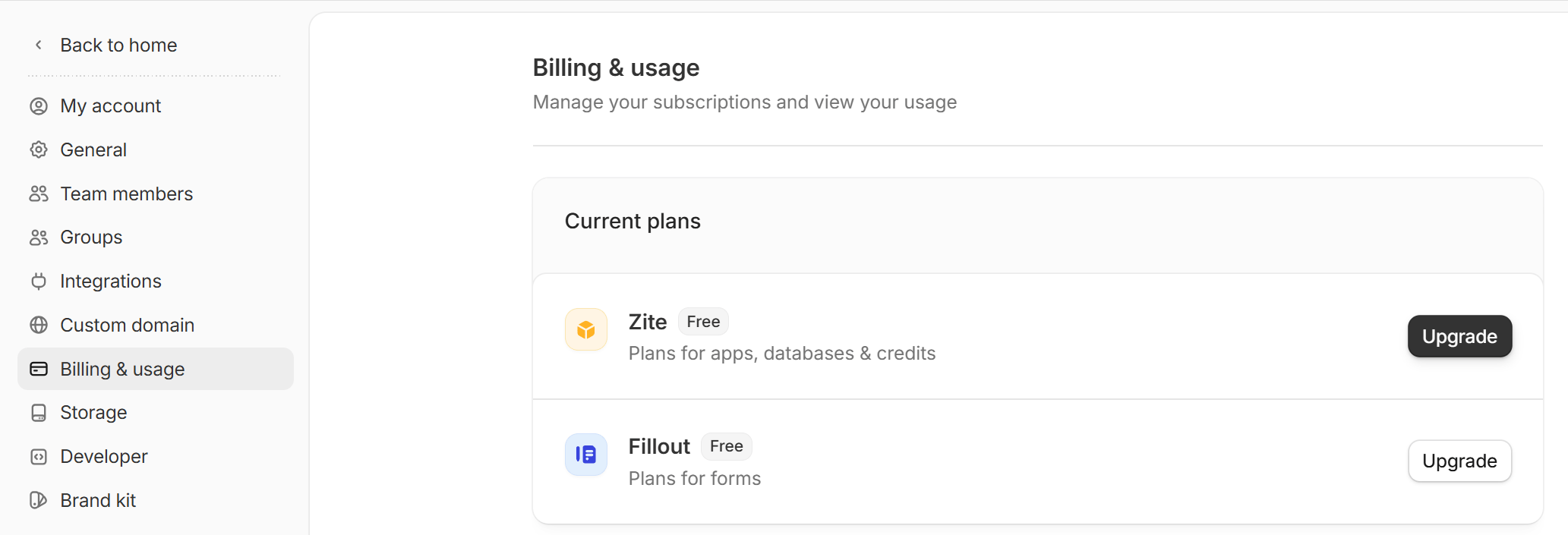
Upgrade or downgrade your plan
If you’re currently on a paid plan, your Fillout plan shows Cancel and Modify. Click Modify to change your plan.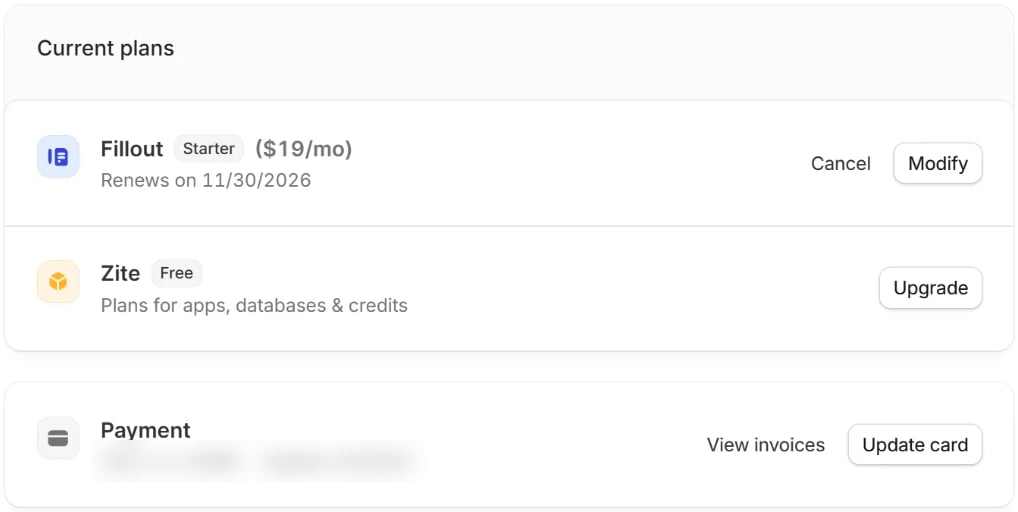
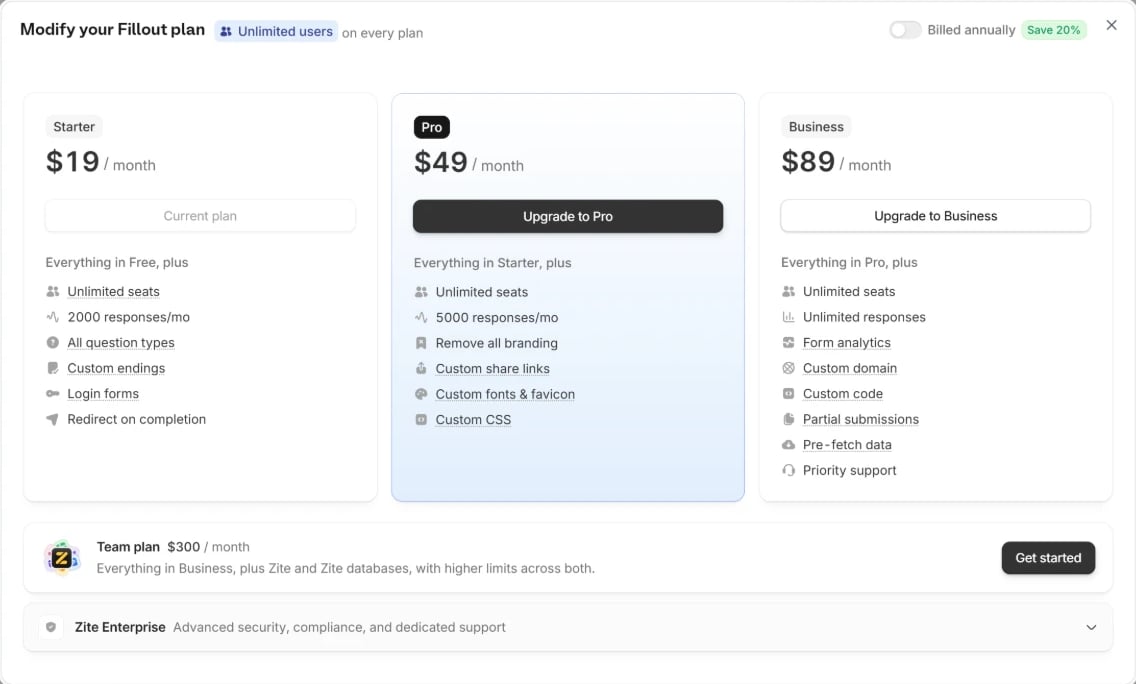
Fillout and Zite have separate subscription plans. Upgrading your Fillout plan doesn’t automatically upgrade your Zite plan, and vice versa.
Upgrading mid-cycle
If you upgrade your plan before your billing cycle ends, the upgrade takes effect immediately. You’ll be charged a prorated amount for the remainder of your current billing cycle.Payment methods
The available payment methods depend on your plan.- Starter, Pro, Business, and Team: Credit card only
- Enterprise: In addition to credit card payments, Enterprise customers can pay via wire transfers, purchase orders (POs), invoice payments, and ACH.
If you’re interested in an Enterprise plan, please reach out to our team here.
Cancel your plan
To cancel your Fillout plan, follow this guide.Opt out of auto-upgrade
If you add a credit card during your Fillout forms trial, your account will automatically upgrade at the end of your trial unless you opt out. To opt out, downgrade to the Free plan from the Billing & usage page before your trial ends. You won’t be charged if you opt out before the trial expires. After your trial ends, your account will continue on the plan you’ve selected.Manage billing
On the Billing & usage page, click View invoices or Update card under Payment. Both open the billing portal, which shows your current subscription, your payment method, your billing information and your invoice history.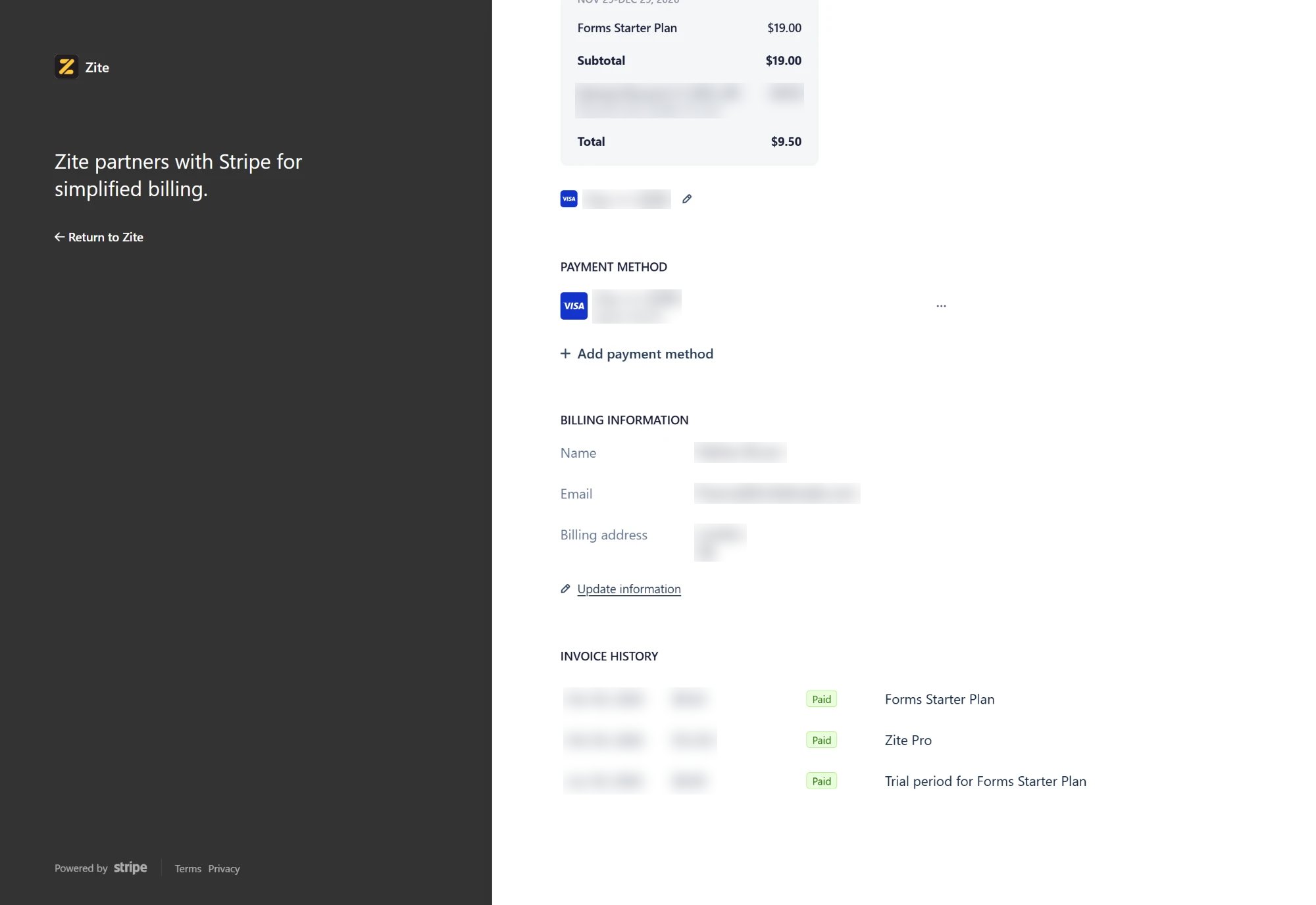
Change your payment method
In the billing portal, click Add payment method under Payment method and enter the new card. To use the new card for your plan, click the three dots next to it, then Make default. To remove a card, click Delete in the same menu. You can’t delete the card your active plan uses, so make another card the default first.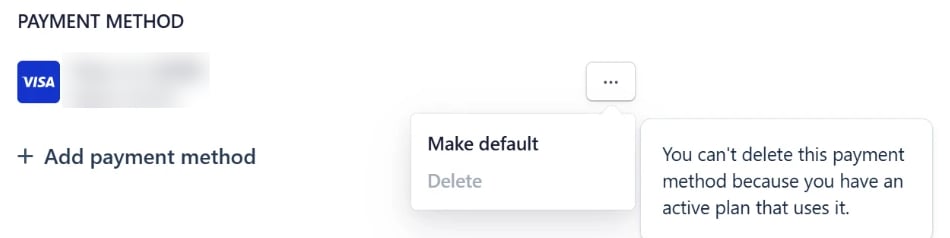
Download invoices
Click an invoice under Invoice History. It will open a new tab where you’ll have the option toDownload invoice and Download receipt if needed.
Fillout doesn’t email invoices or receipts. Download them from the billing portal whenever you need them.
Update billing information
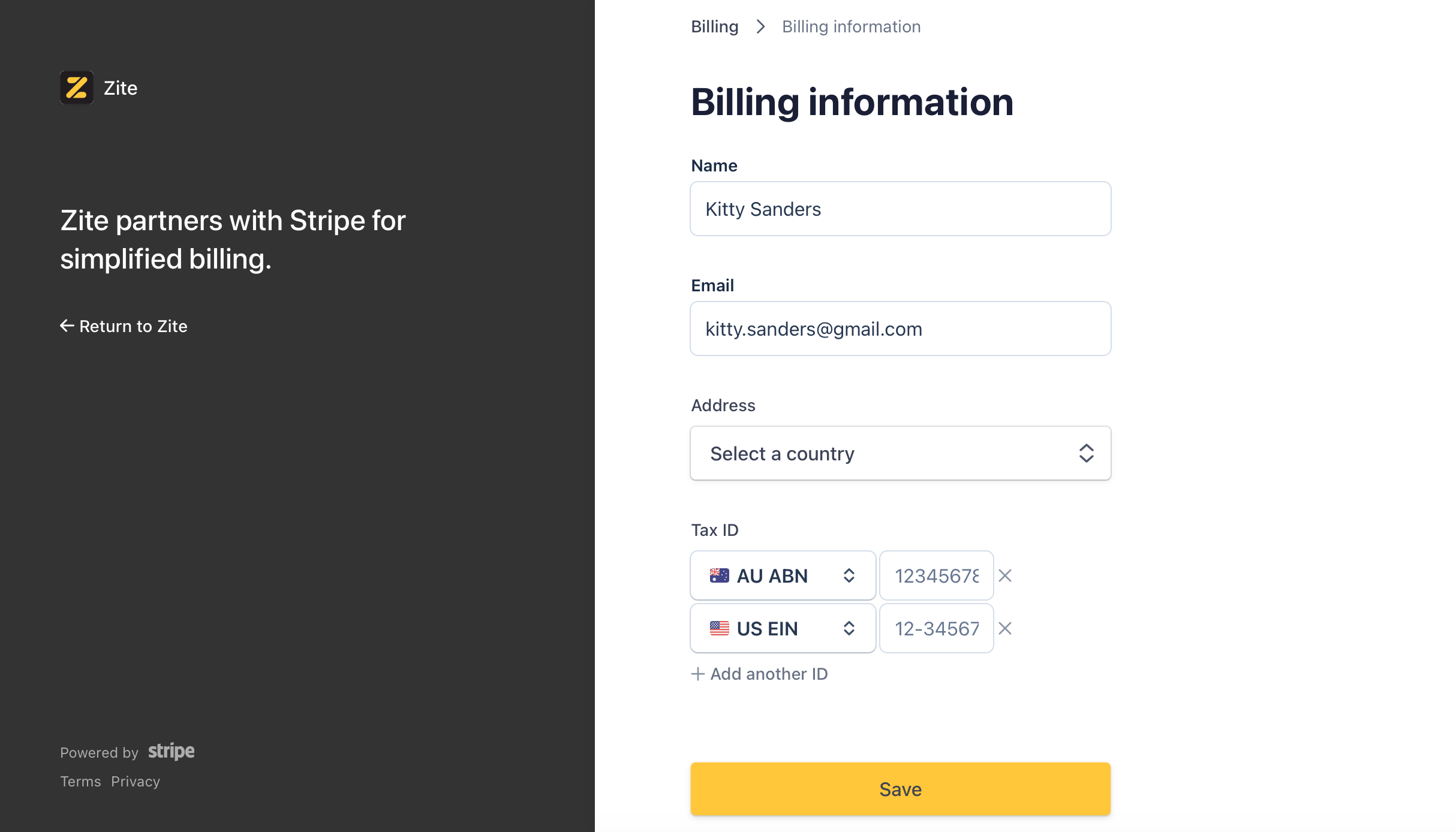
By default, your billing information will follow the name and email registered to your account. You might want to update your billing details to your company name and email. Click Update information (under Email) to do so. Here, you’ll also be able to add a billing Address and TAX IDs. Be sure to clickSave after making edits.
Refunds
For information about refunds, please refer to our Refund Policy.FAQs
If I cancel my Fillout plan, will it also cancel my Zite plan?
If I cancel my Fillout plan, will it also cancel my Zite plan?
No, Fillout and Zite have separate subscription plans, so canceling one won’t affect the other.
When does a downgrade take effect?
When does a downgrade take effect?
Downgrades take effect at the end of your billing cycle, and you won’t be charged afterward unless you upgrade again. Enterprise customers should contact their account manager or email support@fillout.com.
How can I change or remove my payment method?
How can I change or remove my payment method?
Click Update card on the Billing & usage page, then Add payment method in the billing portal. To switch cards, click the three dots next to the new card and Make default. To remove a card, click Delete. The card your active plan uses can’t be deleted until another card is the default.
What happens if my payment method expires?
What happens if my payment method expires?
We’ll automatically send you an email notification so you can update your payment information and complete the payment.
Can I switch between monthly and annual billing?
Can I switch between monthly and annual billing?
You can switch from a monthly plan to an annual plan at any time. If you choose to switch at the end of your billing period, you’re charged the full annual price on the switch day, and your year starts that day. If you’re on an annual plan, you can switch to a monthly plan after your current annual subscription ends.
Why can't I see the billing & usage page?
Why can't I see the billing & usage page?
Currently, only organization admins can access billing.
Does Fillout charge sales tax?
Does Fillout charge sales tax?
No. Fillout doesn’t currently charge sales tax on subscriptions, so your invoices don’t include it.