
How it works

Each Fillout Scheduling meeting invitation in Google or Outlook Calendar includes the names of the meeting participants, along with a link to join a Zoom or Google Meet call if you chose one.
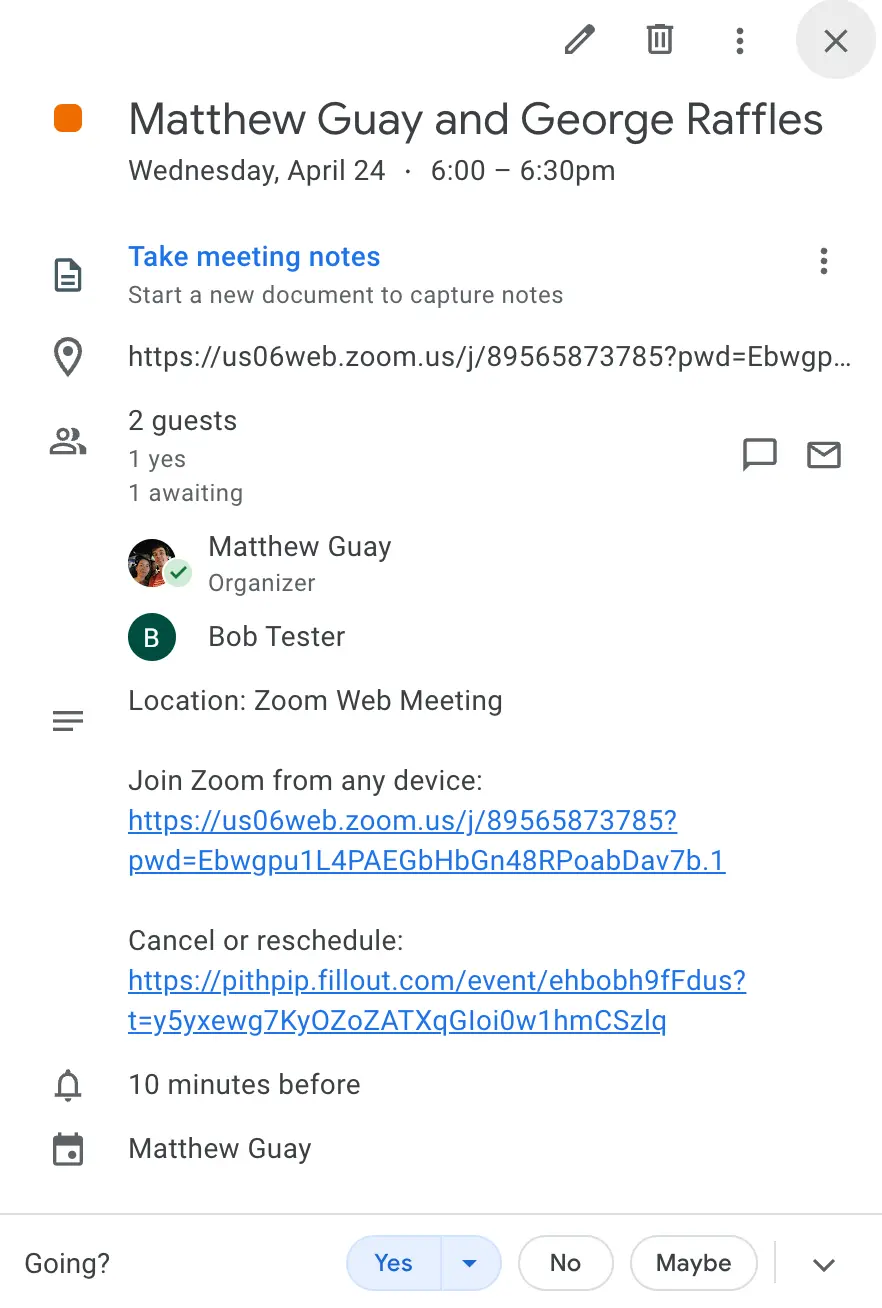
A Google Calendar event with the guests, a Zoom link and a Cancel or reschedule link in the description
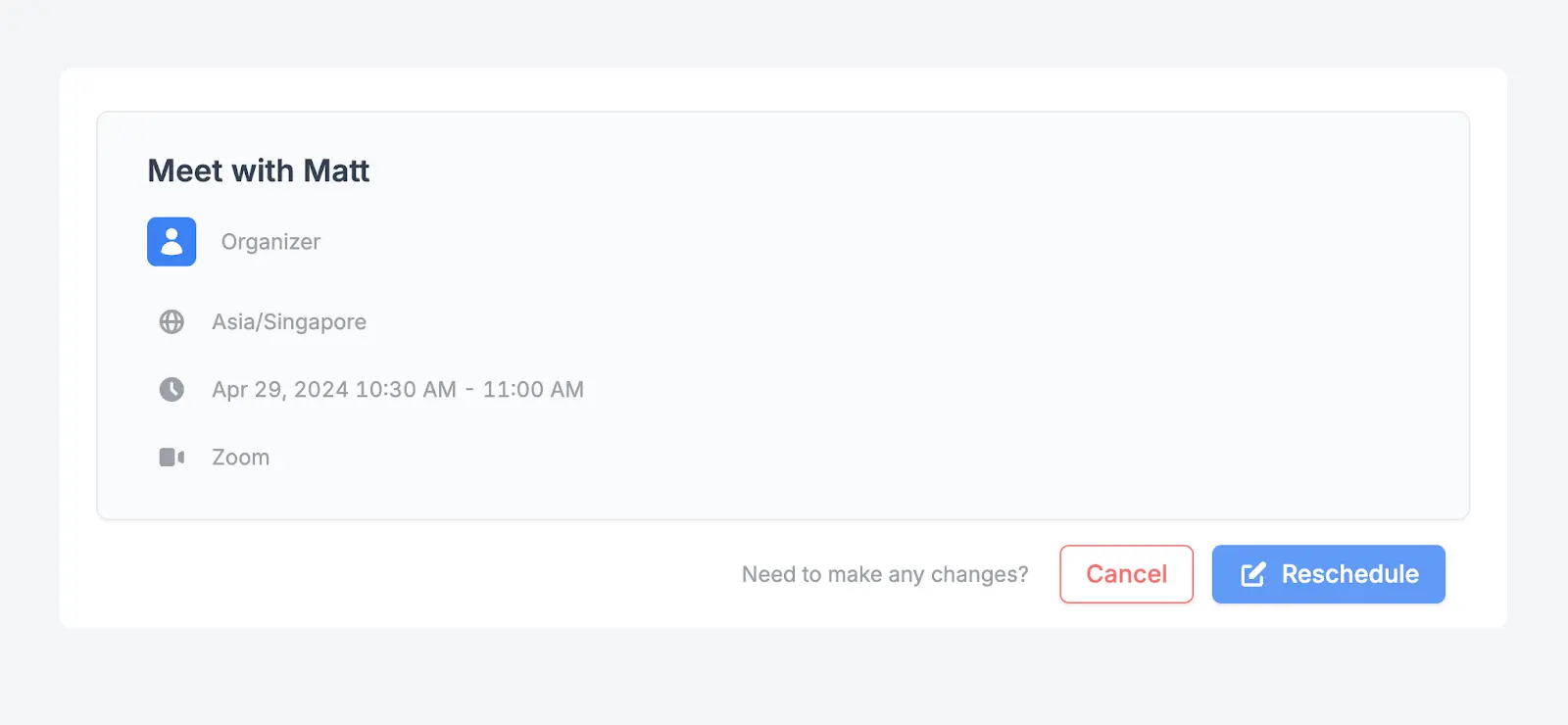
The event description also includes a Cancel or reschedule link. It opens a Fillout page where the invitee can click Cancel or Reschedule.
The Fillout page from the Cancel or reschedule link, with the meeting details and the Cancel and Reschedule buttons
For group events, the link isn’t in the shared calendar event, since everyone sees it. Each invitee gets their own link in the confirmation email from Fillout instead.

Cancel or reschedule from Results

You can also cancel or reschedule a booking yourself, without opening the calendar event.
  1. Open your scheduling form and go to Results.
  2. Click the booking to open it.
  3. Click Cancel or reschedule, under the calendar button.

A booking opened in Results, with View in Google Calendar and the Cancel or reschedule link
  1. Click Cancel or Reschedule. To cancel, you can add a reason, then click Cancel meeting.
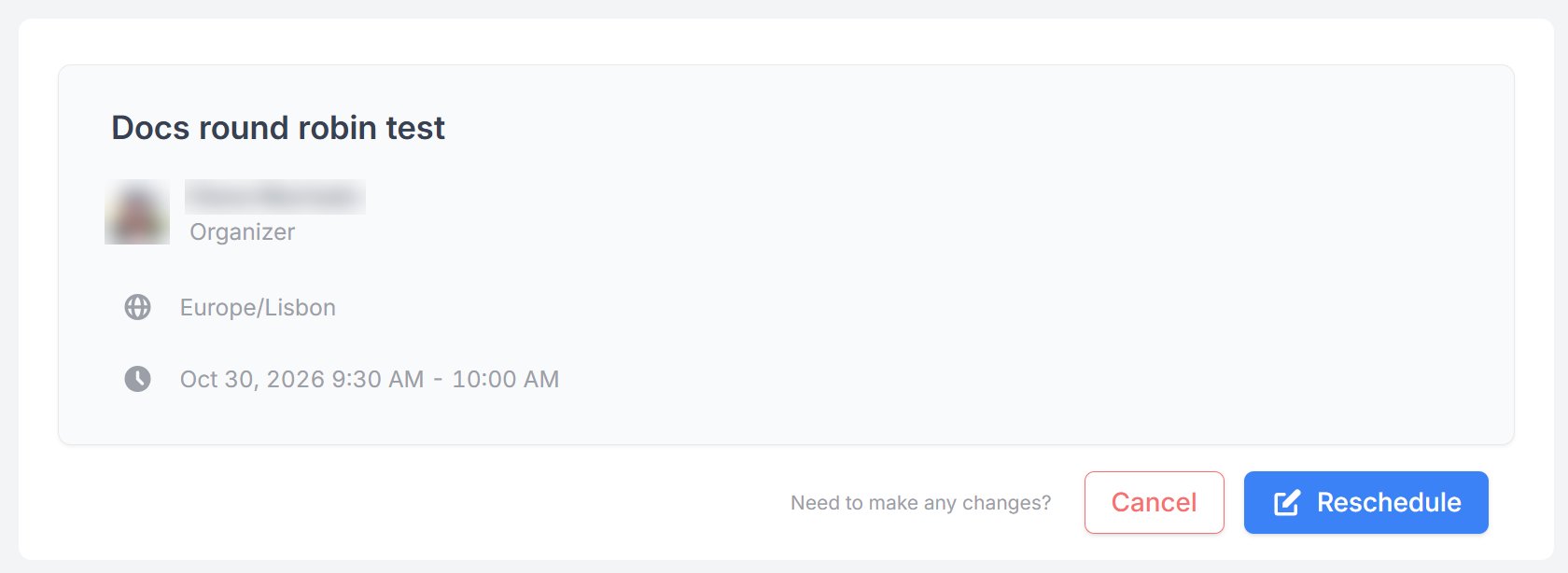
The page that opens from Cancel or reschedule, with the meeting details and the Cancel and Reschedule buttons
This is the same page invitees get from the link in their invite. Canceling or rescheduling here also runs any workflows that use the Event canceled or Event rescheduled trigger. See Fillout Scheduling actions.

What happens when a meeting is rescheduled

What happens to the calendar event depends on the kind of meeting:
  • One-on-one meetings - Fillout moves the existing calendar event to the new time, so the meeting link stays the same. Google or Outlook sends the invitee an update.
  • Group events - the invitee is removed from the old event and added to the event at the new time. If nobody has booked that time yet, Fillout creates a new event. If they were the only attendee, the old event is deleted.
  • Round robin - Fillout checks again which host is available at the new time. If it’s the same host, the event is moved like a one-on-one meeting. If it’s a different host, the old event and its meeting link are canceled and a new event is booked with the new host.
The host gets an email that the meeting was rescheduled, with the reason if the invitee gave one. For round robin, if the host changes, the old host gets a cancellation email and the new host gets the rescheduled booking. If you change the host on your scheduling form after someone books, they can’t reschedule that booking anymore. They see You can not reschedule this event because the host has been changed.