

Overview
Out of the box, our forms have a subtle Made with Fillout button on each page. This helps us offer most of the Fillout features on the affordable Fillout Free and Starter plans. By enabling branding, you’re also helping to spread the word about us.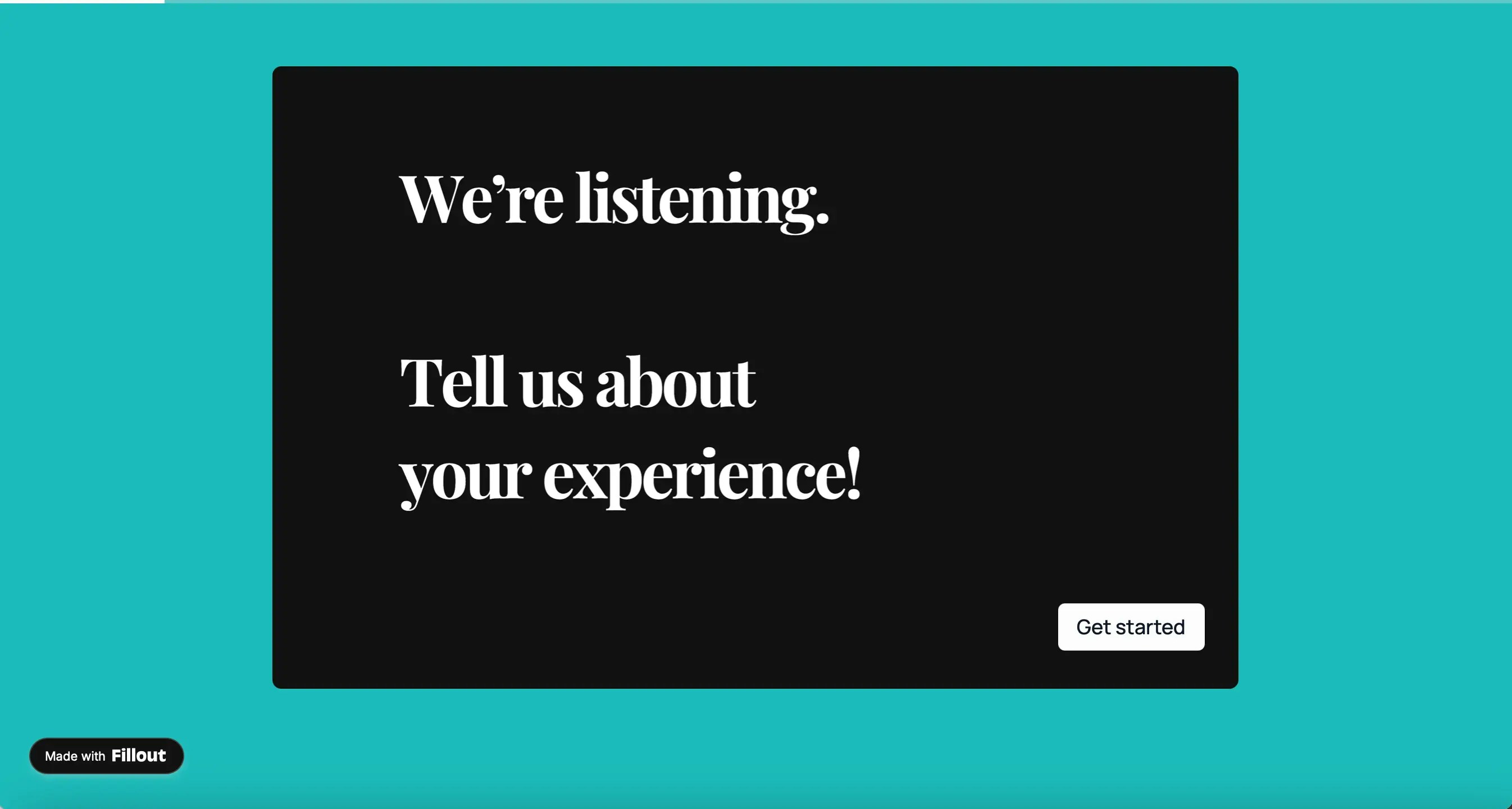
How to remove branding from ending pages
On the Fillout Starter plan, the Make your own Fillout button shows on each form’s ending page until you turn on Hide Fillout button for that form. On Pro and up, it’s removed automatically. On your form’s Ending page, click the text, then its settings icon .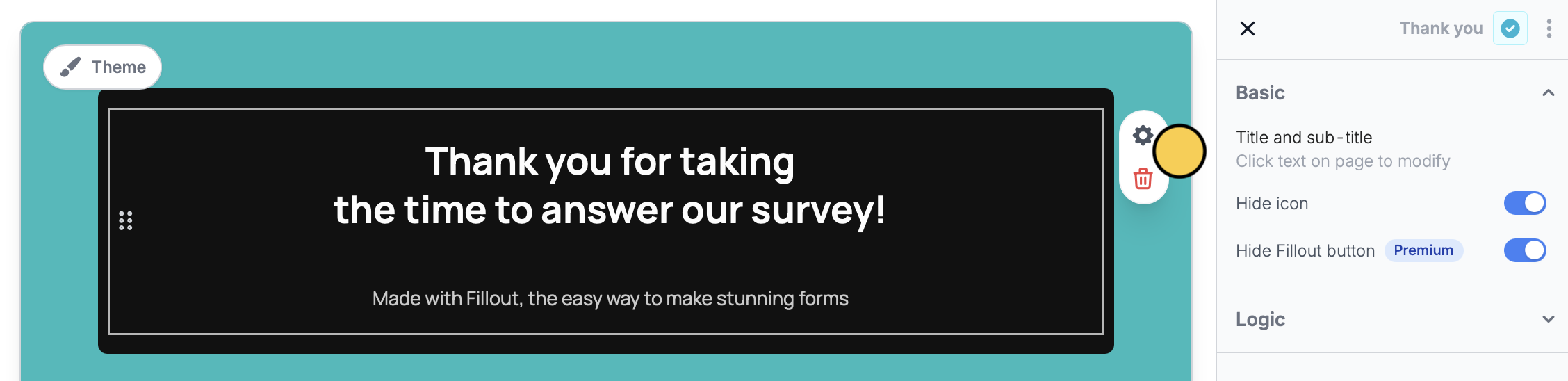
Still see Made with Fillout after upgrading?
The Made with Fillout text under the ending page title is ordinary text, not plan branding. You can edit or delete it on any plan, and upgrading doesn’t remove it. Click the text, change or delete it, then publish your form.Remove branding on all pages
Branding is automatically removed from all pages on the Fillout Pro and Business plans, and on Team and Enterprise. A Zite Free, Pro or Business plan doesn’t remove it from forms. Upgrading removes branding from the forms you already have, so you don’t need to edit, republish or make them again. Fillout Pro and up also remove Powered by Fillout.com from scheduling emails and calendar events.Add your own logo to emails
To show your logo in the emails your respondents get, send a custom email and add an Image block with your logo at the top.Related articles
Add a logo
Add a professional touch and create strong brand identity.
Use custom domains
Customize form URLs to enhance your branding.
Custom favicon
Add your logo or icon to a browser tab and in link previews.