

Overview
When your form uses an SSO login page, you can pull in custom attributes from your identity provider — such as department, role, or cost center. Use these attributes to pre-fill fields, add conditional logic, or personalize the form experience.SSO custom attributes require the Enterprise Plan with SSO configured. Your form must have a login page set to the SSO verification type.
Enable custom attributes
1
Open the login page settings
In the form editor, select your Login page step. In the left-hand panel, make sure the Verification type is set to
SSO.2
Open the Custom attributes section
Below the SSO status, expand the Custom attributes section. You’ll see a list of all discovered attribute names from your identity provider.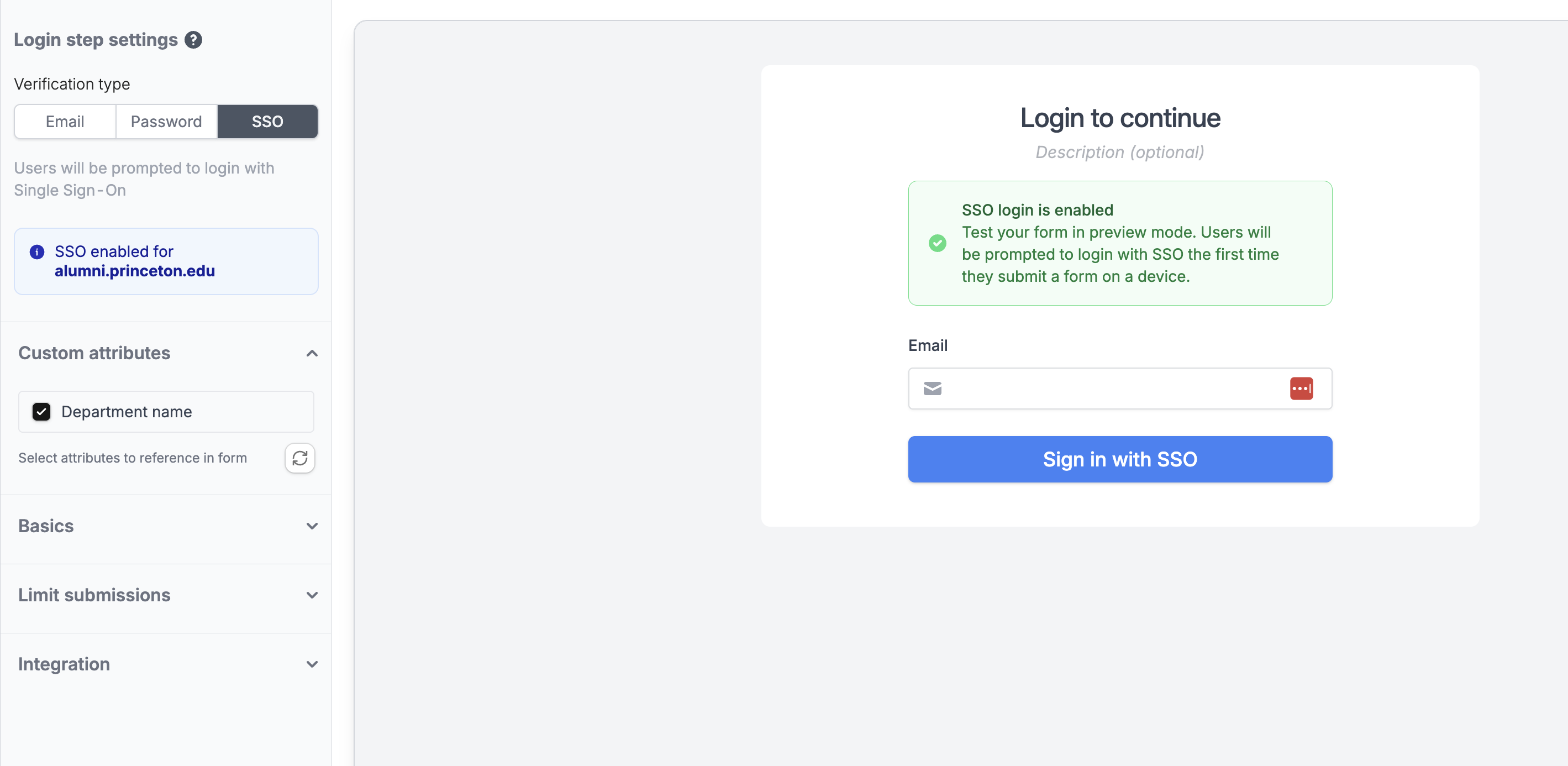
3
Select attributes
Check the box next to each attribute you want to use in the form (e.g.,
departmentName). Then save the form.Custom attributes are automatically discovered from actual SSO logins. At least one SSO user must have signed in to a form in your organization for attributes to appear. Click the refresh button to re-scan after new users have logged in.
Use custom attributes in your form
Once enabled, custom attributes appear as references under the Login page in the reference picker — alongside the standard Email, First Name, and Last Name fields. You can use them anywhere that supports the reference picker:- Pre-fill fields — Auto-fill a text field with the user’s department or role. Learn more about pre-filling fields.
- Conditional logic — Show or hide questions based on attribute values, e.g. display a section only for users in the “Engineering” department. Learn more about page logic.
- Calculations and answer piping — Reference attributes in calculations or answer piping.
Attribute values are refreshed every time a user logs in via SSO. If a user’s department changes in your identity provider, the updated value will appear the next time they sign in.
Related articles
SSO form login
Add SSO login to your forms.
SAML Single Sign On
Configure your SSO provider with Fillout.
Pre-fill fields
Set default values for form fields.