

Overview
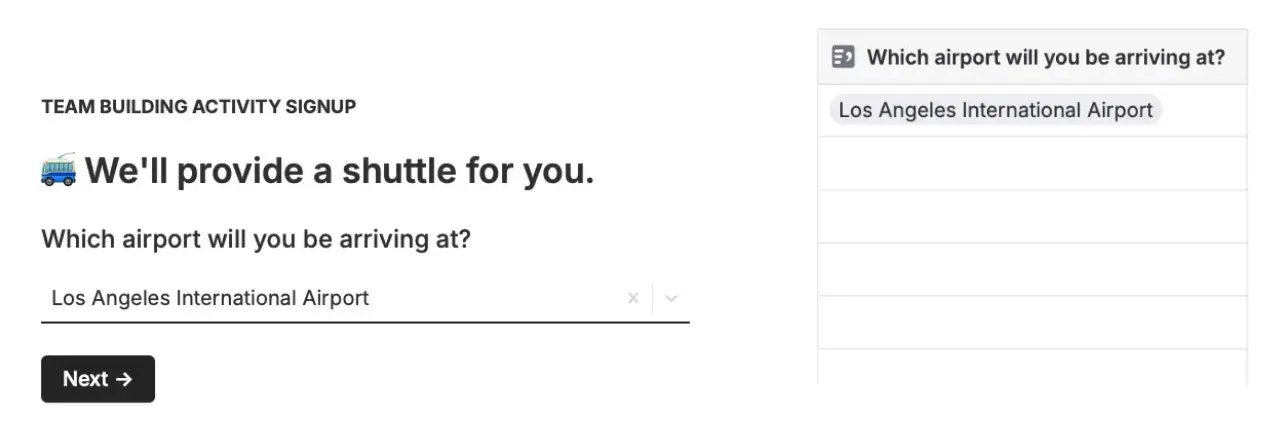
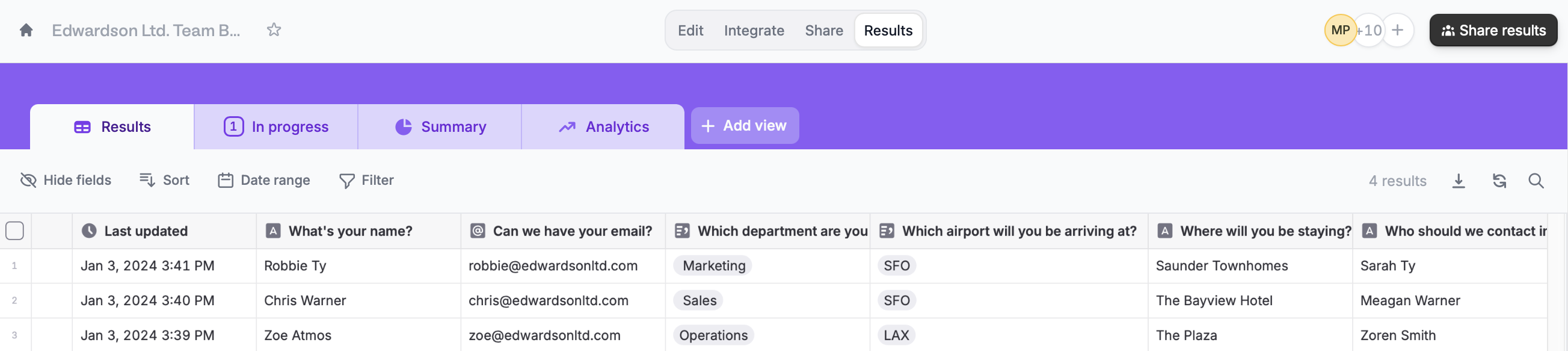
By default, when a respondent selects a choice, that same label appears in theResults page.For example, if they choose “Los Angeles International Airport”, that’s what will show up in Results.
This feature is applicable to Multiple choice, Dropdown, Checkboxes, Picture choice, and Multiselect field types.
How to add custom values
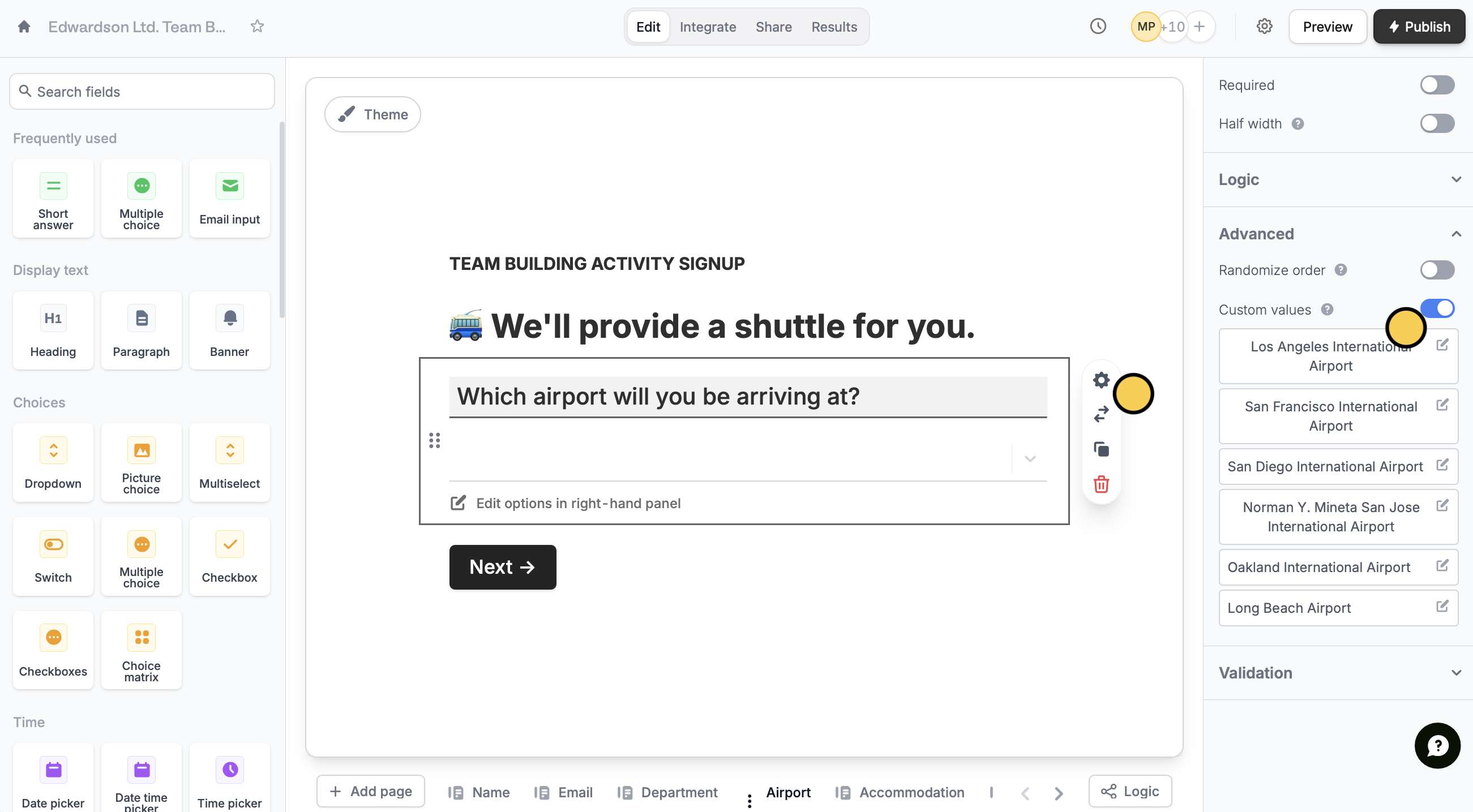
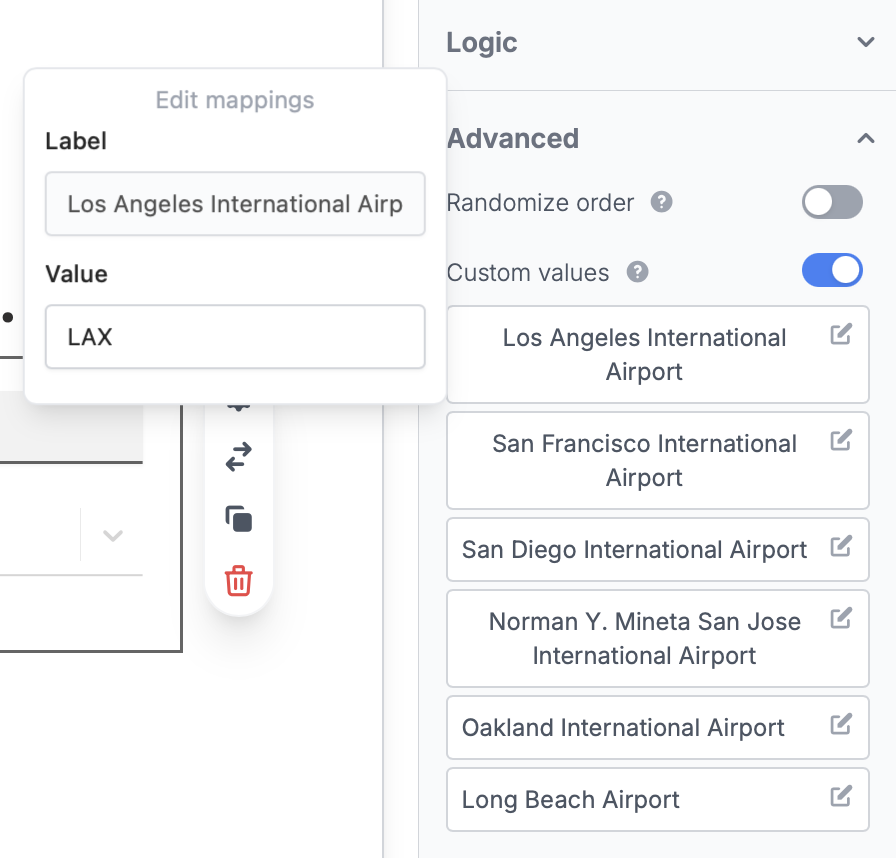
Select your question followed by the to open the right-hand panel. Then, scroll down to Advanced and toggle theCustom values switch.
Publish on the upper right corner.
Use cases
Studies and research In academic studies, use custom values to frame questions in a participant-friendly manner. Multilingual forms For forms in different languages, use custom values to show options in one language while your backend understands them in another. Order fulfillment For example, in an e-commerce form, use custom values to display product variations with user-friendly labels while maintaining specific backend values for inventory and processing.Other advanced features
Randomize options
Shuffle the order in which answers are displayed.
URL parameters
Pass information to a form to support pre-filling.
Pre-fill fields
Pre-populate fields based on previous inputs and more.