

Overview
Fillout lets you create update forms to update existing records in Airtable, SmartSuite, Notion and other databases. By default, however, Fillout requires you to pass in the record ID to update in the URL. With the approach described below, you can have your respondents choose which record they would like to update. Anyone with an update link can see every field on that record, including fields that aren’t on the form, so only share each link with people who should see the whole record. To keep some fields private, store them in a separate table so they aren’t part of the record being updated, or restrict prefilled data so the form only loads fields mapped to questions.How it works
1
Create an “update” form
Follow the steps for your integration — Airtable, SmartSuite or Notion — to create an “update” form. Make sure to select Update record (Update page in Notion) on the integration and to publish the form.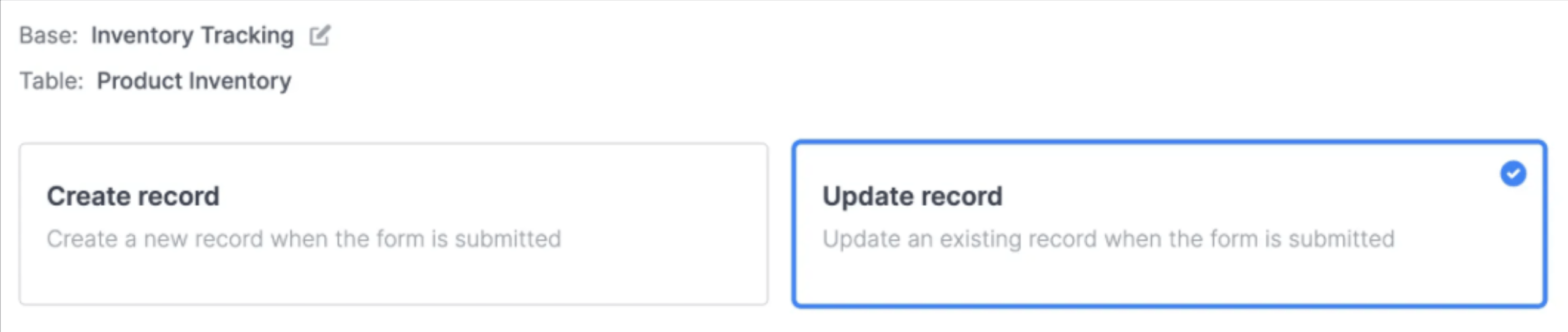
2
Create another form to choose the record
Create another form. This is the main form you will send your respondents to so that they can choose the record to update.In the form, add a linked record picker that links to the table or database in your integration that you would like to update. For example, if your first form updates a Product Inventory table, create this form tied to a different table that has a linked relation with Product Inventory. In this form, add a record picker to choose from those products: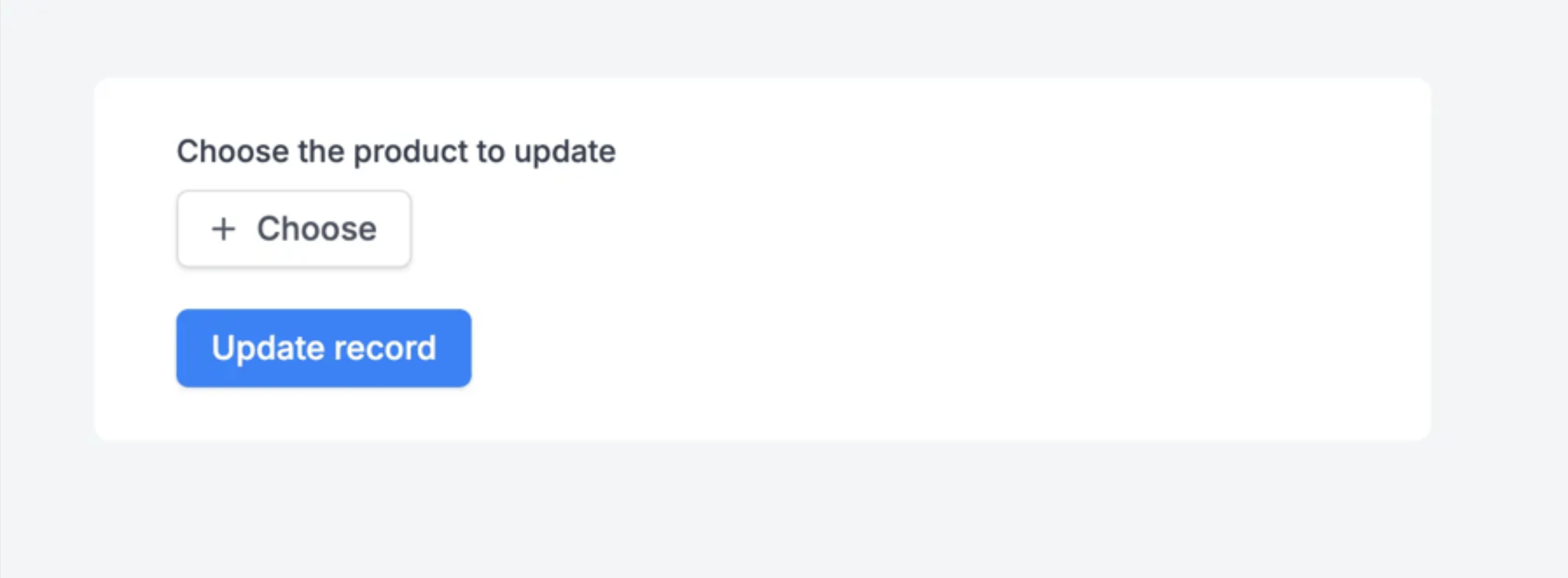
3
Connect the forms together
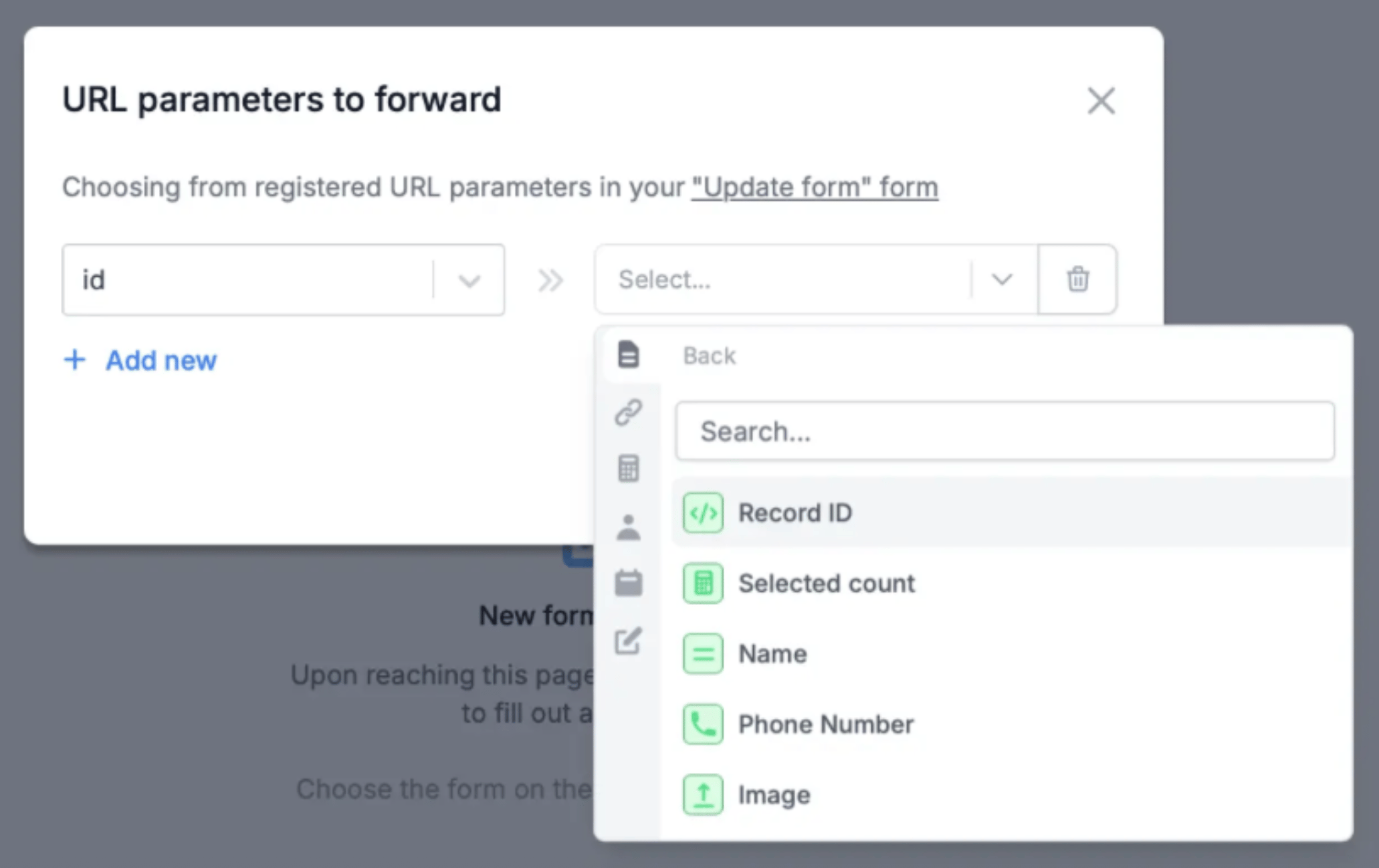
Navigate to the ending page of your record chooser form and set your update form as the New form to redirect to.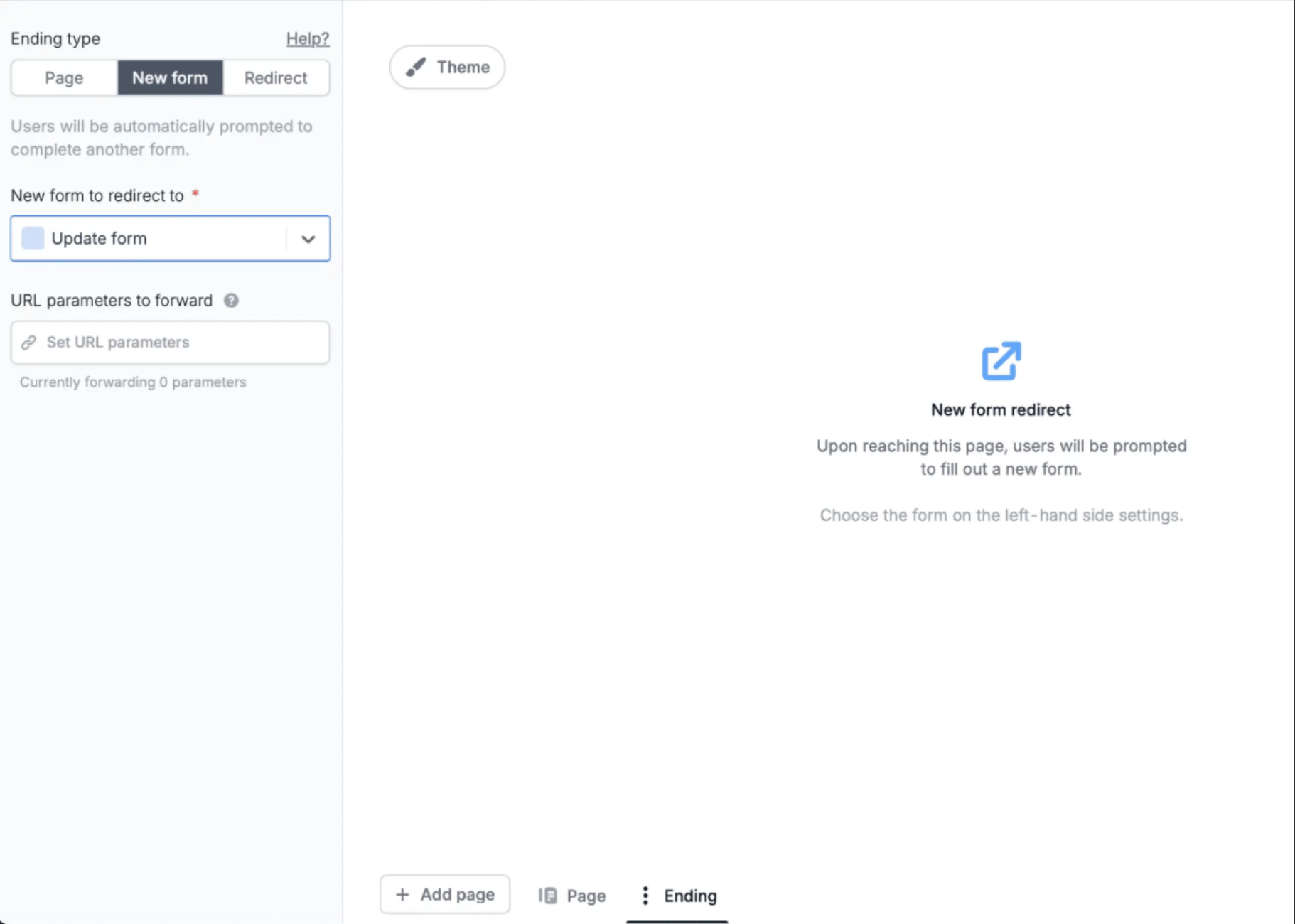
Related articles
Update Database
Pre-fill a form from an existing record, then update it on submission.
Record Pickers
Set pre-fills and reference fields from the record your respondent picks.
Allow Record Editing
Let respondents edit the linked records they choose in your database.