

What is user login?
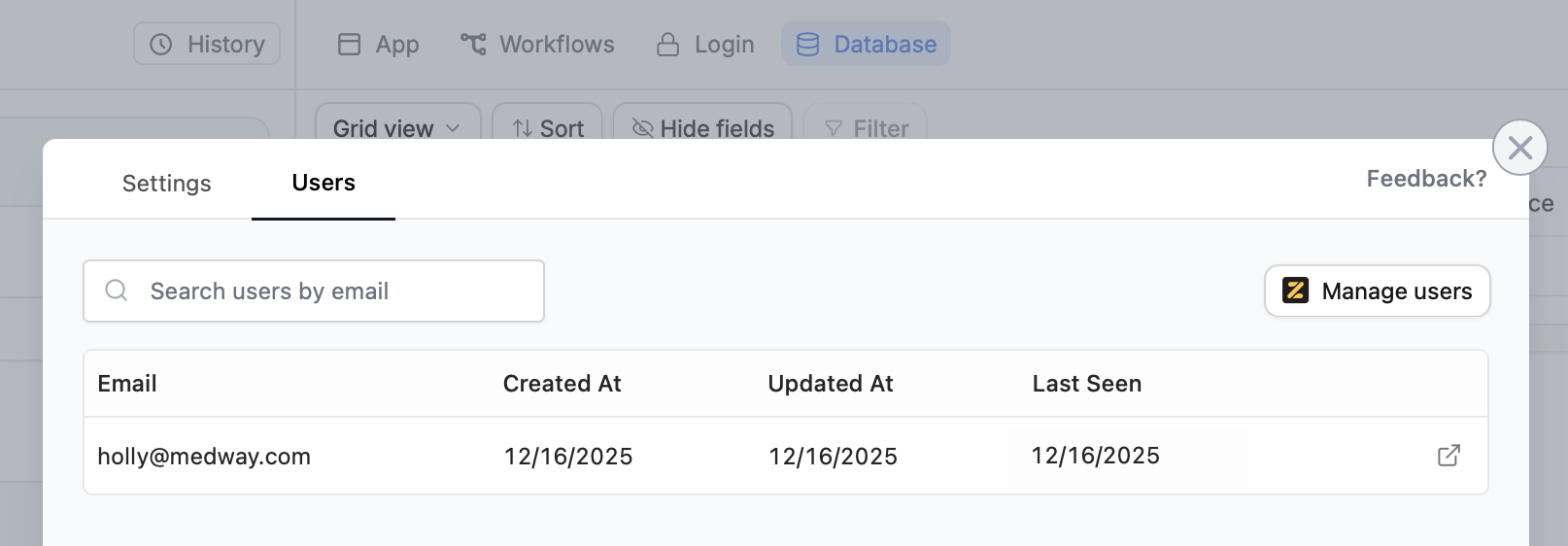
User login controls who can access your app. Zite handles authentication for you and connects to your existing user database (Airtable, Google Sheets, Zite Database, etc.). Zite includes enterprise-grade authentication with:- Email/password login
- Password reset functionality
- Session management
Video tutorial
User Login in 5 minutes, a tutorial from Zite partner Automation Helpers
Step by step guide
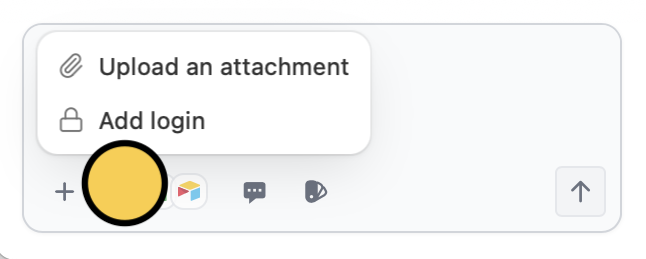
Choose your database
Select where to store user data:
- Zite Database
- Airtable
- Google Sheets and other databases (coming soon)
Configure access
Click
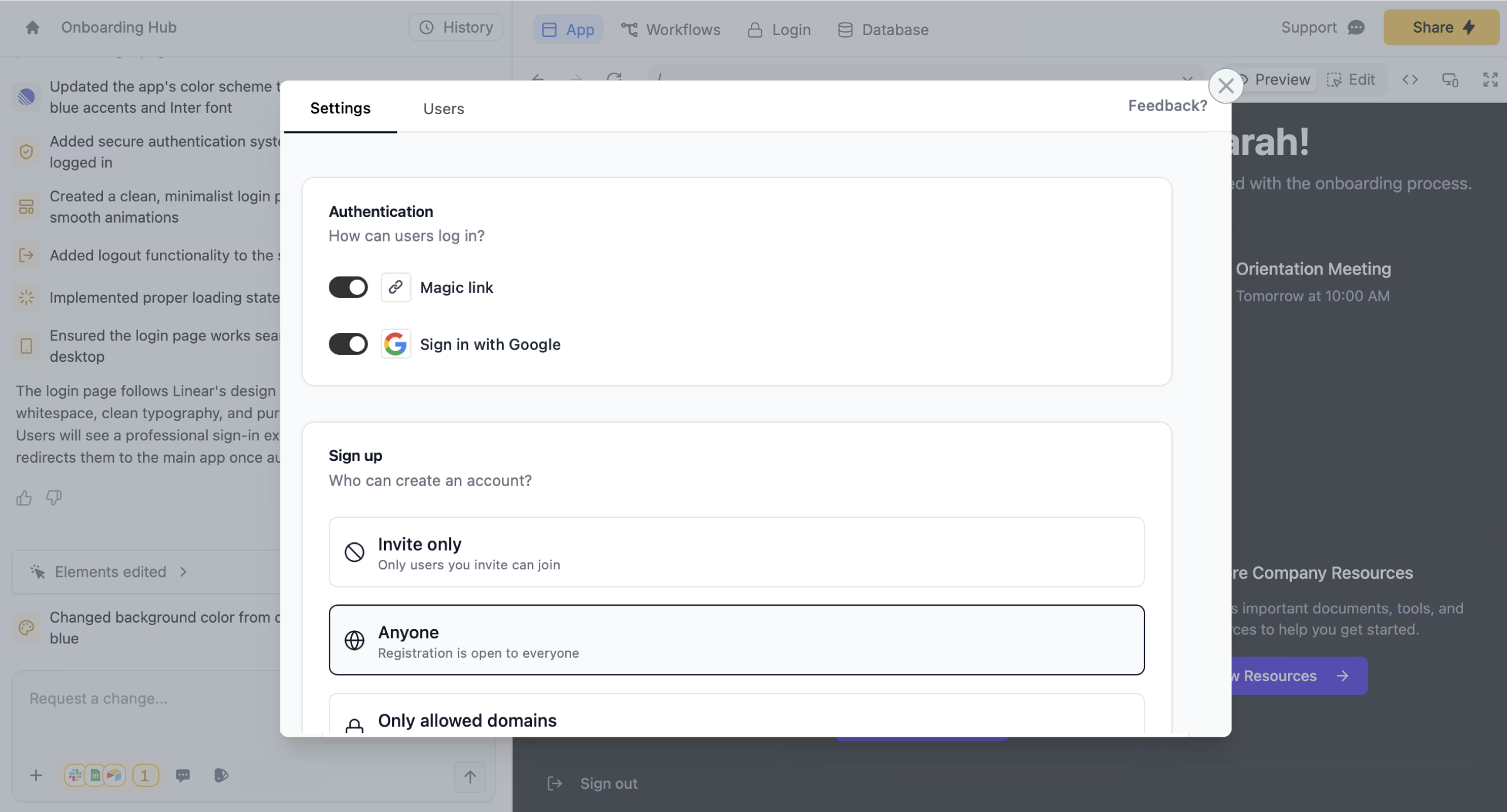
Login on top to set:- Login methods - Magic link and/or Google
-
Who can sign up - Anyone, invite-only, or specific domains
Customize login page
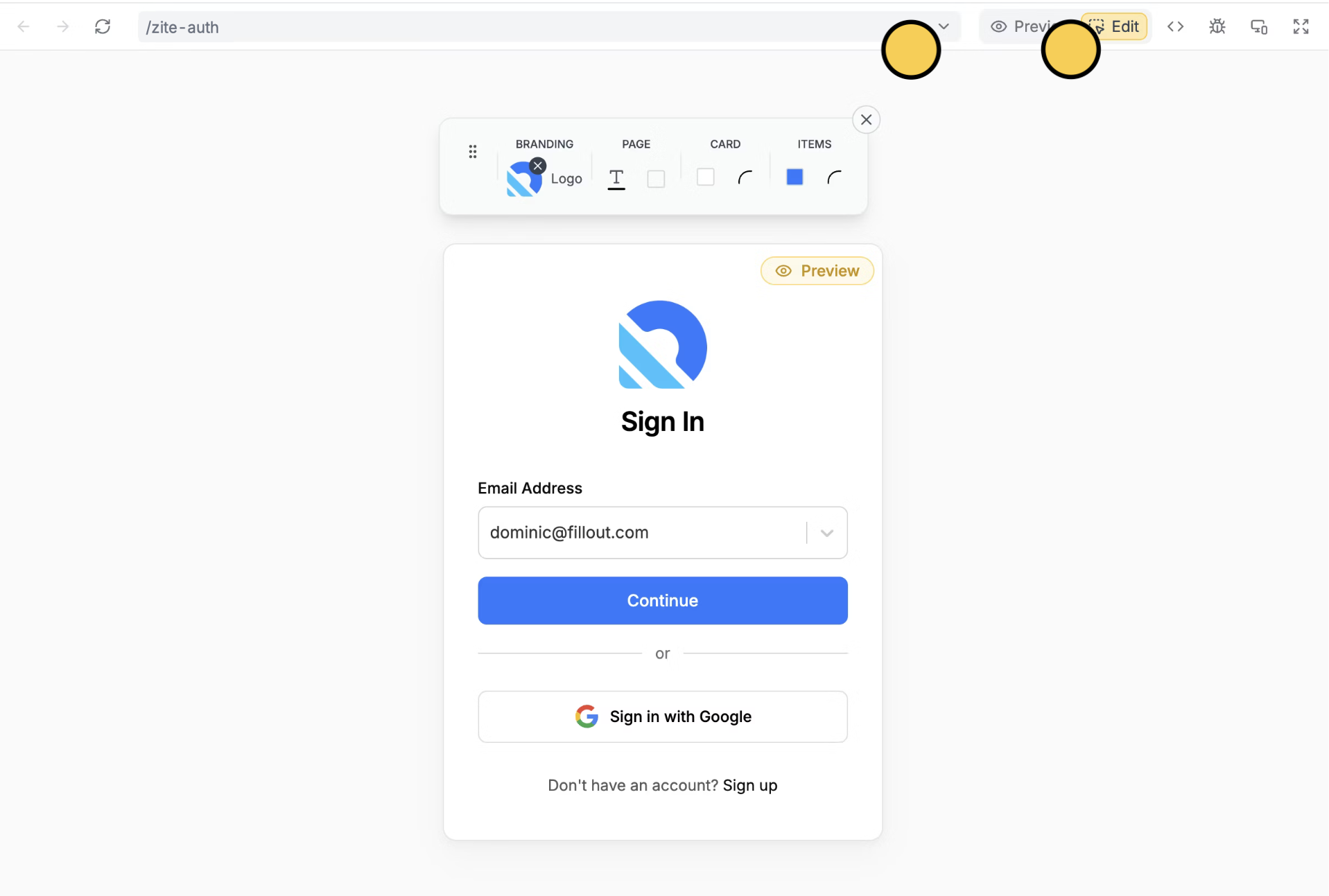
Navigate to theLogin page in the dropdown. Then, Edit your logo, colors, and branding.
Key features
User-specific data: In each workflow, you’ll have access to the logged-in user’s records automatically. Automatic security: Backend workflows are secured by default. Only logged-in users can call workflows. No user limits: Add unlimited users without per-seat pricing. Database integration: Connect to existing Airtable, Google Sheets, Zite, or other databases without duplicating data.Need help? Contact our support team at [email protected].