

How to add a currency field
First, drag theCurrency field type onto your form.
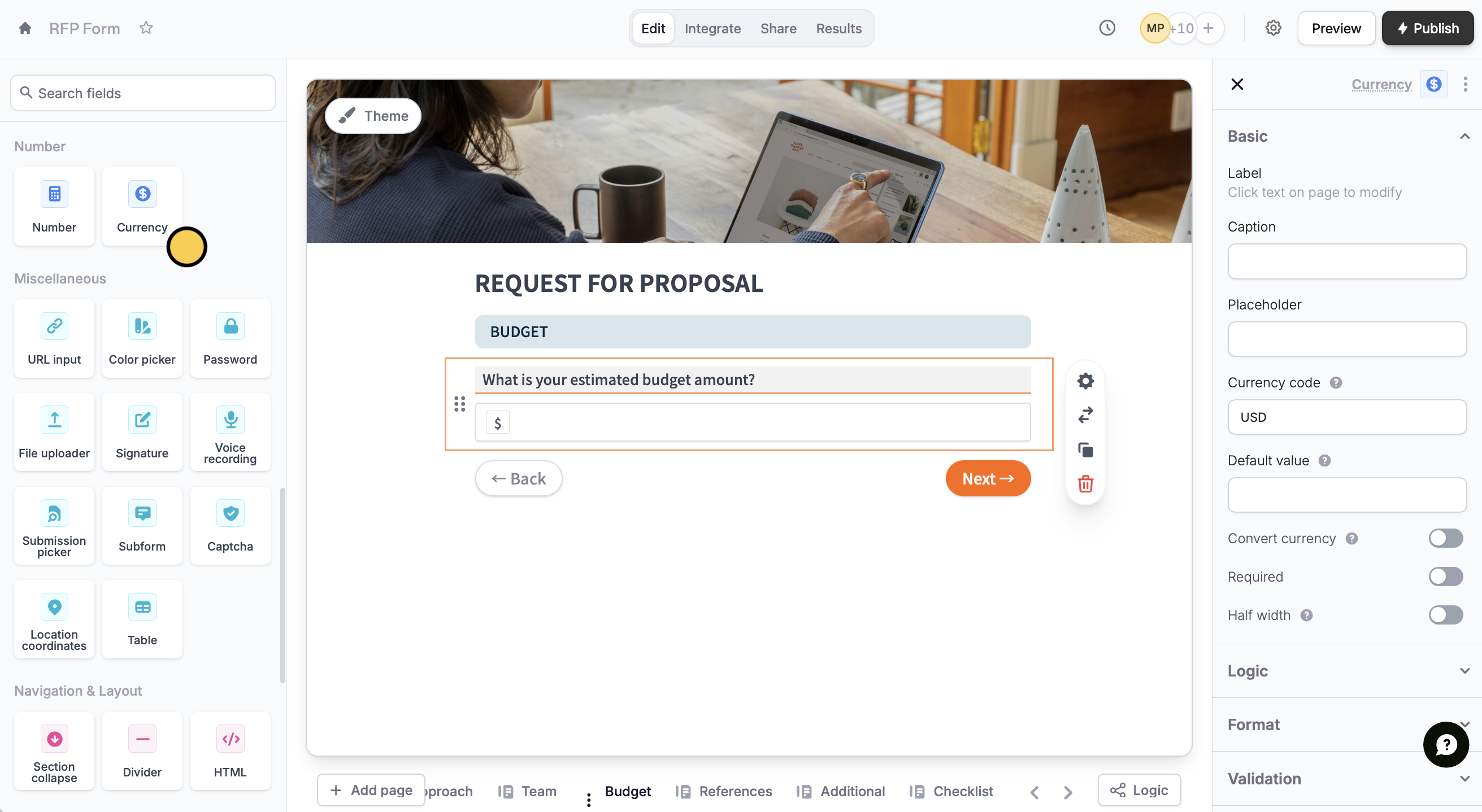
settings icon to open the right-hand panel and indicate your preferred currency. Here is a list of all the possible options.
The Currency field is available on the Fillout Starter, Pro and Business plans, and on Team and Enterprise. Zite Free, Pro and Business plans don’t include it for forms. See Fillout pricing.
Collect a dynamic type of currency
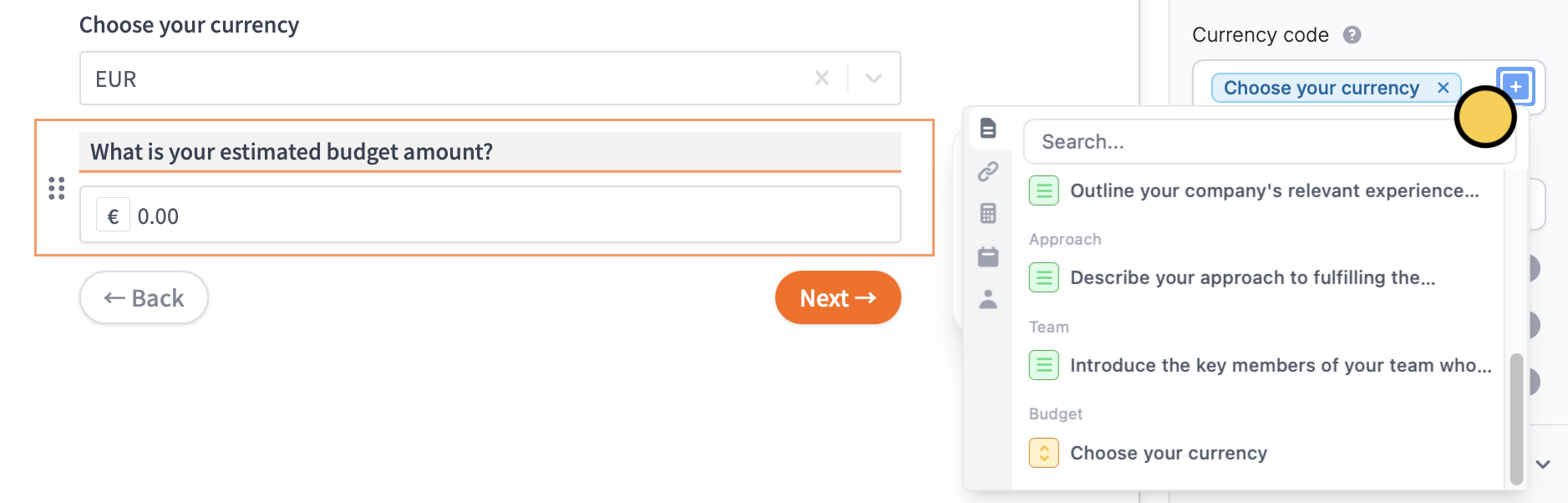
If you’d like to let your respondents choose the currency or if it should be specified by an external source (e.g. Airtable or Notion), click theplus icon to reference a field from that source.
Convert currencies
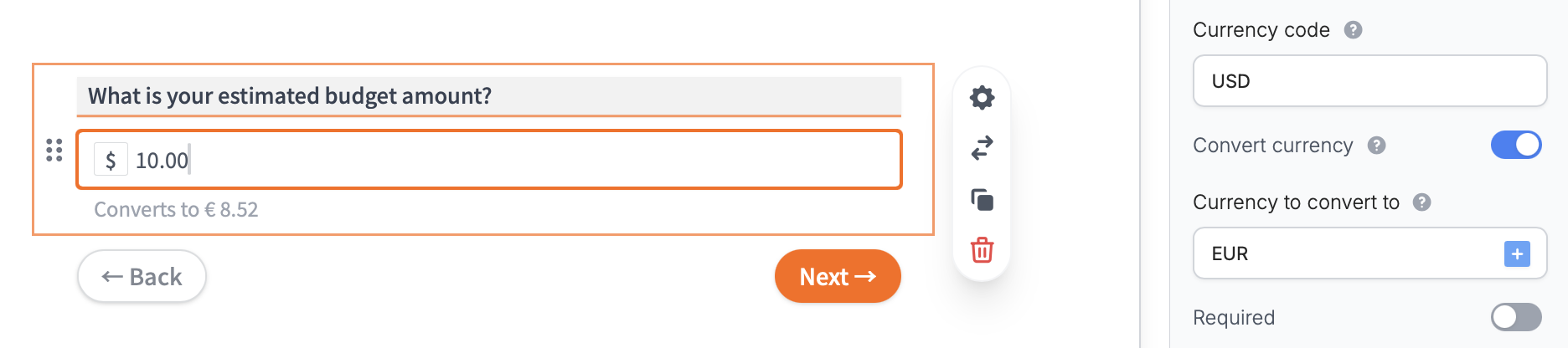
Enable theConvert currency toggle in the right-hand panel to automatically convert the currency the respondent enters. You can specify a fixed currency to convert it to or provide it dynamically using the plus icon .

Format the amount as respondents type
In the right-hand panel, open Format. Format currency is on by default and adds separators after the respondent finishes typing. Choose a Format: United States (12,100.50), Europe (12.100,50) or Canada (12 100,50).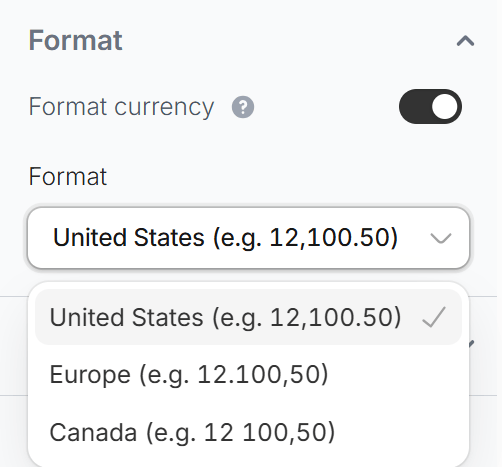
How amounts appear in emails and integrations
In notification and respondent emails, Slack, Microsoft Teams, Discord, Google Docs, calendar invites, and AI steps, a currency answer shows as a formatted amount, like $15.00. IfConvert currency is on, only the converted amount is shown.
If an automation reads this text, like a Zap that parses a Slack message, make sure it expects the formatted amount.