> ## Documentation Index
> Fetch the complete documentation index at: https://fillout.com/help/llms.txt
> Use this file to discover all available pages before exploring further.
# Respondent notification email
> Automatically email respondents a copy of their answers that they can edit later on.
export const SupportBanner = () => {
const titleId = React.useId();
return ;
};
## How to enable respondent notifications
Open your form. Then, click settings in the upper right section.
 Next, toggle `Respondent notifications`.
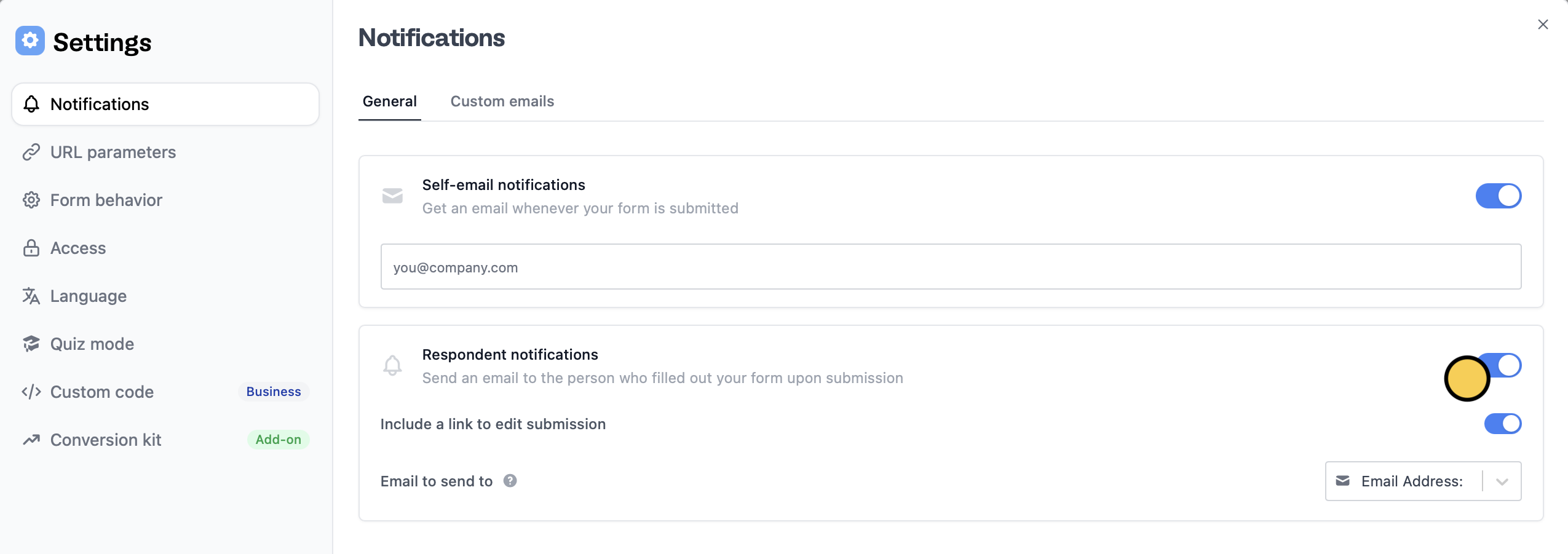 You can toggle `Include a link to edit submission` to allow your respondents to revise their answers later on.
That's it! Respondents will now automatically receive an email notification upon submission containing a summary of their responses like the one below.
Make sure you have an **Email Address** field in your form so that Fillout knows where to send the respondent email to.
## Tailor messages depending on the response
You can send a different message to a group of respondents depending on the answers they have provided in the form through **Custom emails**.
You can toggle `Include a link to edit submission` to allow your respondents to revise their answers later on.
That's it! Respondents will now automatically receive an email notification upon submission containing a summary of their responses like the one below.
Make sure you have an **Email Address** field in your form so that Fillout knows where to send the respondent email to.
## Tailor messages depending on the response
You can send a different message to a group of respondents depending on the answers they have provided in the form through **Custom emails**.
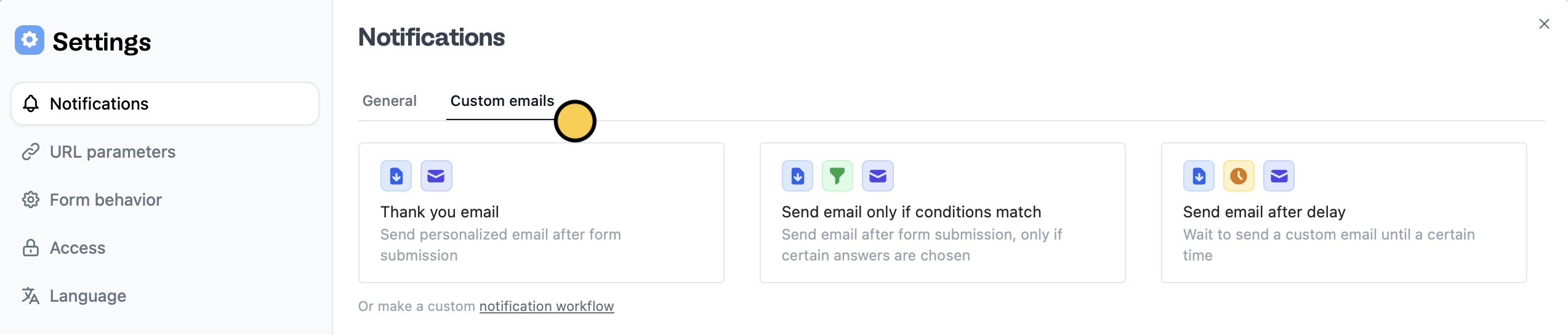 Choose `Send email only if conditions match`. Check out this quick [guide](https://www.fillout.com/help/custom-emails#send-different-messages-based-on-responses).
## Customize email
You can edit the default message and subject, and style its contents. More info [here](https://www.fillout.com/help/custom-emails#style-your-email).
## Related articles
Send a form by email to collect info, and track submissions.
Insert previous answers into upcoming questions or fields.
Automate sending, pipe previous answers, and style your email.
Choose `Send email only if conditions match`. Check out this quick [guide](https://www.fillout.com/help/custom-emails#send-different-messages-based-on-responses).
## Customize email
You can edit the default message and subject, and style its contents. More info [here](https://www.fillout.com/help/custom-emails#style-your-email).
## Related articles
Send a form by email to collect info, and track submissions.
Insert previous answers into upcoming questions or fields.
Automate sending, pipe previous answers, and style your email.