> ## Documentation Index
> Fetch the complete documentation index at: https://fillout.com/help/llms.txt
> Use this file to discover all available pages before exploring further.

# Reset your password

> Change your password for security or to recover your account if you've forgotten it.

export const SupportBanner = () => {
  const titleId = React.useId();
  return <div className="support-banner" role="region" aria-labelledby={titleId}>
      <span className="support-banner__ring support-banner__ring--outer" aria-hidden="true" />
      <span className="support-banner__ring support-banner__ring--middle" aria-hidden="true" />
      <span className="support-banner__ring support-banner__ring--inner" aria-hidden="true" />
      <span className="support-banner__ring support-banner__ring--center" aria-hidden="true" />

      <div className="support-banner__content">
        <div className="support-banner__title" id={titleId} role="heading" aria-level="2">Still have questions?</div>

        <div className="support-banner__copy">
          <span className="support-banner__line">Our team is happy to help. Start a live chat using the</span>
          <span className="support-banner__line">
            chat bubble <span className="support-banner__chat-icon" aria-hidden="true" /> in the bottom right, or email us at
          </span>
          <span className="support-banner__line">
            <a href="mailto:support@fillout.com">support{'@'}fillout.com</a>
          </span>
        </div>

        <a className="support-banner__cta" href="mailto:support@fillout.com">Contact us</a>
      </div>
    </div>;
};

## Overview

Sometimes you may need to reset your password for various reasons, including forgetting it, security concerns, or as a precautionary measure after potential unauthorized access to your account. It's also recommended to update passwords regularly for better online security.

## How to reset your password

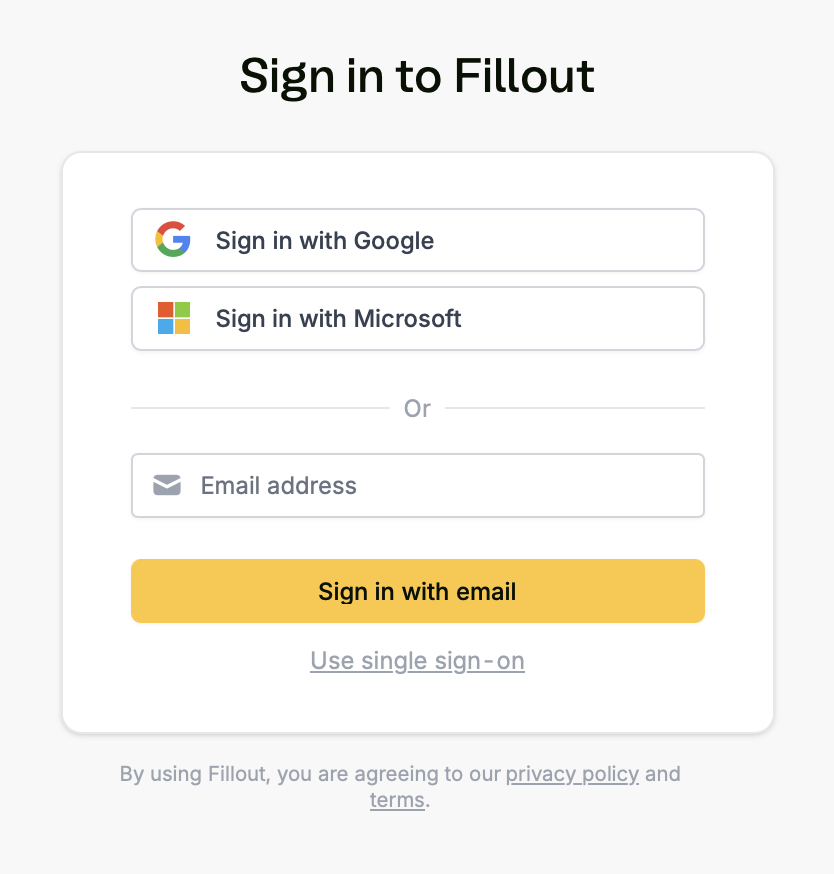
On [Fillout's homepage](https://www.fillout.com), click `Log in` on the upper right corner. Enter your email or sign in with Google or Microsoft. Then, click `Forgot password?`.

When signing in with Google, the Forgot password? option may not appear since your password is managed by your Google account. To reset your password, use Google's account recovery process instead.
<img src="https://mintcdn.com/fillout-005a867b/5YNAvkNoi2Kzb4y8/images/Screenshot2025-10-10at8.09.18PM.png?fit=max&auto=format&n=5YNAvkNoi2Kzb4y8&q=85&s=a8c7556e6fcbe3c62f1961b993942549" alt="Screenshot 2025-10-10 at 8.09.18 PM.png" title="Screenshot 2025-10-10 at 8.09.18 PM.png" style={{ width:"41%" }} width="834" height="874" data-path="images/Screenshot2025-10-10at8.09.18PM.png" />

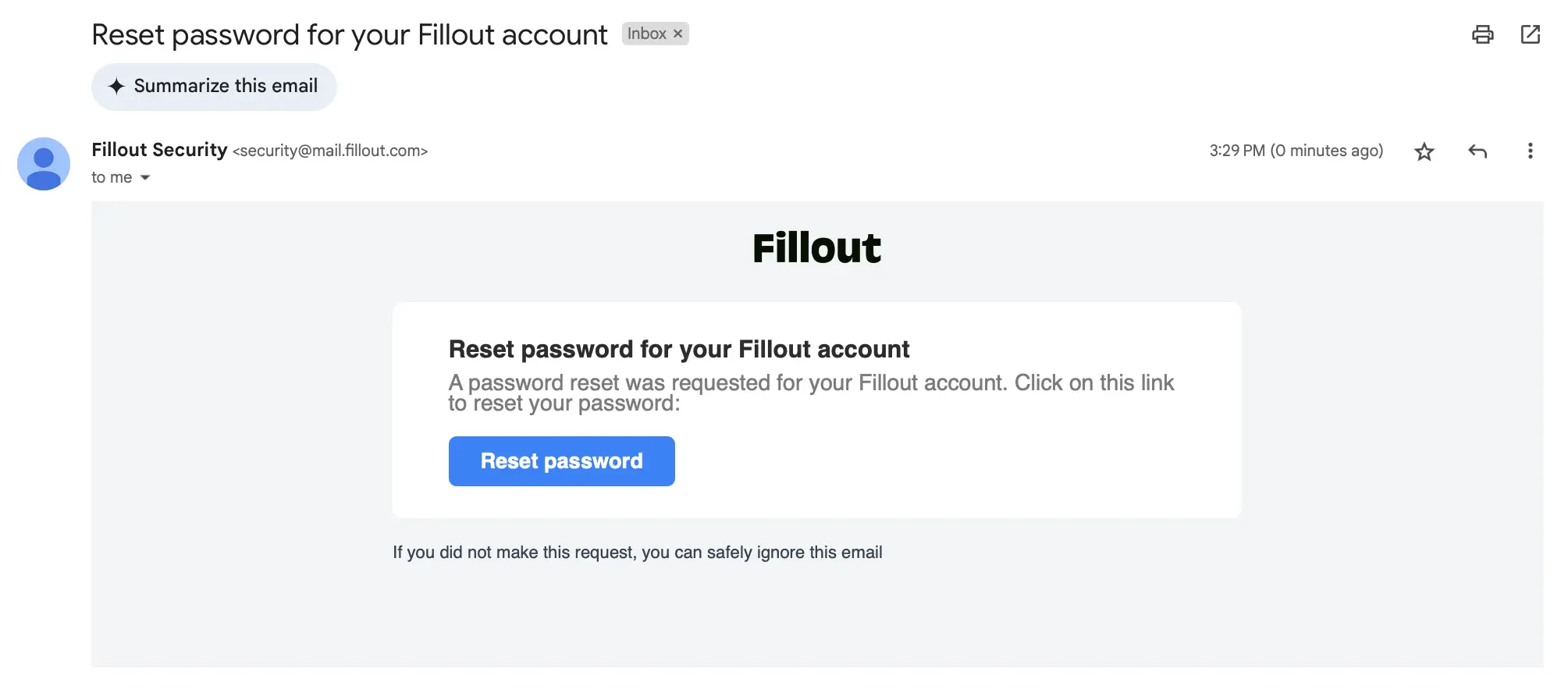
Then, go to your email inbox, and click the **reset link**.
<img src="https://mintcdn.com/fillout-005a867b/wLNVsGbjoddvqJO1/images/account/image-22.png?fit=max&auto=format&n=wLNVsGbjoddvqJO1&q=85&s=5a49d2ab588e6905802ed99a008ba41d" alt="How to reset your password" style={{ width:"83%" }} width="2009" height="893" data-path="images/account/image-22.png" />

A new tab will open where you will be asked to `Change password`. That's it! You'll now be logged in to your account.

## Related articles

<CardGroup cols={3}>
  <Card title="Delete your account" color="#FFC738" icon="user-xmark" iconType="regular" href="/help/delete-user-account">
    Remove all forms including responses, and unsubscribe.
  </Card>

  <Card title="Workspaces" color="#FFC738" icon="folders" iconType="regular" href="/help/workspaces">
    Organize forms in folders and manage user access.
  </Card>

  <Card title="Organizations" color="#FFC738" icon="building" iconType="regular" href="/help/organizations">
    Create organizations for different companies with the same email.
  </Card>
</CardGroup>

<SupportBanner />
