> ## Documentation Index
> Fetch the complete documentation index at: https://fillout.com/help/llms.txt
> Use this file to discover all available pages before exploring further.
# Connect Fillout to hundreds of apps with Relay.app
> Automate tasks and workflows whenever someone completes your Fillout form. Use Relay’s human-in-the-loop feature to request for a team member’s approval or input.
export const SupportBanner = () => {
const titleId = React.useId();
return ;
};
## What is Relay.app?
[Relay.app](http://Relay.app) is a tool that lets you automate workflows across different apps, with the option to involve a human in the process. Each automation or **Workflow** consists of a **trigger**, an action that kicks off your workflow, and **steps**, which are actions performed after a trigger.
## How it works
Sign up or log in to your [Relay.app](http://Relay.app) account. On the left-hand panel, click `Apps` to `Connect` your Fillout account.
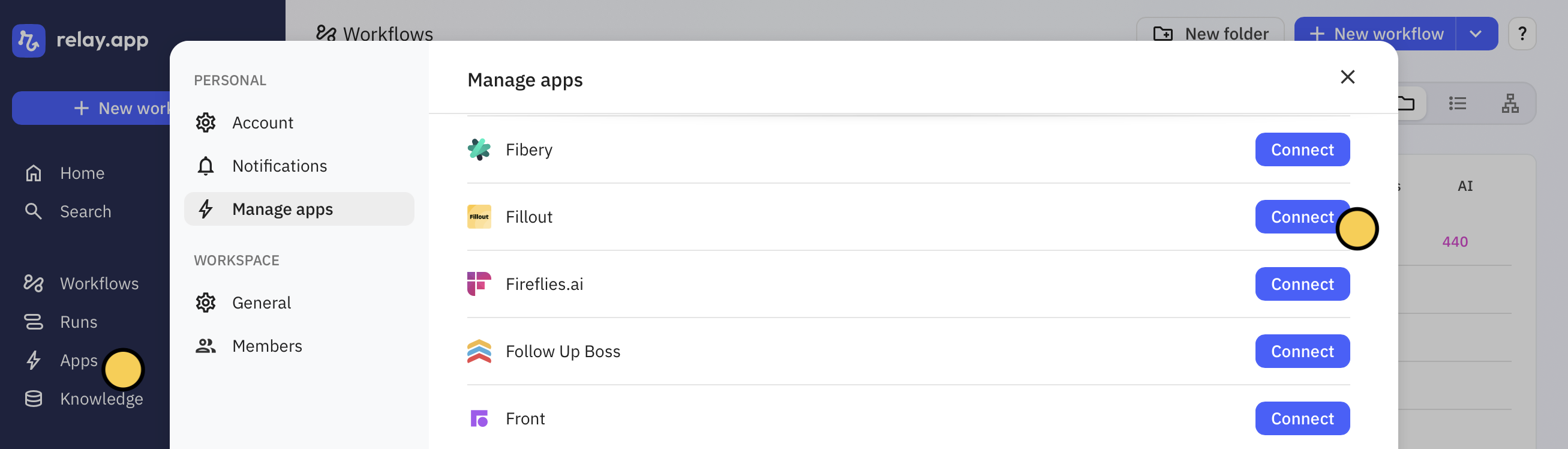 Go back to the home page, and, click `+ New workflow` on the left side. Then, `+ Add trigger` and search for **Fillout.** Click `New submission`.
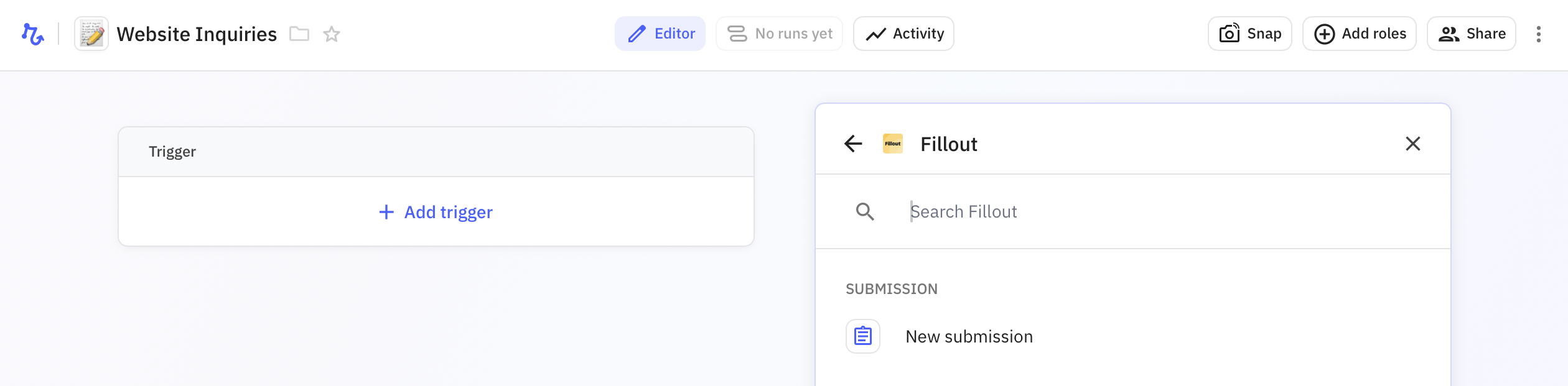 Next, select a Fillout **Form** in the dropdown menu. Then, `+ Add step` to select an action. Choose between apps, webhooks, AI, and more.
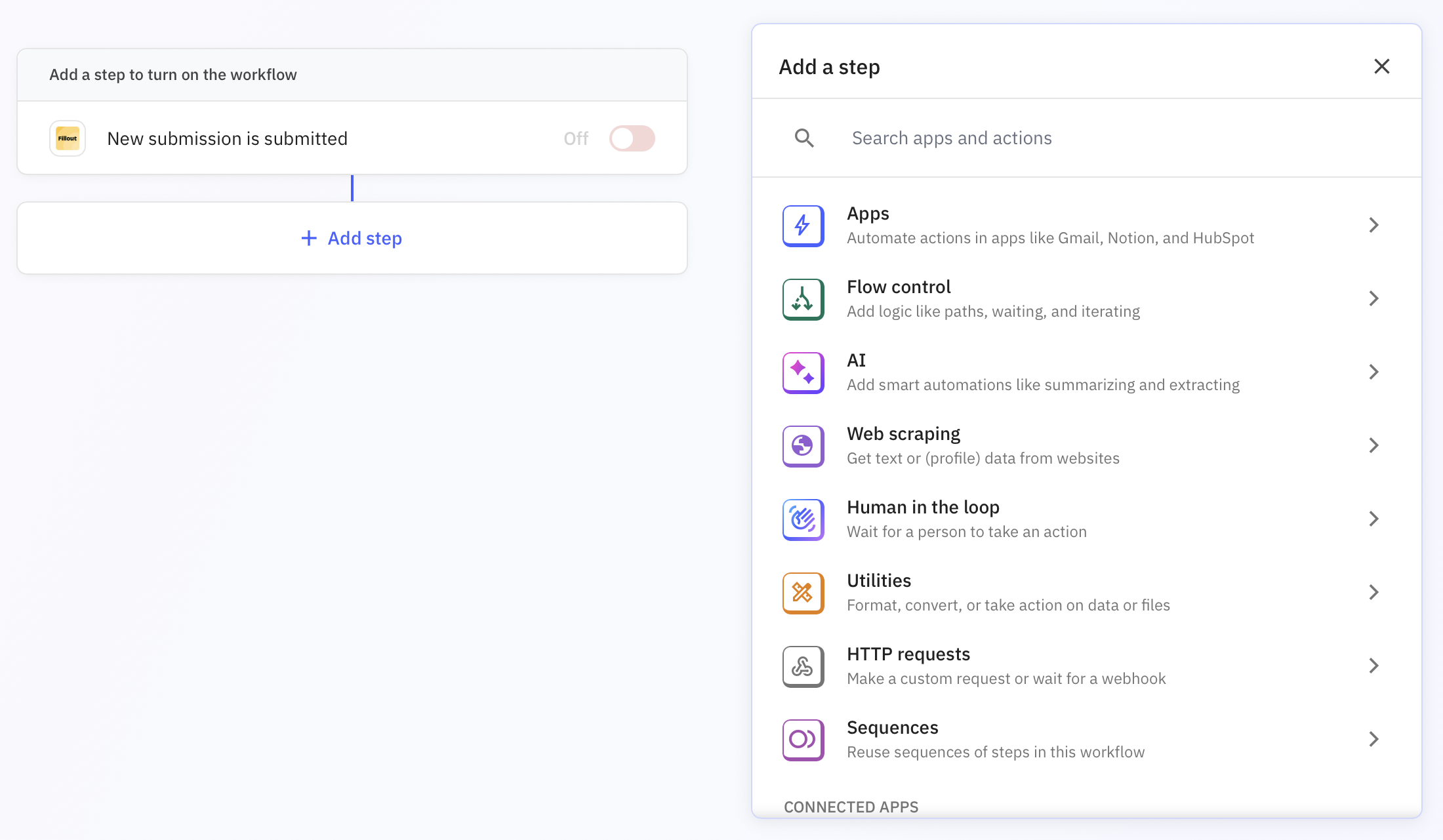 Use `Human in the loop` to ask for approval or input from a team member via email or Slack message. More info [here](https://www.relay.app/features/human-in-the-loop).
`Start a test run`, and choose a form submission from the list in the pop-up.
Use `Human in the loop` to ask for approval or input from a team member via email or Slack message. More info [here](https://www.relay.app/features/human-in-the-loop).
`Start a test run`, and choose a form submission from the list in the pop-up.
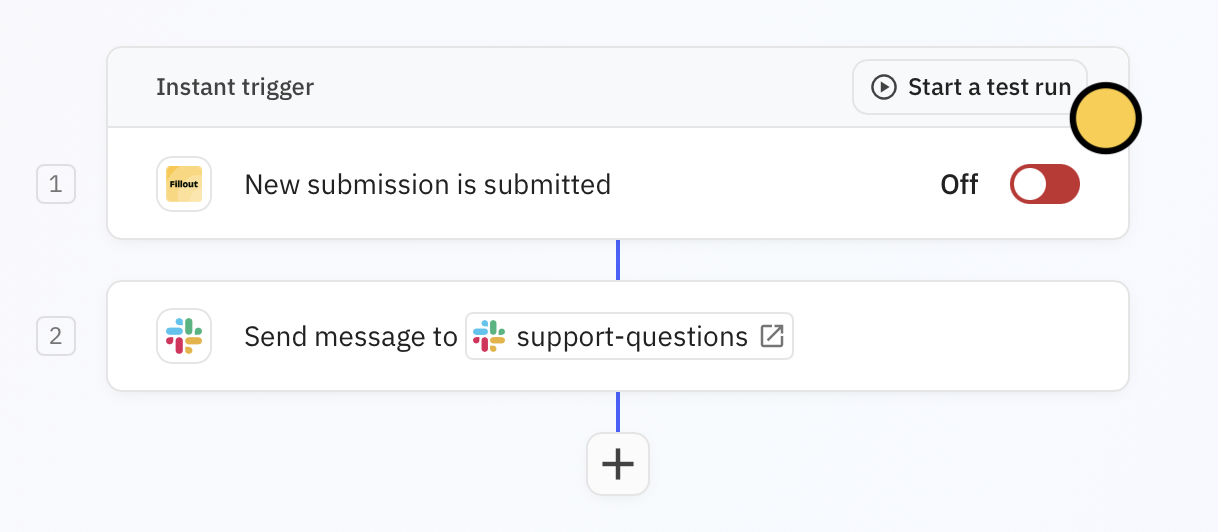 Once everything's all good, toggle the `Trigger switch`. Now, every new submission will be sent to your Slack channel.
 There are plenty of other ways to use Fillout with [Relay.app](http://Relay.app). Check out the guides [here](https://www.relay.app/apps/fillout/integrations).