> ## Documentation Index
> Fetch the complete documentation index at: https://fillout.com/help/llms.txt
> Use this file to discover all available pages before exploring further.
# Pre-fill fields
> Set a default value to pre-populate form fields based on previous answers, URL parameters, or even information from 3rd party integrations.
export const SupportBanner = () => {
const titleId = React.useId();
return ;
};
## How to pre-fill a field
Click a field's . In the right-hand panel, fill out the **Default value** with a text or hover and click to reference a value. Fillout lets you map:
* - [answers to another Fillout field](/help/answer-piping) including [respondent info from a login step](/help/login-page)
* - [URL parameters](/help/url-parameters)
* - [calculations](https://www.fillout.com/help/calculations#pre-fill-fields-with-a-calculation)
* - [custom dates](/help/pre-fill-dates)
* - [enriched emails](https://www.fillout.com/help/lead-enrichment#how-to-enrich-emails) with company information
* - [static values](/help/integration-static-values)
* - database records
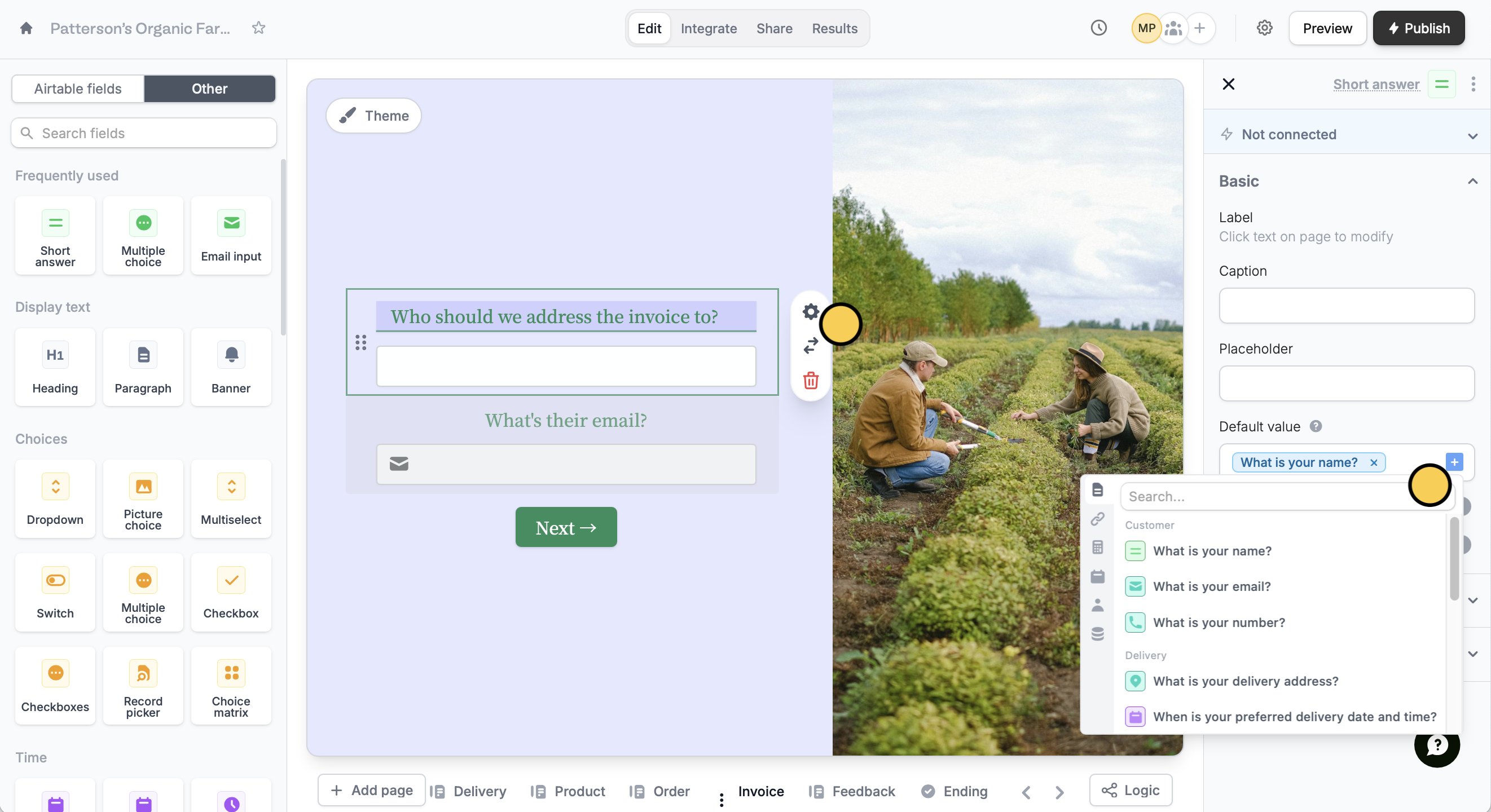 For example, the customer’s name is set as the default invoice addressee, since this is often the case, but they can change it if needed.
## Pre-fill with external data
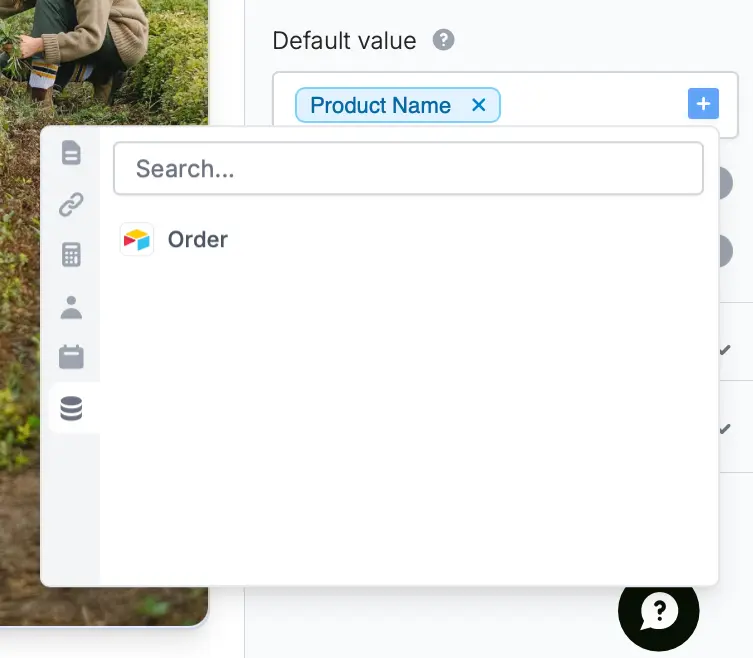
You can also pre-fill fields with data from external sources like Airtable and Notion. Here's an example of referencing data from the Airtable record the form is editing. Check this [guide](/help/fetch-dynamic-data).
For example, the customer’s name is set as the default invoice addressee, since this is often the case, but they can change it if needed.
## Pre-fill with external data
You can also pre-fill fields with data from external sources like Airtable and Notion. Here's an example of referencing data from the Airtable record the form is editing. Check this [guide](/help/fetch-dynamic-data).
 ## Other advanced features
Pass information to a form to support pre-filling.
Display content to hide, validate and pre-fill fields.
Send a fixed value to an integration for any field.
## Other advanced features
Pass information to a form to support pre-filling.
Display content to hide, validate and pre-fill fields.
Send a fixed value to an integration for any field.