> ## Documentation Index
> Fetch the complete documentation index at: https://fillout.com/help/llms.txt
> Use this file to discover all available pages before exploring further.
# Sync new deals and leads to Pipedrive
> Make deals, people, and organizations in Pipedrive with a Fillout form. Embed the form on your website or share through a link.
export const SupportBanner = () => {
const titleId = React.useId();
return ;
};
## What is Pipedrive?
[Pipedrive](https://www.pipedrive.com/) is a customer relationship management (CRM) platform designed to help businesses manage sales pipelines and customer interactions more effectively. It offers tools for tracking leads, automating tasks, and analyzing sales data to optimize sales processes and improve performance.
## How it works
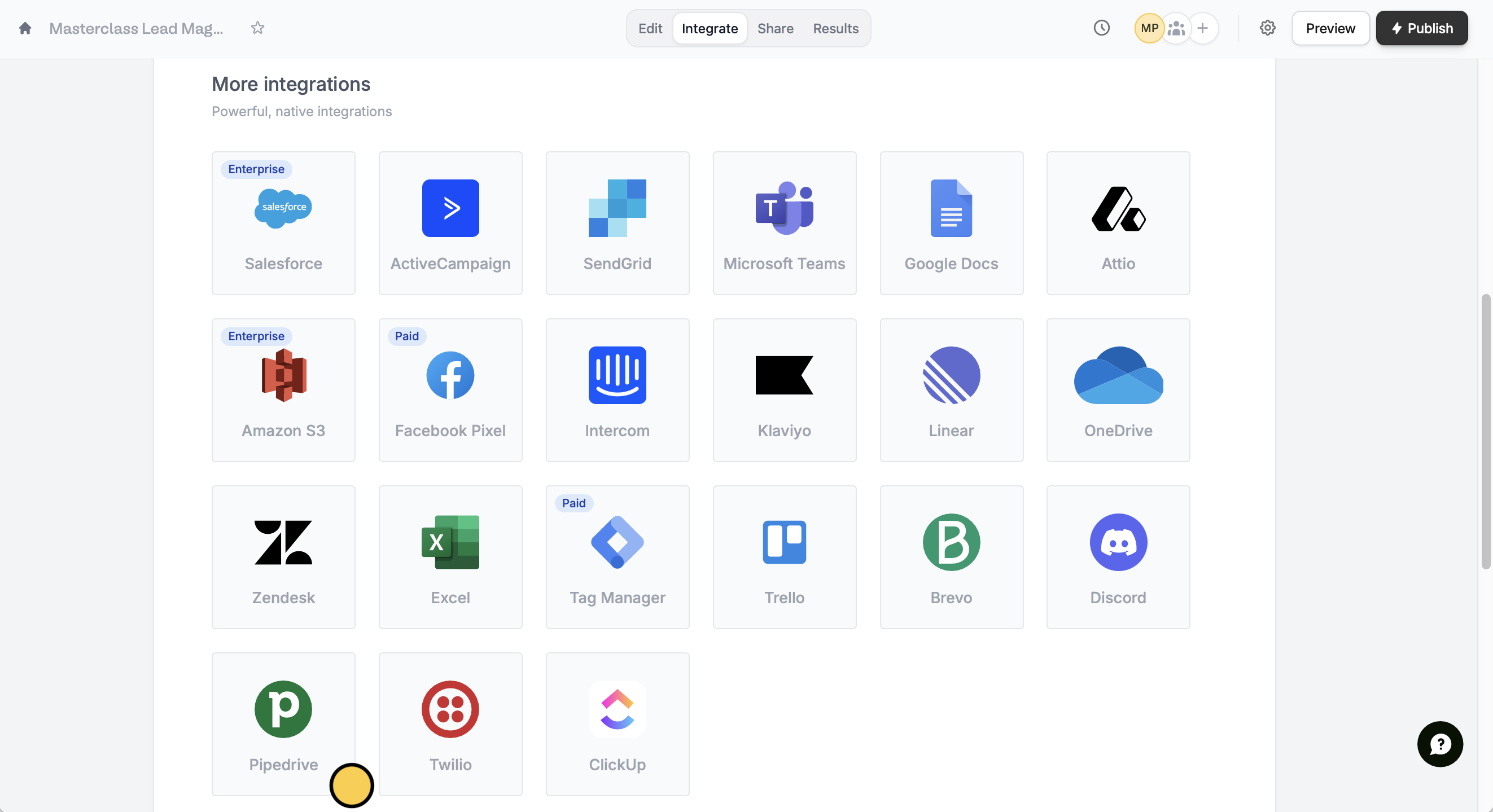
Open your existing form or create a new one, then go to `Integrate` from the top menu. Look for `Pipedrive`.
 Choose the relevant options in the dropdown menus. Enter values or reference field answers like the name by clicking or typing **@**.
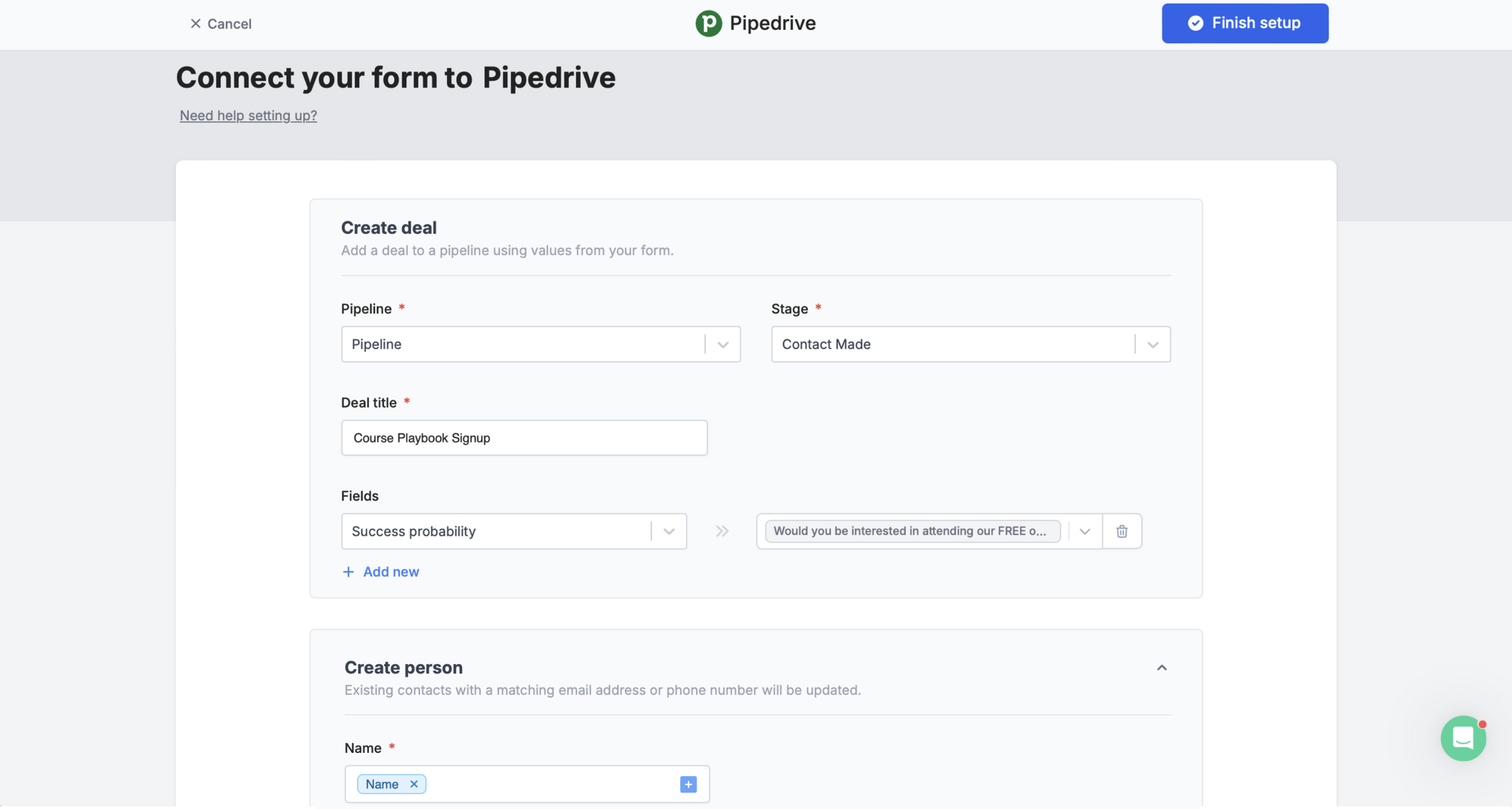 Click `Finish setup` on the upper right corner after setting up the fields.
`Preview` your form to test it. Once everything’s good, `Publish` your form and share its link or embed it on your website.
That’s it! Now every time a form is completed, you’ll see its responses in the **Deals** page of your Pipedrive dashboard.
## Add a lead only when a certain condition is met
You can choose to sync form responses only under a specific condition. Check out this [quick guide](/help/conditional-integration#bbe44591cc624d09b3cf1198e66b75e0).
## Other similar integrations
Use a form to create leads and more.
Create or update contacts with a form.
Add or update records with a form.
Click `Finish setup` on the upper right corner after setting up the fields.
`Preview` your form to test it. Once everything’s good, `Publish` your form and share its link or embed it on your website.
That’s it! Now every time a form is completed, you’ll see its responses in the **Deals** page of your Pipedrive dashboard.
## Add a lead only when a certain condition is met
You can choose to sync form responses only under a specific condition. Check out this [quick guide](/help/conditional-integration#bbe44591cc624d09b3cf1198e66b75e0).
## Other similar integrations
Use a form to create leads and more.
Create or update contacts with a form.
Add or update records with a form.