> ## Documentation Index
> Fetch the complete documentation index at: https://fillout.com/help/llms.txt
> Use this file to discover all available pages before exploring further.
# Make a quiz with Fillout
> Make personalized quizzes to engage your audience or generate leads. Choose from dozens of field types, calculate scores, and automate follow-up.
With Fillout, you can easily create and customize your own **free quiz** that lets you:
* Automatically score submissions
* Show answers after each question or list them at the end
* Send a notification whenever someone completes your quiz
## Try a demo quiz
Give the demo quiz below a try to get an idea of the types of quizzes you can make with Fillout. This is just one example - the Fillout quiz builder is highly customizable.
**Use weighted scoring**
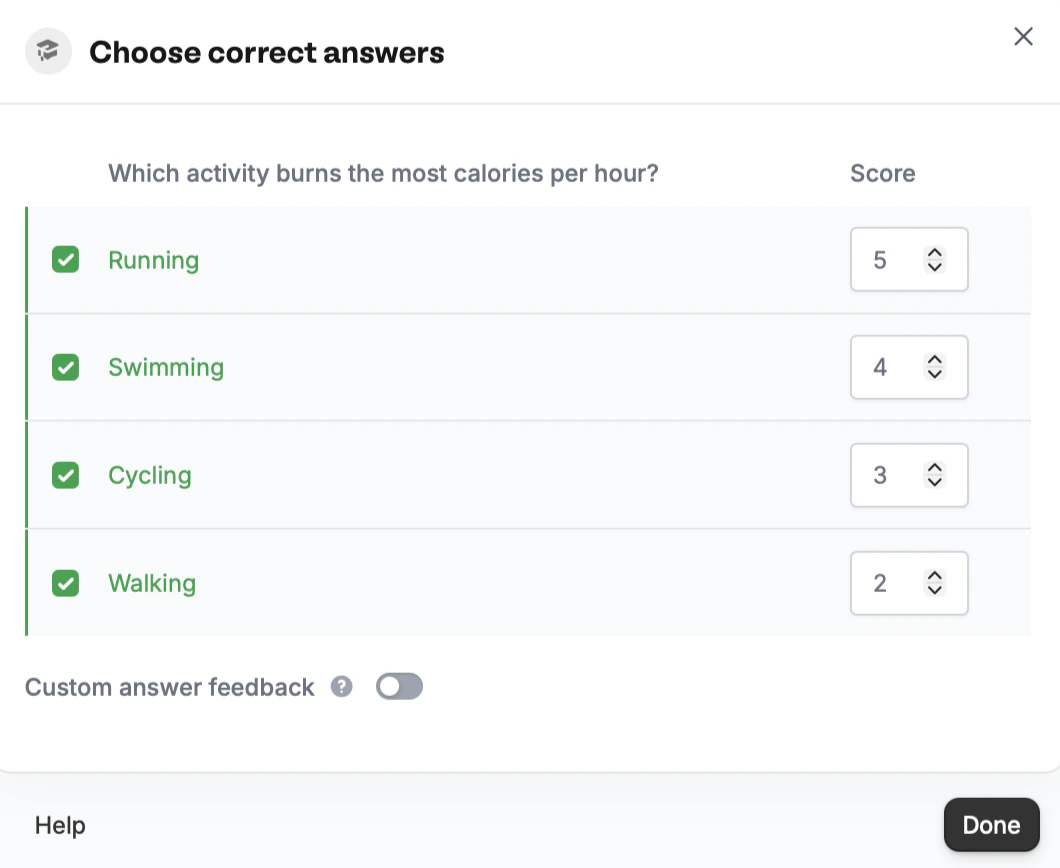
Typically, you’ll assign a score of 1 for correct answers and 0 for incorrect ones, but you can also add weighted scores to give certain questions or answer choices more impact. Simply enter the desired score for each answer choice to apply weighted scoring.
 **Display the respondent's current score**
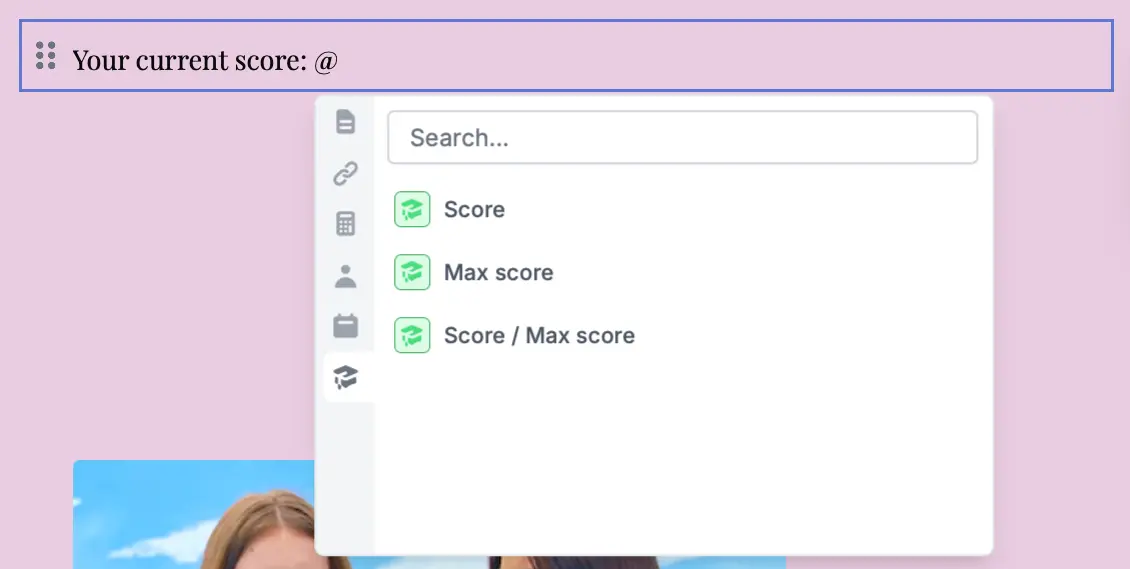
You can show the respondent's score at any point during the quiz. To reference, simply type **@** anywhere and click followed by `Score`.
**Display the respondent's current score**
You can show the respondent's score at any point during the quiz. To reference, simply type **@** anywhere and click followed by `Score`.
 **Show custom ending messages or pages**
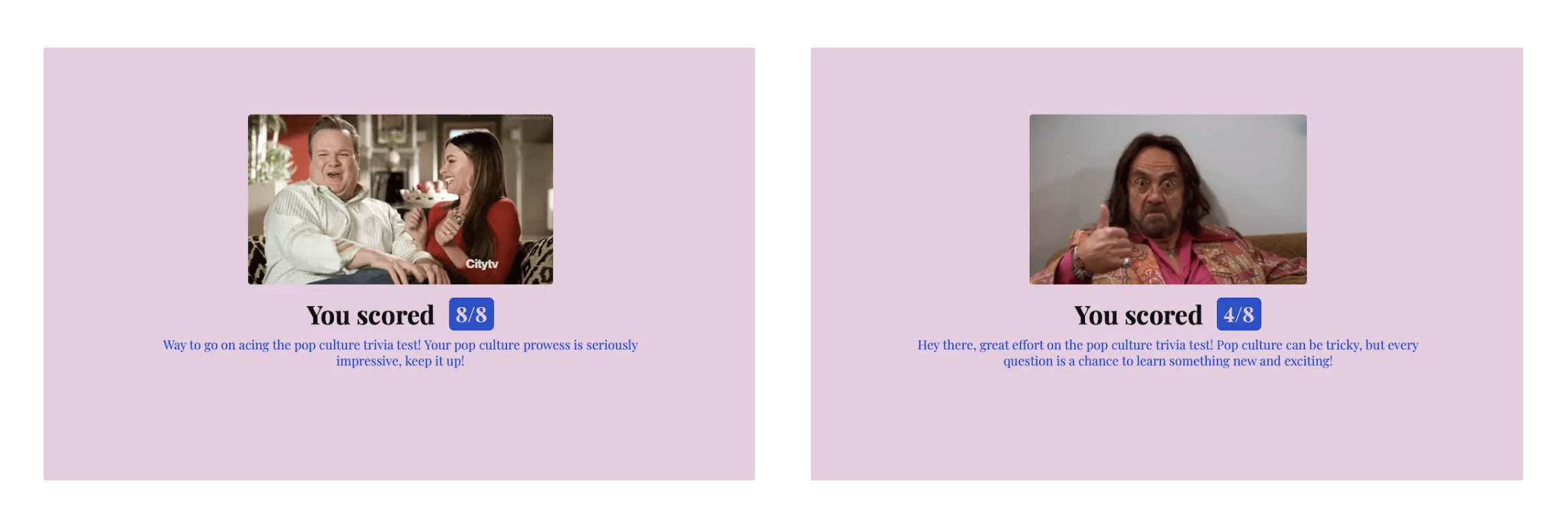
Display different ending messages depending on a respondent's score by using [hide/show logic](/help/conditional-hiding). To display different ending pages, set up [page logic](/help/page-logic).
**Show custom ending messages or pages**
Display different ending messages depending on a respondent's score by using [hide/show logic](/help/conditional-hiding). To display different ending pages, set up [page logic](/help/page-logic).
 **Show a summary of answers on the ending page**
Display a list of correct answers alongside the respondent’s answers. Reference their answers by typing **@** and selecting the relevant question.
**Show a summary of answers on the ending page**
Display a list of correct answers alongside the respondent’s answers. Reference their answers by typing **@** and selecting the relevant question.
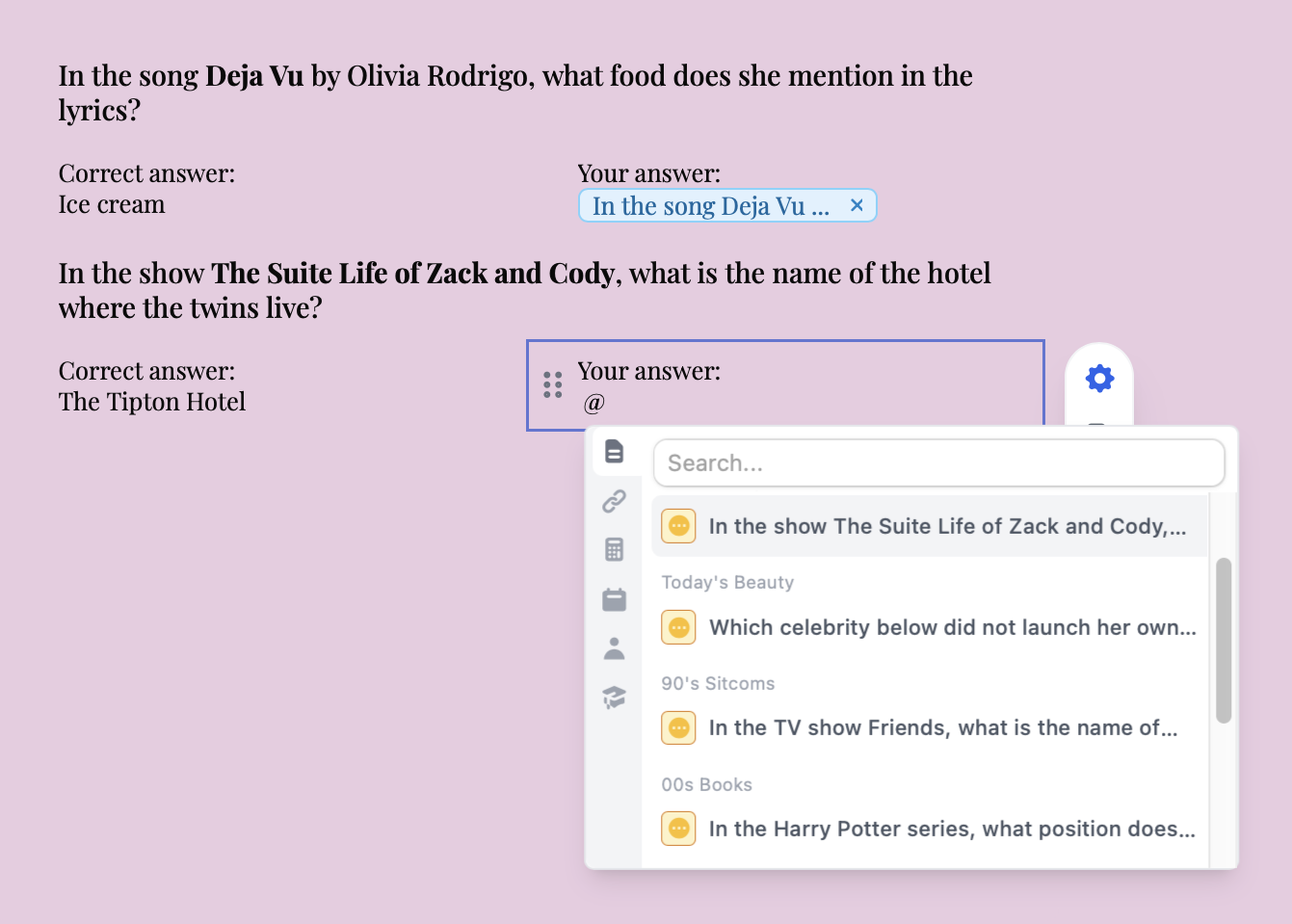 You can also use [logic](https://www.fillout.com/help/conditional-hiding#hide-a-question-based-on-a-condition) to show only the answers the respondent got wrong. Drag your mouse across the relevant fields. On the right-hand pane, `Set conditional logic`.
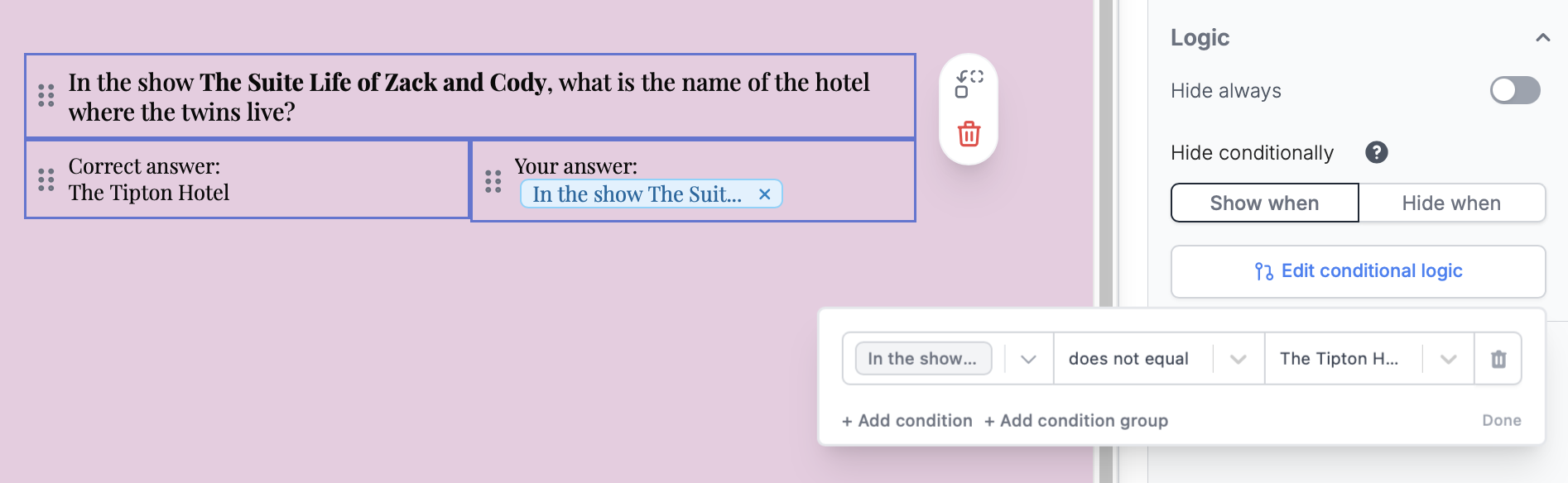 In this example, we'll just show this info if their answer `does not equal` the correct answer.
## AI Quiz Maker
You can create a quiz in a few seconds using a prompt. Check our quick guide [here](https://www.fillout.com/ai-quiz-maker).
## Related articles
Use scoring, logic, and calculations to create dynamic outcomes.
Create quizzes with the AI Quiz Maker and use ChatGPT.
In this example, we'll just show this info if their answer `does not equal` the correct answer.
## AI Quiz Maker
You can create a quiz in a few seconds using a prompt. Check our quick guide [here](https://www.fillout.com/ai-quiz-maker).
## Related articles
Use scoring, logic, and calculations to create dynamic outcomes.
Create quizzes with the AI Quiz Maker and use ChatGPT.