> ## Documentation Index
> Fetch the complete documentation index at: https://fillout.com/help/llms.txt
> Use this file to discover all available pages before exploring further.
# How to create a Google Sheets form
> Sync responses from your Fillout form to a Google Sheet in under 30 seconds.
export const SupportBanner = () => {
const titleId = React.useId();
return
Still have questions?
Our team is happy to help. Start a live chat using the
chat bubble in the bottom right, or email us at
support{'@'}fillout.com
;
};
## What is Google Sheets?
[**Google Sheets**](https://www.google.com/sheets/about/) offers users a collaborative platform to create, edit, and store spreadsheets online. It provides a wide range of features for data analysis, visualization, and sharing, making it a versatile tool for businesses, educators, and individuals.
## Video Tutorial
## How it works
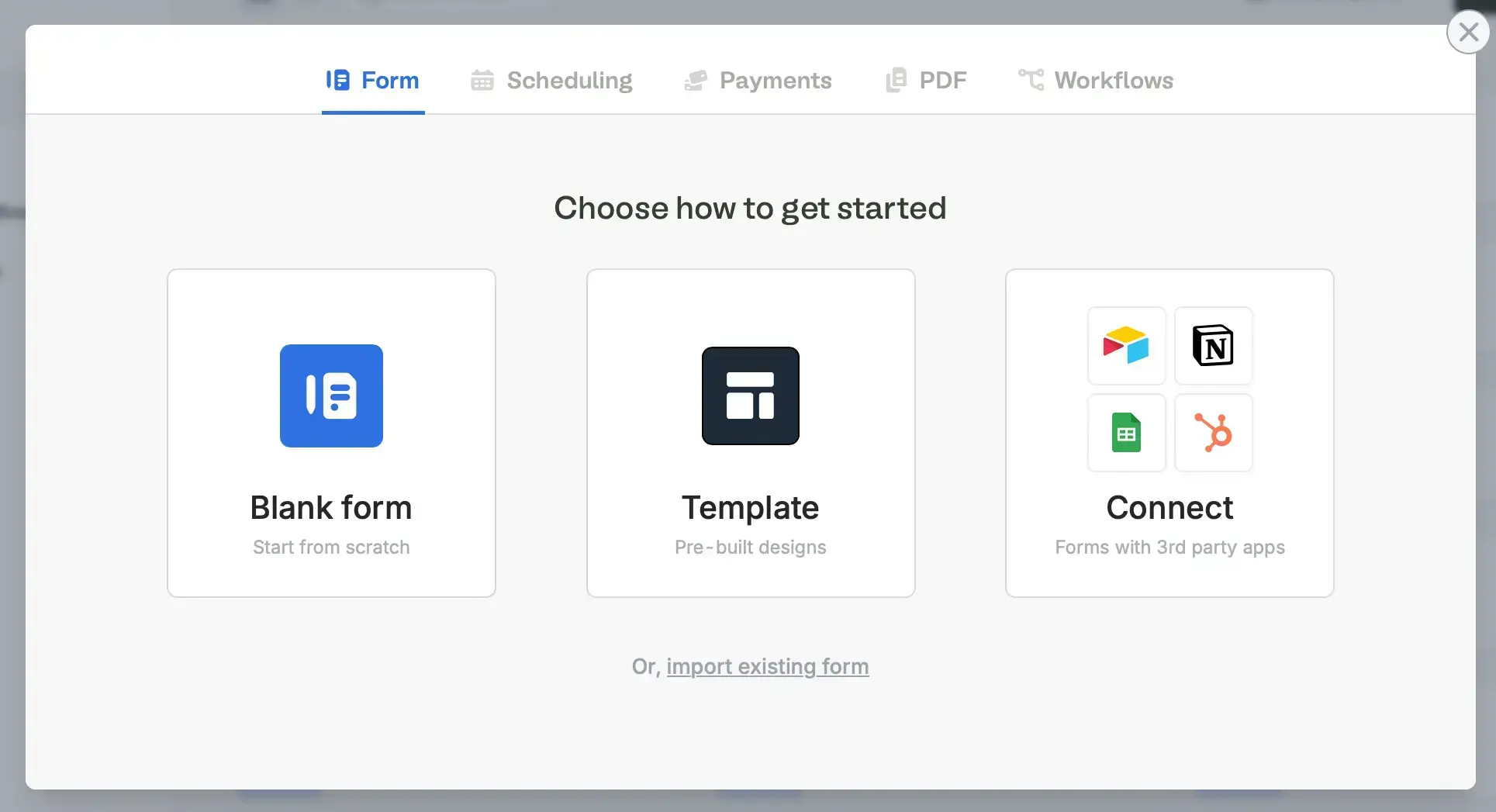
On your [**Fillout**](https://build.fillout.com/home) dashboard, [**create a form**](https://www.fillout.com/help/make-a-form). Choose to `Connect` to Google Sheets.
Choose your theme (don’t worry, you can always change this later). `Sign in with Google` to connect your account.
If you already have an existing form, simply click `Integrate` in the top menu and look for `Google Sheets`. Currently, you can sync data to newly created sheets. Existing sheets aren't supported yet.
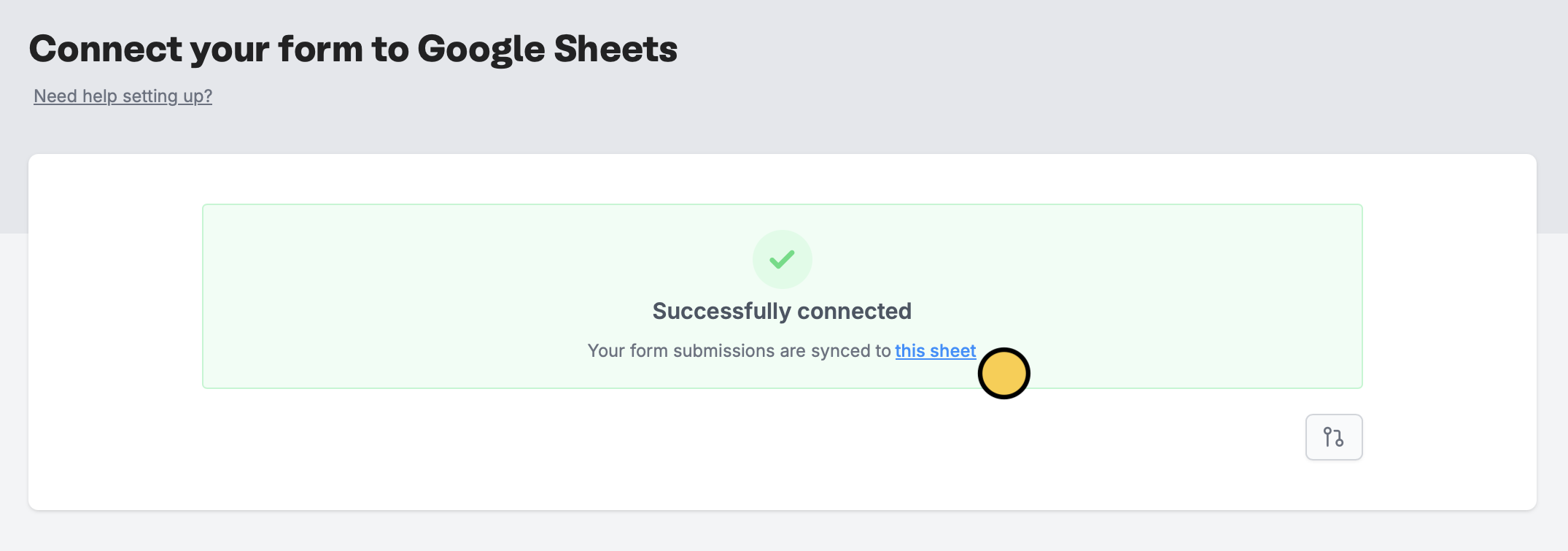
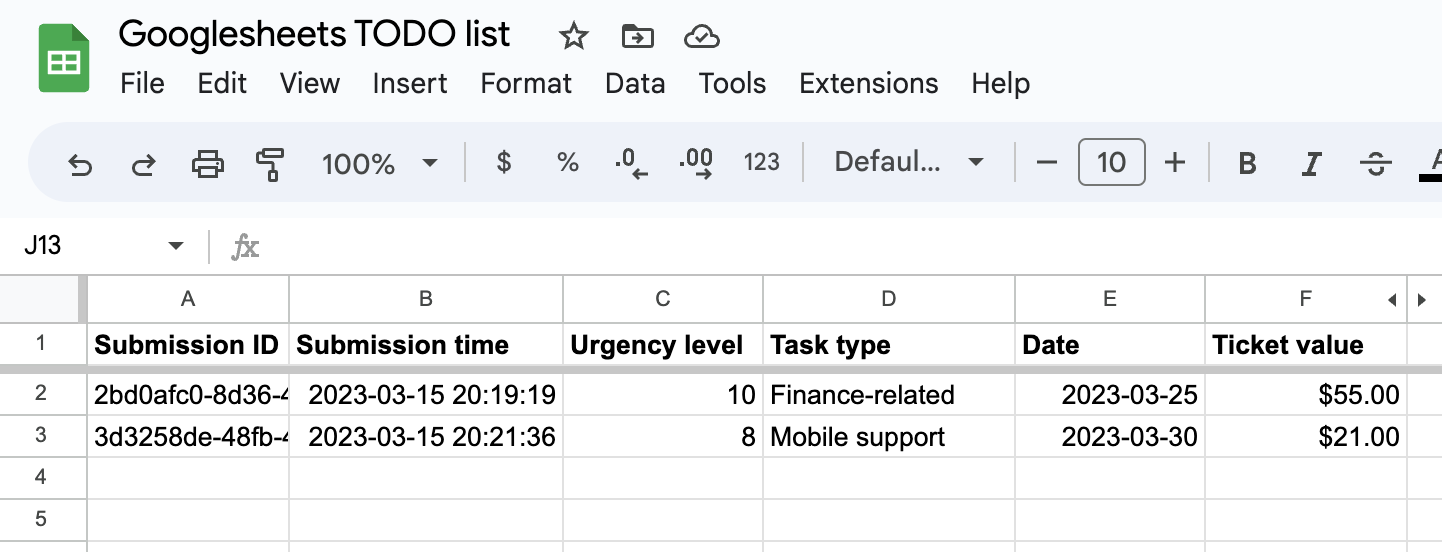
A new sheet will automatically be created that will receive form responses. Click `this sheet` to open the sheet linked to your form.
If you disconnect and later reconnect Google Sheets, new entries will go to a completely new sheet, not the original one. Currently, it doesn't support connecting to existing sheets.
**If you connected a blank Fillout form**
The connected sheet will only have submission Id and submission time columns.
**If you connected an existing Fillout form**
Every question or field added prior to the connection will automatically become a column in your sheet.
**To add new form fields as sheet columns**
Submit your form once with the new fields filled in.
Fillout has many powerful features like [**branching**](/help/page-logic) and [conditional hide/appear logic](/help/conditional-hiding). No matter how complex your needs are, there’s a way to build it in Fillout.
## Working with different field/question types in Fillout
**Dates and times**
* Note that all date timestamps that are sent to your Google Sheet (using the `Date time picker` field in Fillout) are written in UTC.
* To display times in a local timezone, you can add an extra formula column to do so.
**Address field**
* By default, each part of the address field is added to separate columns in your Google Sheet. This makes it easy to filter responses by city or state, or simply hide the columns you don’t need.
## Specify a condition
You can run your integration only when a specific condition is met. Check out this [guide](/help/conditional-integration).
## Other spreadsheet integrations
Add responses to Excel with a form.
Use a form to create or update Airtable bases.
Add responses to a SmartSuite solution.
 Choose your theme (don’t worry, you can always change this later). `Sign in with Google` to connect your account.
If you already have an existing form, simply click `Integrate` in the top menu and look for `Google Sheets`. Currently, you can sync data to newly created sheets. Existing sheets aren't supported yet.
Choose your theme (don’t worry, you can always change this later). `Sign in with Google` to connect your account.
If you already have an existing form, simply click `Integrate` in the top menu and look for `Google Sheets`. Currently, you can sync data to newly created sheets. Existing sheets aren't supported yet.