> ## Documentation Index
> Fetch the complete documentation index at: https://fillout.com/help/llms.txt
> Use this file to discover all available pages before exploring further.
# Form calculations and variables
> Calculate prices for order forms, compute the score of a quiz, and much more with your Fillout forms. Dynamic variables let you do math and logic in your form, fully responsive to respondent input.
export const Arcade = ({src}) => {
const fullSrc = src.startsWith('http') ? src : `https://demo.arcade.software/${src}?embed&embed_mobile=tab&embed_desktop=inline&show_copy_link=true`;
return
;
};
## Video tutorial
## How it works
Calculations in Fillout forms lets you compute values and respondent input, and display them. They are built using step-by-step rules rather than a single formula.
For example, let’s calculate the total cost of a chicken wings order based on quantity.
## Interactive demo
Each rule performs one operation, and the result is passed to the next rule in sequence.
For example, instead of writing "(A + B) x C" in one line, you would break it down into separate rules:
* Rule 1: Start with A (initial value = @FieldA) and Add @FieldB
* Rule 2: Take the total from Rule 1 and multiply by @FieldC
Each step is processed in order, which ensures the final result is calculated correctly.
When the result is shown in the form, it follows a fixed display format:
* Values are shown up to 2 decimal places
* Trailing zeros are not displayed (e.g. `10.2` not `10.20`)
* No currency symbols or thousands separators are added
* Rounding to whole numbers isn’t supported directly in the form
## Add a calculation
By opening the Logic modal, you can create calculations to compute values dynamically based on static values or previous respondent input. Let's add calculations to an order form.
Click the `Logic` modal in the bottom-right of your form editor.
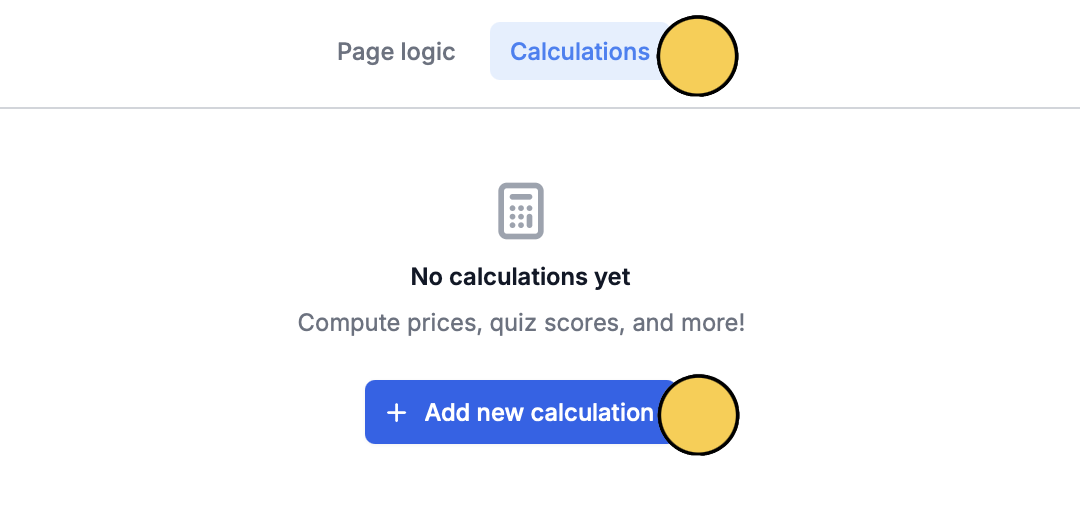
In the popup, click `Calculations` on top followed by `+ Add new calculation`.
Enter a **Name** or label and choose the **Type**, which can be:
* **Number** - for numerical results like price or score
* **Text** - for dynamic text based on responses
* **Duration** - for intervals between dates, like age or term
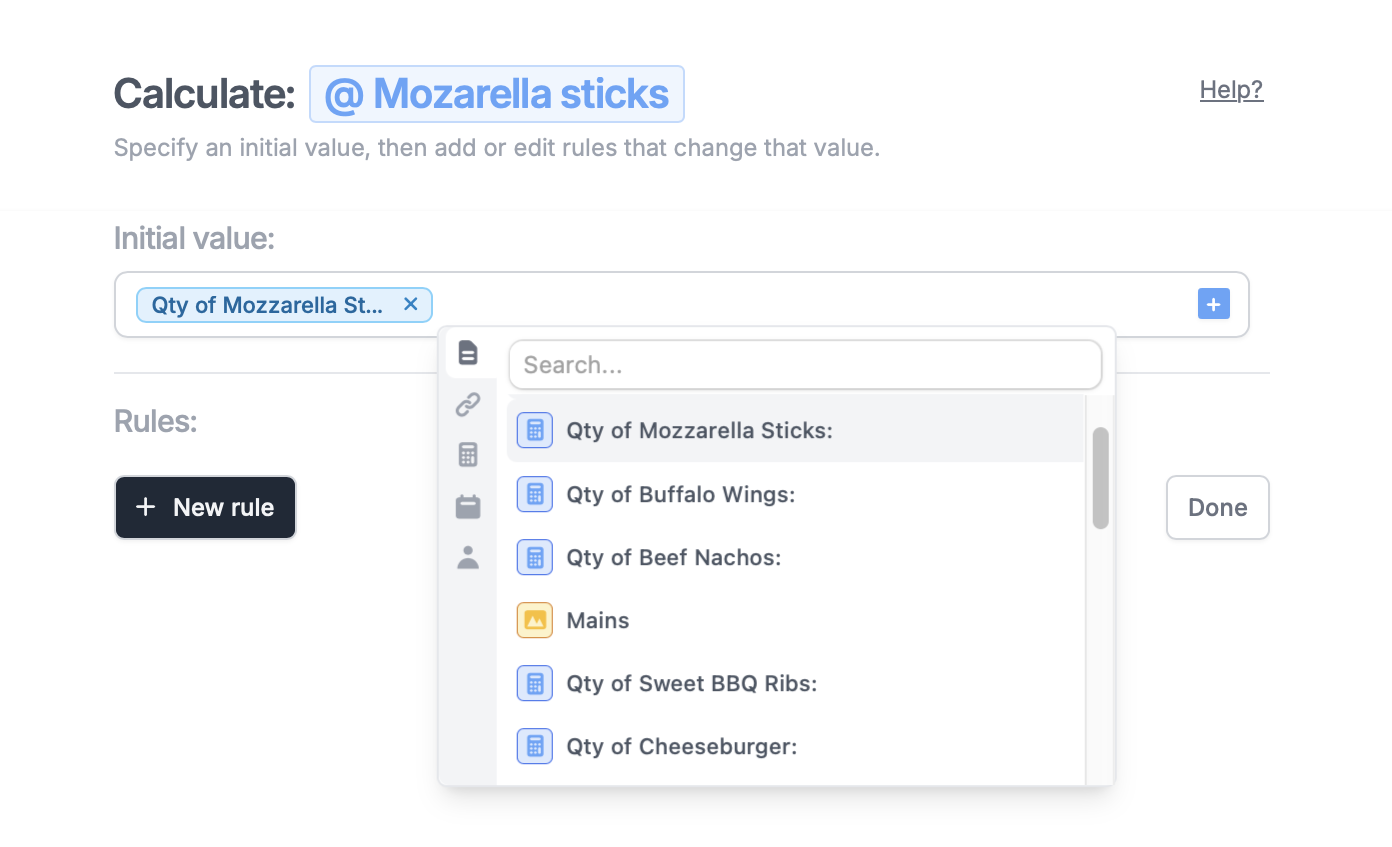
For example, let's compute the price for multiple orders of our mozzarella sticks dish. This would use the `number` type.
Type the value you'd like to start with. Some common examples:
* **0** - to add to a price variable as options are selected
* **100** - to deduct points from a quiz
* **Any arbitrary text** - for a **text** calculation, or leave empty
In our example, we'll start with the quantity. Let's reference this by clicking and selecting the field.
Click `+ New rule` to determine how the initial value will change. A rule is made up of 3 main parts:
* **Condition** - a parameter, than when true, performs the calculation (e.g. add x amount when a respondents selects "yes" to a previous question)
* **Operation** - what to do to the calculation (e.g. add, subtract, multiply, divide)
* **Operation value** - the value used with the operation (e.g. add x amount to your initial value)
First, click `Set conditional logic` followed by `+ Add condition`. Select the question or field on the left, qualifier in the middle, and choice on the right.
In our example, we'll choose the "Appetizer" field. The calculation will start when "Mozzarella sticks" is selected. Since we want customers to be able to add other appetizers if they prefer, we'll choose "has any" as the qualifier.
Our **operation** will be "multiplying" the quantity (initial value) by the price of the dish (**operation value**), which is "\$6".
Rules are applied in the order they appear. For example, the first rule adds 5, the second multiplies by 2. To change the order, just drag and drop.
Exit Logic and click `Preview` on the upper right corner to check that it works as intended.
Once everything's set, `Publish` and share or embed your form.
### Rule hierarchy for results
To resolve conflicts between rules, results follow a clear priority order. Higher-priority rules always take precedence over lower-priority ones.
* **A always wins (Highest priority):** All A rules take precedence over every other rule.
* **B always wins after A:** Applies after A. B rules are overridden when they conflict with A.
* **C always wins after B:** Applies after A and B. C rules are overridden when they conflict with A or B.
* **D only wins when the others don't (Lowest priority):** Only applies when none of the higher-priority rules (A, B, or C) apply.
## Dynamic calculation
**Make the price dynamic**
After adding a [payment page](https://www.fillout.com/help/payment-page), type **@** or click and click to reference a calculation. Now, the price will change depending on the customer's order.
**Display dynamic calculation results in your form**
On a heading or paragraph field, you can type **@** and click to [reference previous answers or calculations](/answer-piping).
You can [style this text](/themes) by highlighting it and changing the font size, weight, or color.
**Pre-fill fields with calculations**
To pipe calculations as input, open the field's settings . Under **Default value**, click followed by to reference a calculation.
## Compute duration
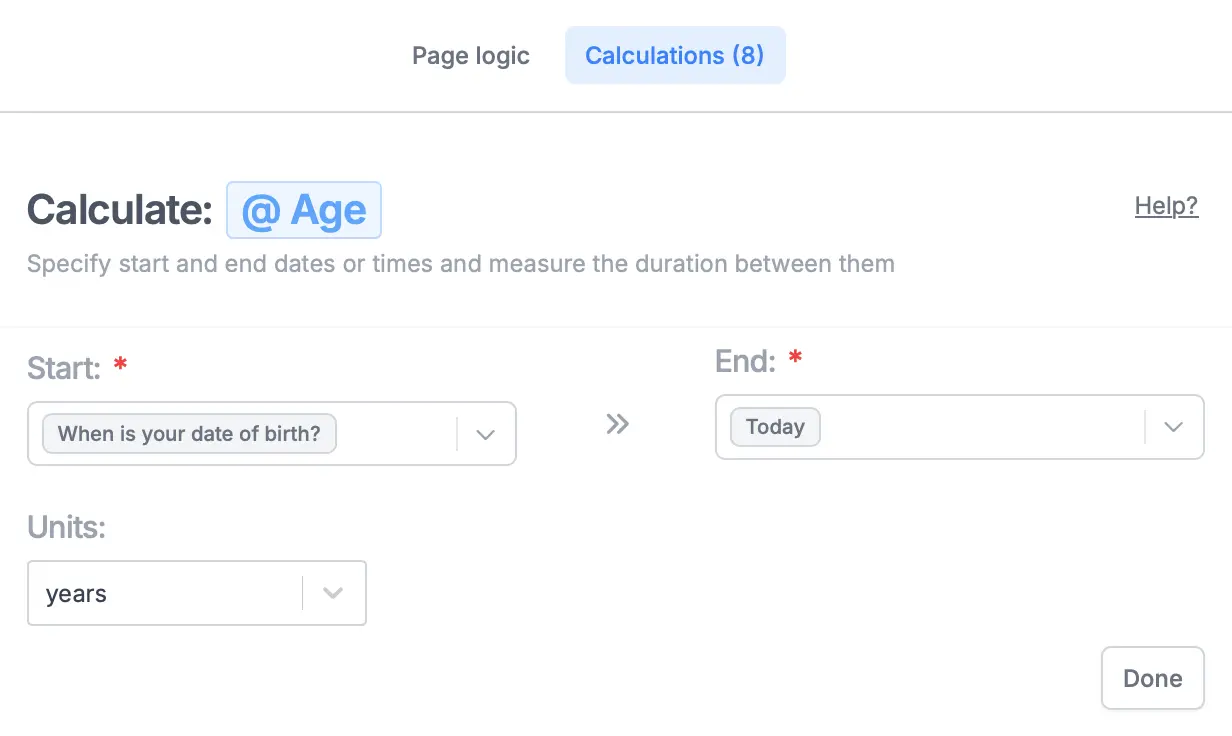
Determine age, trip duration, warranty validity, and more with a `duration` calculation. Simply enter a date range.
## Pre-fill fields with a calculation
Much like how fields are [pre-filled](/prefill-fields) elsewhere in Fillout, you can reference calculations there as well.
## Compute quiz scores
Fillout automatically computes score and lets you [display it on any page](https://www.fillout.com/help/make-a-free-quiz#advanced-quiz-features) you prefer. Additionally, you can [use weighted scoring](https://www.fillout.com/help/make-a-free-quiz#advanced-quiz-features), which also lets you [assign results based on total score](https://www.fillout.com/help/outcome-quiz#assign-results-based-on-total-score).
## Related articles
Insert previous answers into upcoming questions or fields.
Pre-populate fields based on previous inputs and more.
Perform an integration only when a certain condition is met.
 In the popup, click `Calculations` on top followed by `+ Add new calculation`.
 Enter a **Name** or label and choose the **Type**, which can be:
* **Number** - for numerical results like price or score
* **Text** - for dynamic text based on responses
* **Duration** - for intervals between dates, like age or term
For example, let's compute the price for multiple orders of our mozzarella sticks dish. This would use the `number` type.
Enter a **Name** or label and choose the **Type**, which can be:
* **Number** - for numerical results like price or score
* **Text** - for dynamic text based on responses
* **Duration** - for intervals between dates, like age or term
For example, let's compute the price for multiple orders of our mozzarella sticks dish. This would use the `number` type.
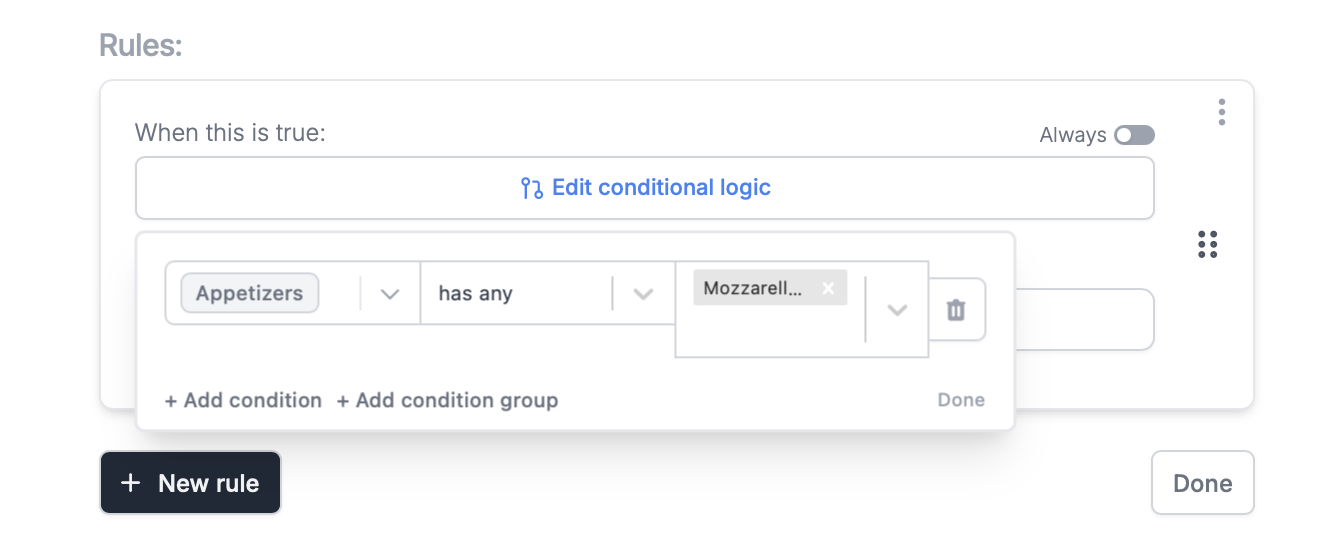 In our example, we'll choose the "Appetizer" field. The calculation will start when "Mozzarella sticks" is selected. Since we want customers to be able to add other appetizers if they prefer, we'll choose "has any" as the qualifier.
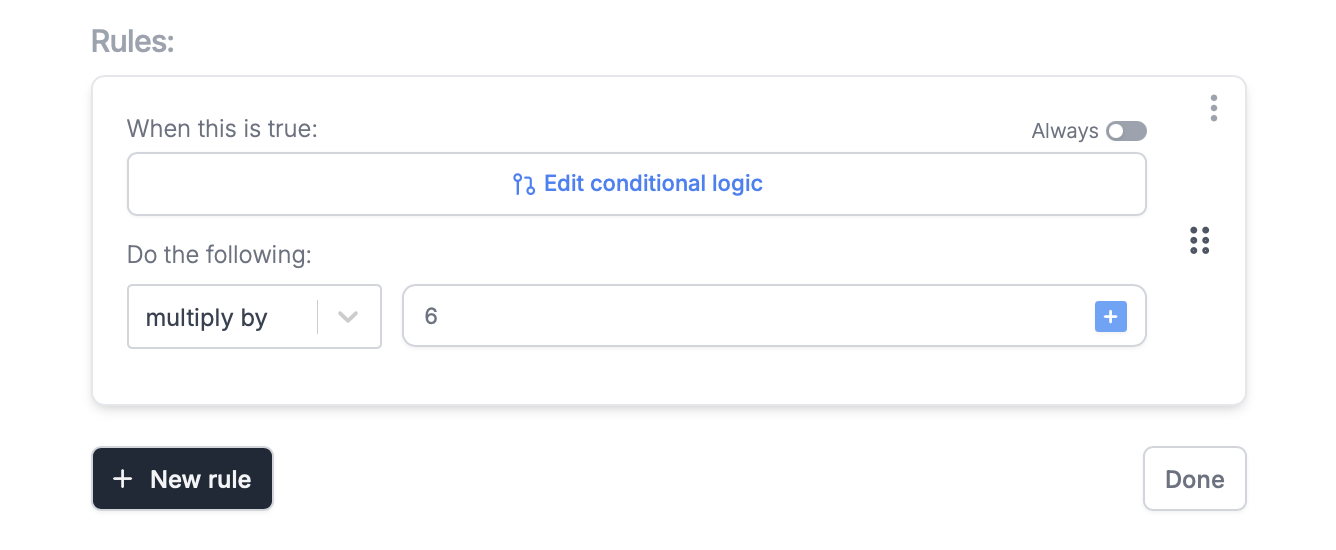 Our **operation** will be "multiplying" the quantity (initial value) by the price of the dish (**operation value**), which is "\$6".
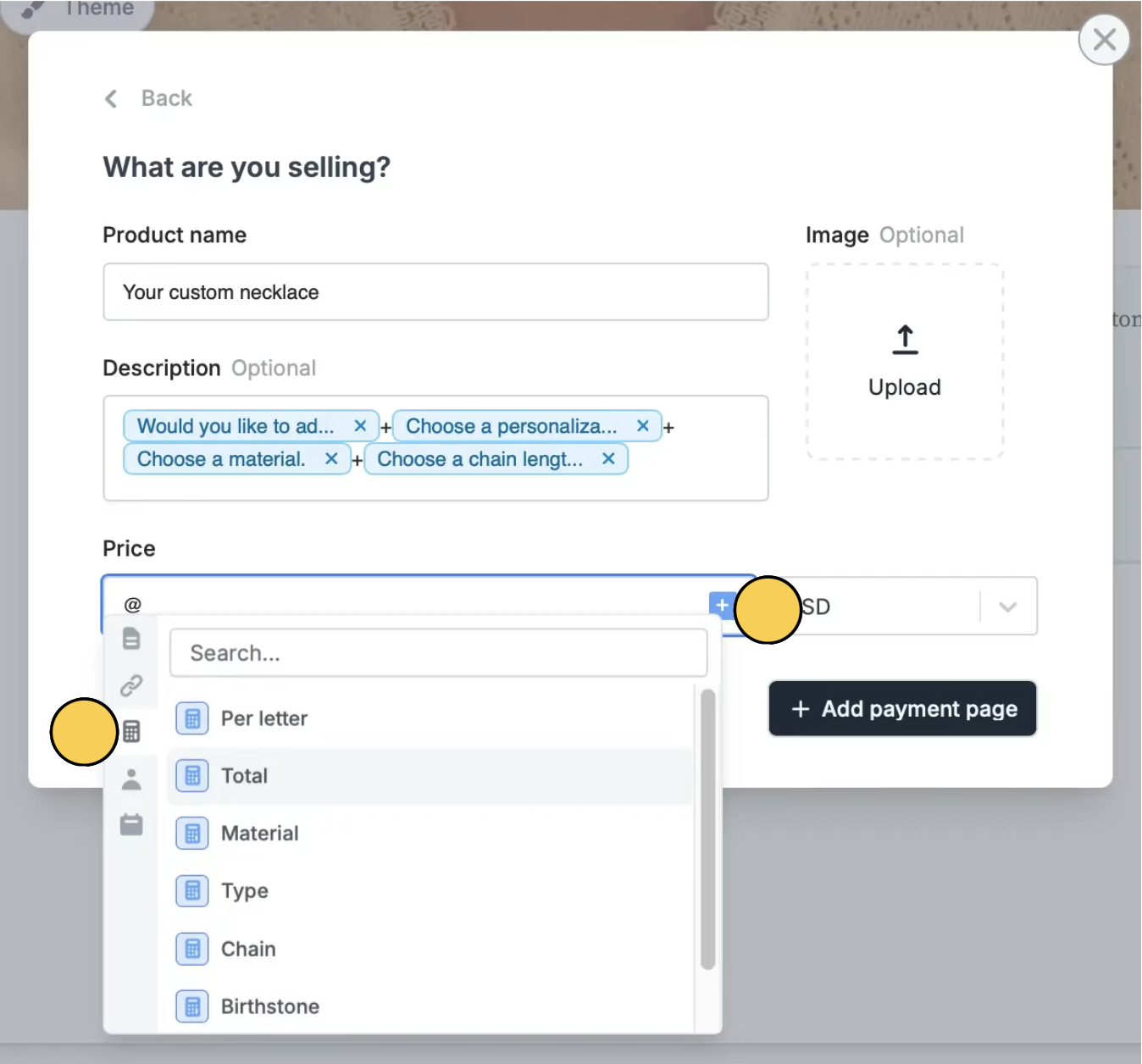 **Display dynamic calculation results in your form**
On a heading or paragraph field, you can type **@** and click
**Display dynamic calculation results in your form**
On a heading or paragraph field, you can type **@** and click 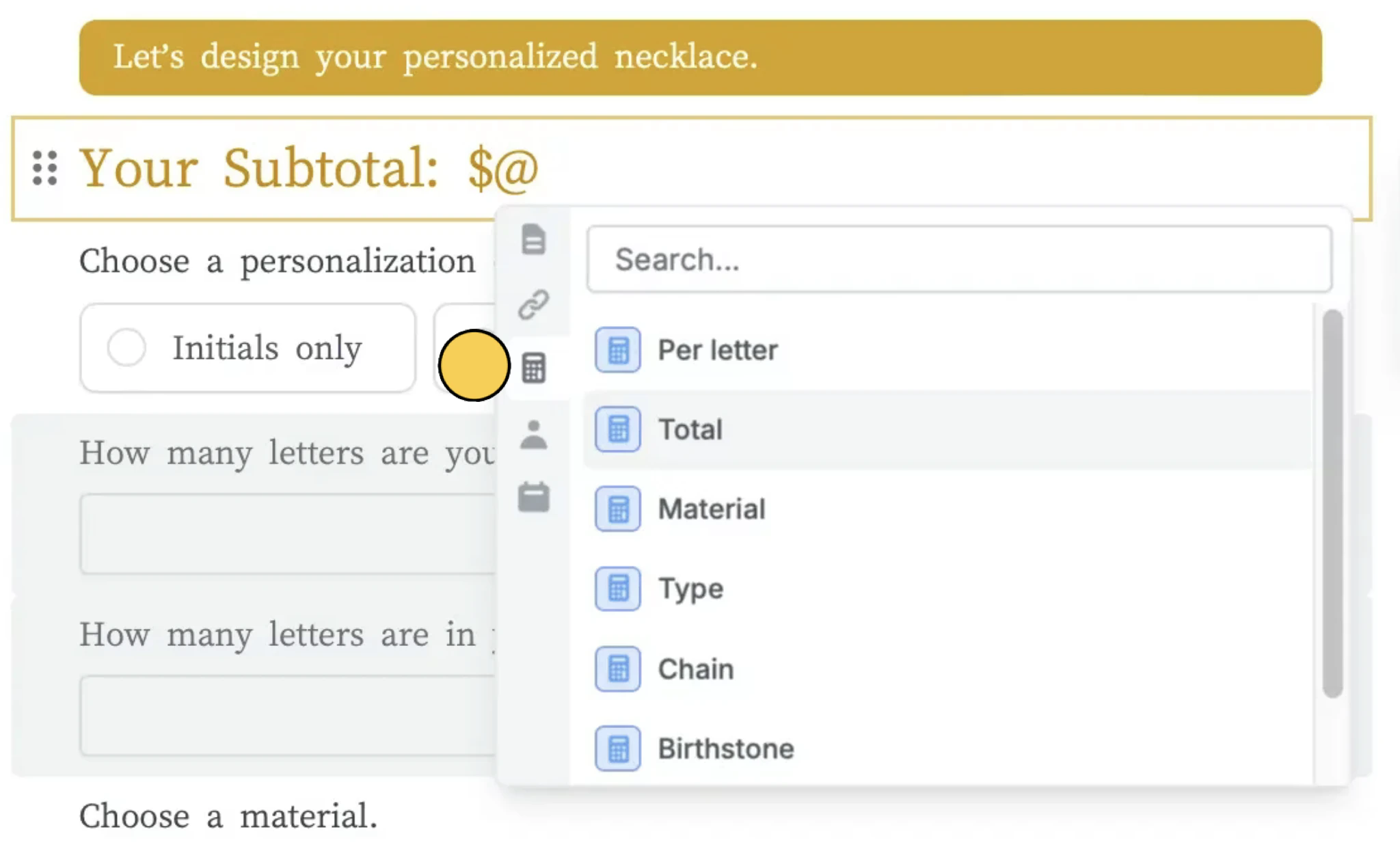 You can [style this text](/themes) by highlighting it and changing the font size, weight, or color.
**Pre-fill fields with calculations**
To pipe calculations as input, open the field's settings
You can [style this text](/themes) by highlighting it and changing the font size, weight, or color.
**Pre-fill fields with calculations**
To pipe calculations as input, open the field's settings 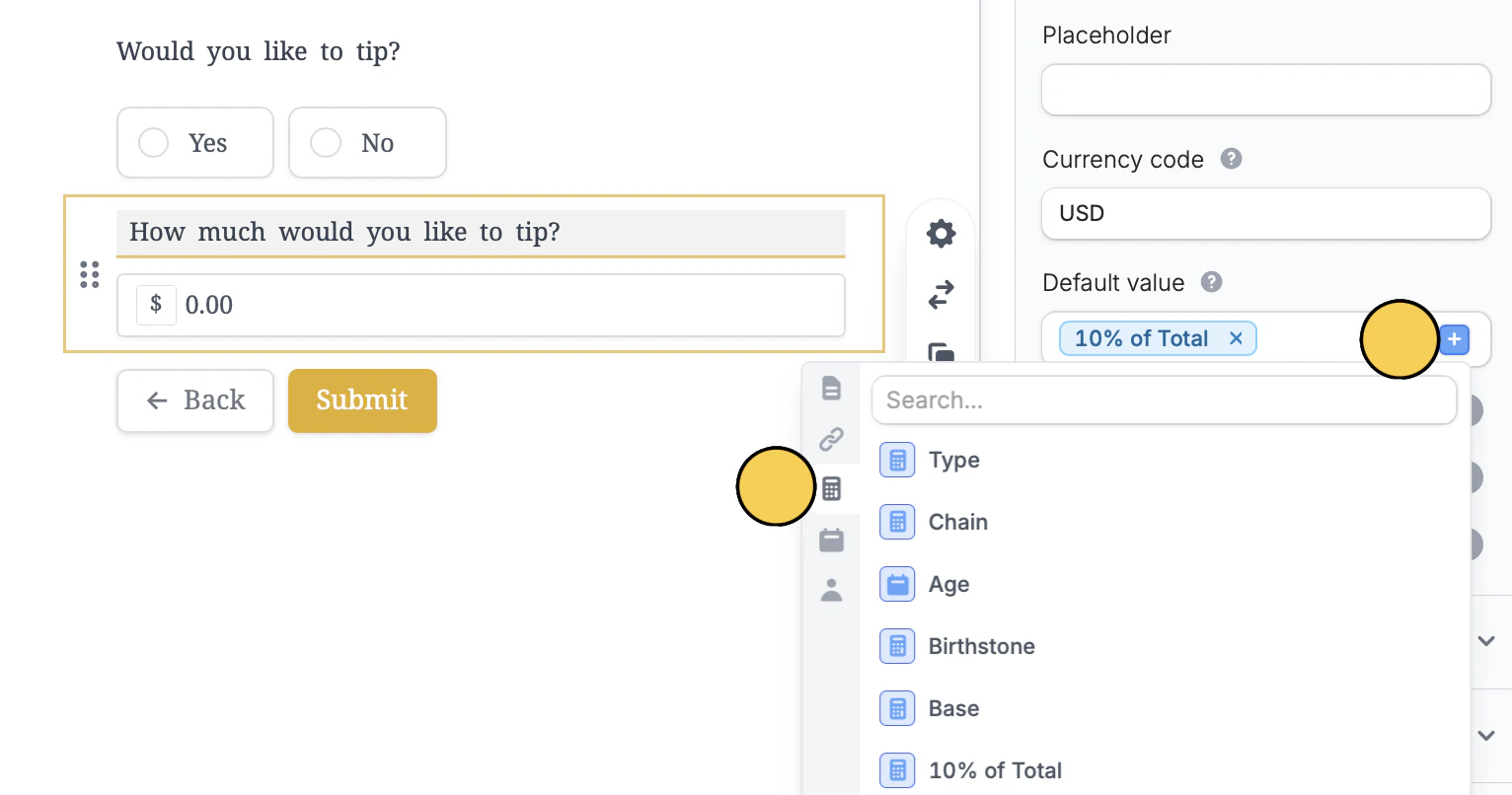 ## Compute duration
Determine age, trip duration, warranty validity, and more with a `duration` calculation. Simply enter a date range.
## Compute duration
Determine age, trip duration, warranty validity, and more with a `duration` calculation. Simply enter a date range.
 ## Pre-fill fields with a calculation
Much like how fields are [pre-filled](/prefill-fields) elsewhere in Fillout, you can reference calculations there as well.
## Compute quiz scores
Fillout automatically computes score and lets you [display it on any page](https://www.fillout.com/help/make-a-free-quiz#advanced-quiz-features) you prefer. Additionally, you can [use weighted scoring](https://www.fillout.com/help/make-a-free-quiz#advanced-quiz-features), which also lets you [assign results based on total score](https://www.fillout.com/help/outcome-quiz#assign-results-based-on-total-score).
## Related articles
## Pre-fill fields with a calculation
Much like how fields are [pre-filled](/prefill-fields) elsewhere in Fillout, you can reference calculations there as well.
## Compute quiz scores
Fillout automatically computes score and lets you [display it on any page](https://www.fillout.com/help/make-a-free-quiz#advanced-quiz-features) you prefer. Additionally, you can [use weighted scoring](https://www.fillout.com/help/make-a-free-quiz#advanced-quiz-features), which also lets you [assign results based on total score](https://www.fillout.com/help/outcome-quiz#assign-results-based-on-total-score).
## Related articles