> ## Documentation Index
> Fetch the complete documentation index at: https://fillout.com/help/llms.txt
> Use this file to discover all available pages before exploring further.
# Fillout AI actions
> Use AI to summarize, classify or extract insights from your form submissions.
export const SupportBanner = () => {
const titleId = React.useId();
return ;
};
## How to use AI
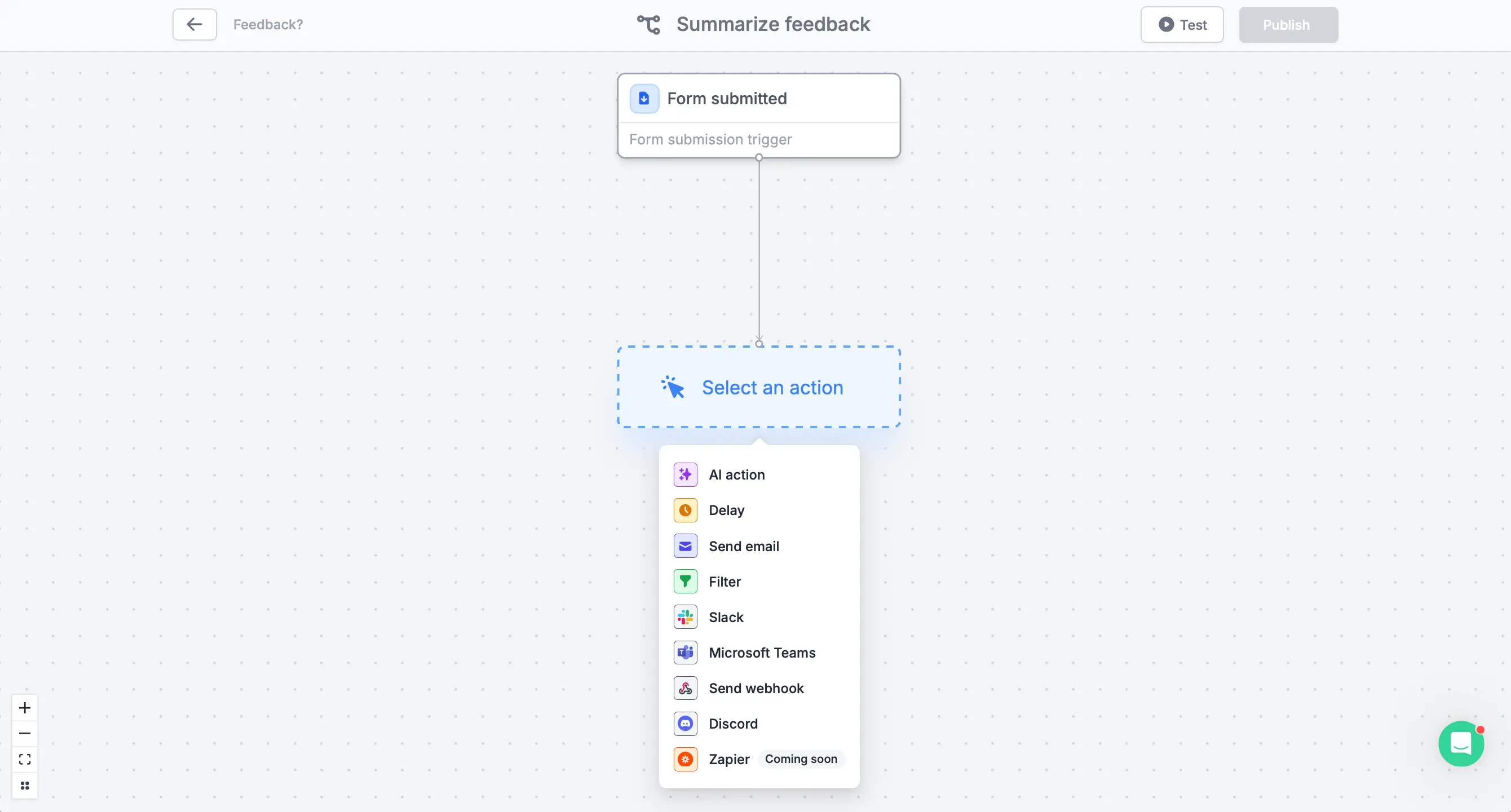
In the `Integrate` page of your form, [create a blank workflow](https://www.fillout.com/help/workflows#how-to-create-a-workflow). Choose `AI action`.
 ## Types of AI actions
Choose between the four types below.
### **Summarize text**
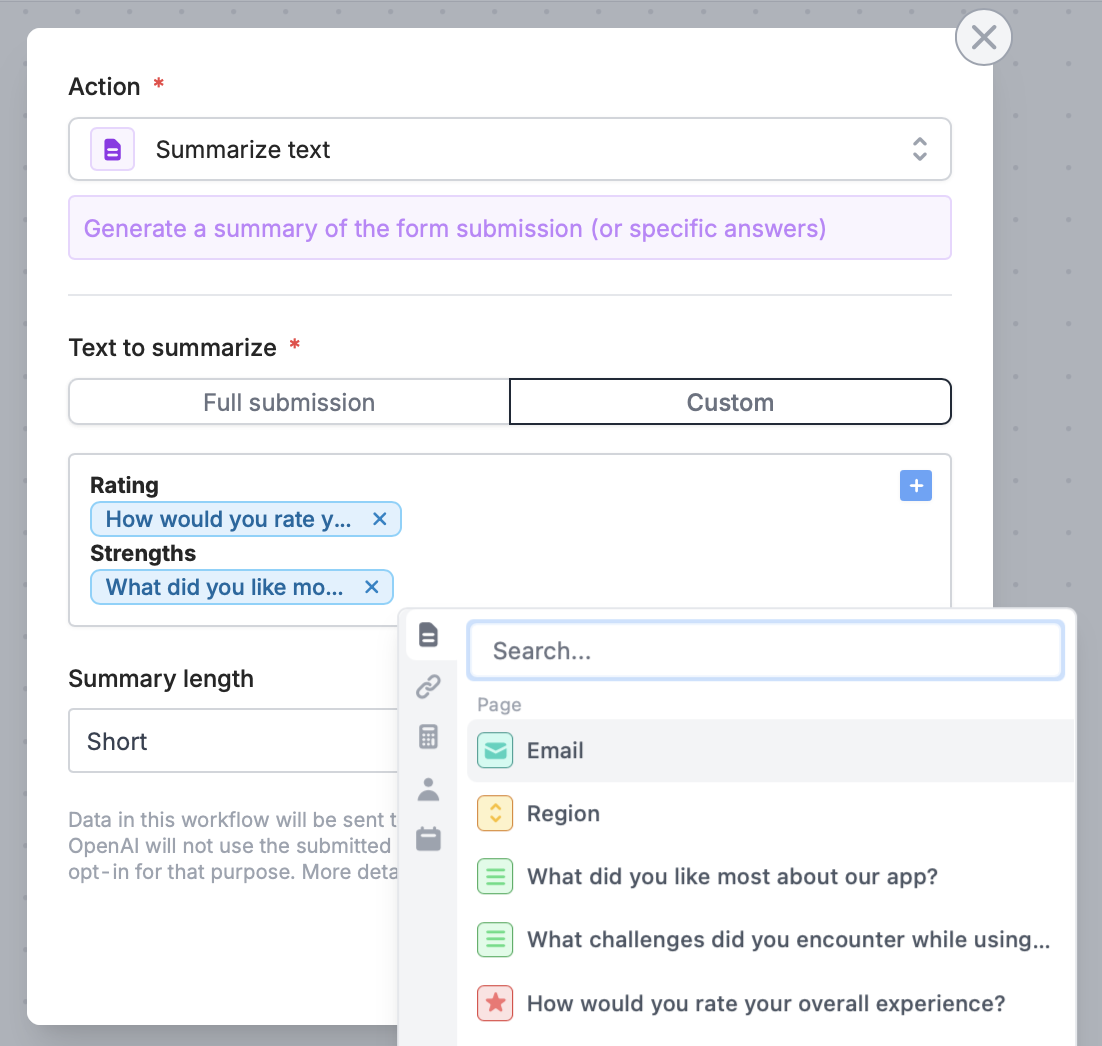
Get a summary of the form submission or a specific set of answers. You can opt for `Custom` and referencing only summaries to fields you'd like to see. Click or type **@**.
## Types of AI actions
Choose between the four types below.
### **Summarize text**
Get a summary of the form submission or a specific set of answers. You can opt for `Custom` and referencing only summaries to fields you'd like to see. Click or type **@**.
 ### **Classify text**
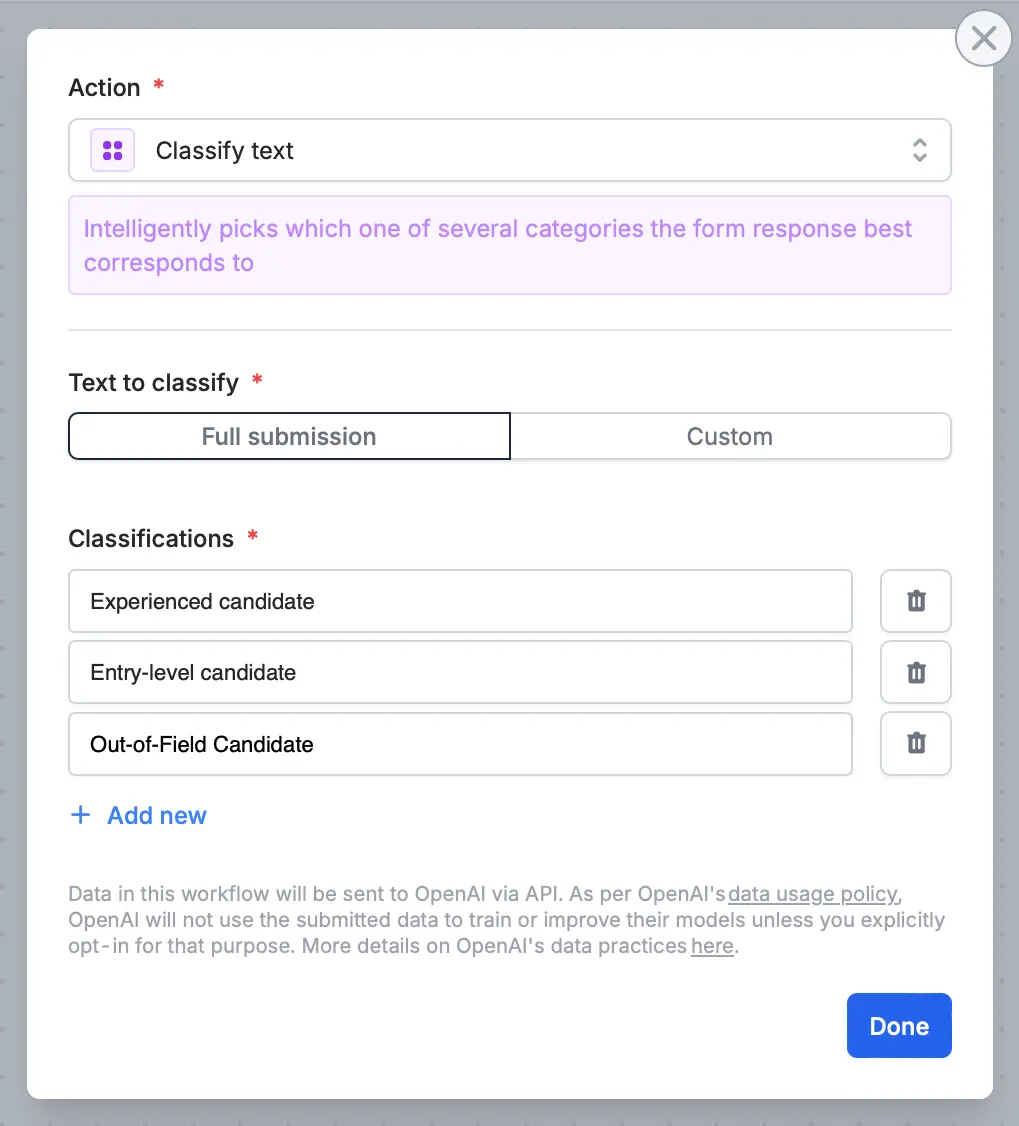
Automatically select the category that best matches the form response from several options you provide under **Classifications**.
### **Classify text**
Automatically select the category that best matches the form response from several options you provide under **Classifications**.
 ### **Generate text**
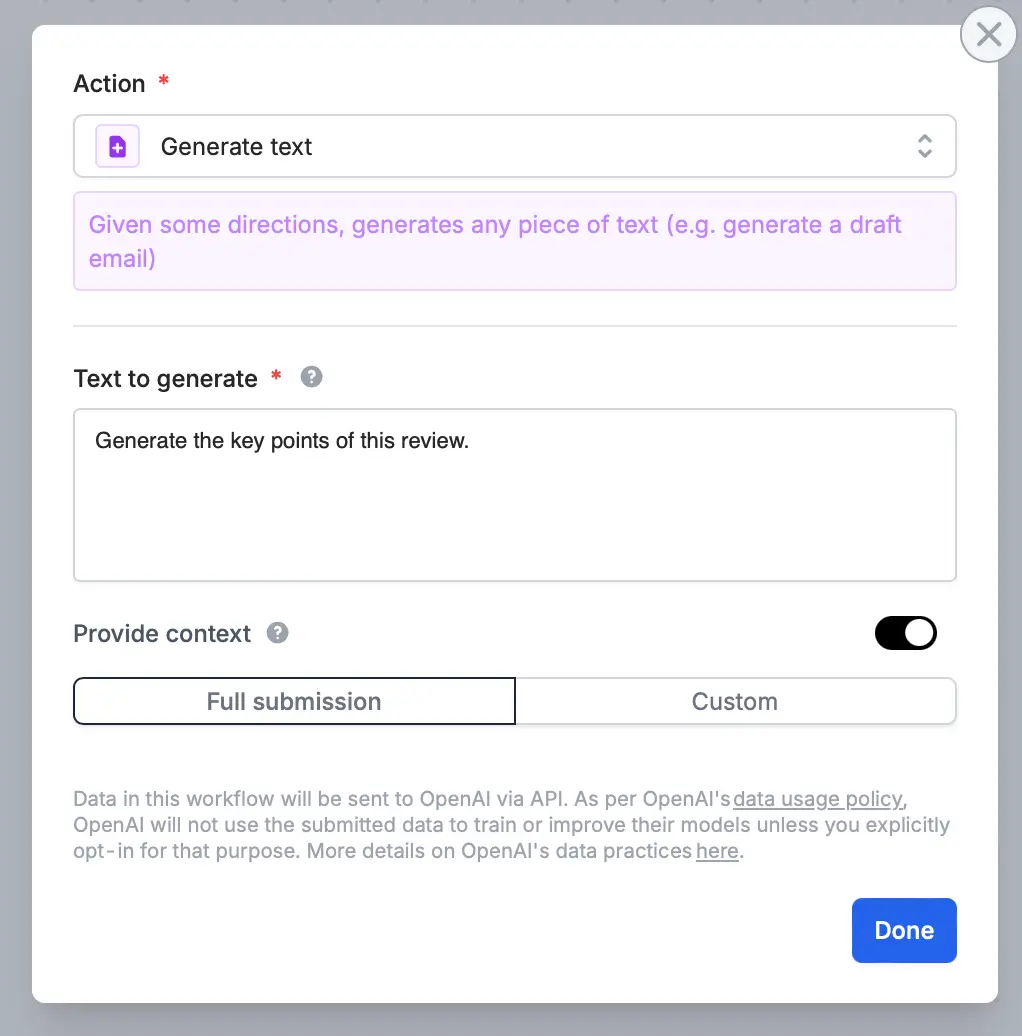
Create a custom text based on provided instructions, such as drafting an email or writing a message.
### **Generate text**
Create a custom text based on provided instructions, such as drafting an email or writing a message.
 ### **Extract information**
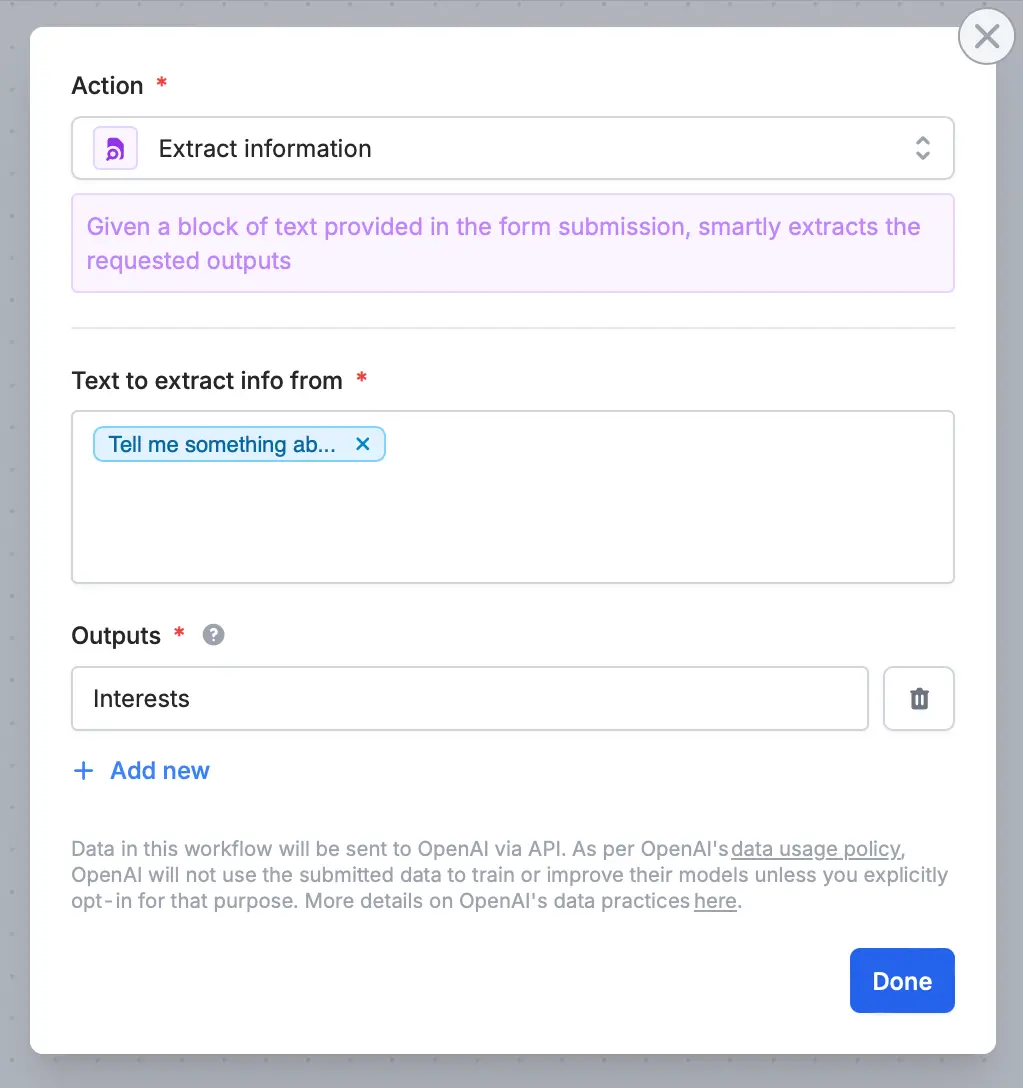
Get only the information you prefer to know by referencing a specific **Text to extract info from**. Click or type **@** to choose a field or question. Input the information you’re looking for in the **Outputs** field.
### **Extract information**
Get only the information you prefer to know by referencing a specific **Text to extract info from**. Click or type **@** to choose a field or question. Input the information you’re looking for in the **Outputs** field.
 Once you’re all set, `Test` your form, then `Publish` it.
## Pre-made AI templates
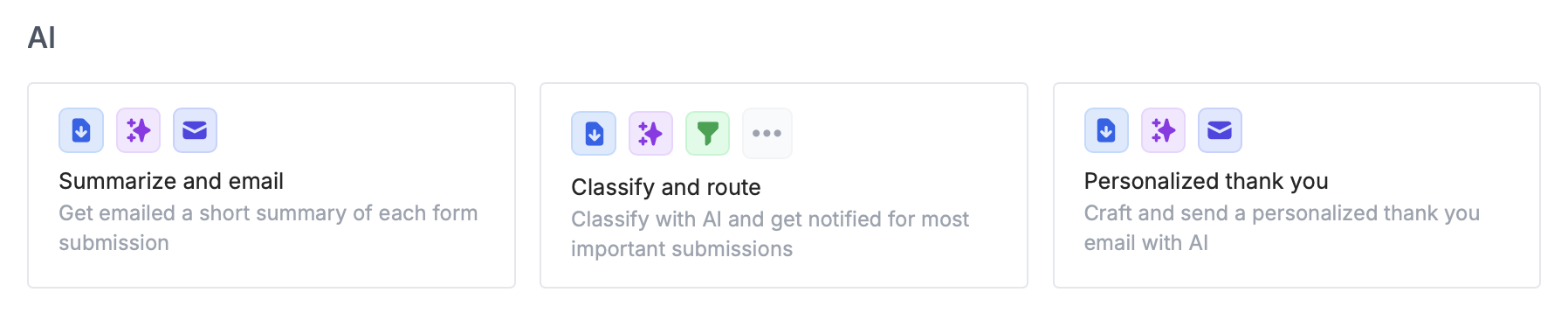
You can choose an [AI template](https://build.fillout.com/home/workflows) in a single click. These are common use cases for Fillout Workflows.
Once you’re all set, `Test` your form, then `Publish` it.
## Pre-made AI templates
You can choose an [AI template](https://build.fillout.com/home/workflows) in a single click. These are common use cases for Fillout Workflows.
 ## Related articles
Create a form in seconds with the first AI Form Builder.
Create surveys with the AI Survey Maker in seconds.
Create quizzes with the AI Quiz Maker and use ChatGPT.
## Related articles
Create a form in seconds with the first AI Form Builder.
Create surveys with the AI Survey Maker in seconds.
Create quizzes with the AI Quiz Maker and use ChatGPT.